Read time: 4 Min
Microsoft Outlook has an Outlook for Mac email client for Mac users for managing emails, contacts, calendars, etc. Outlook for Mac stores emails and other data in OLM format, and these OLM files can only be accessed with Outlook for Mac. When a user wants global access to their emails that can be accessed from any device and from any location, the best solution is to migrate emails to Gmail. But there is no direct option to import OLM file into Gmail account. In this article, we are going to elaborate on some manual tricks to migrate emails from Outlook for Mac to Gmail account. Follow the steps carefully and access your Outlook for Mac emails in Gmail.
Manual Method to Import OLM File into Gmail
The step-by-step guide to import OLM file into Gmail account is shared in this section. Follow the steps outlined to easily import your Outlook for Mac emails into your Gmail account.
Step 1: Enable IMAP in Gmail
- Log in to your Gmail account.
- Now, click on Settings.
- Click See all Settings.
- Click Forwarding and POP/IMAP tab.
- Select Enable IMAP.
- Click on the Save Changes button.
Step 2: Configure the same Gmail Account in Outlook for Mac
- Now Open Outlook for Mac.
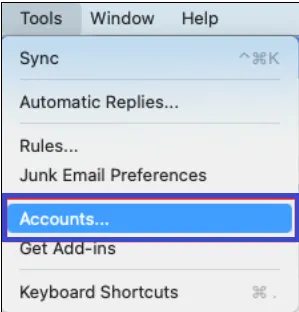
- Click on Tools > Accounts.
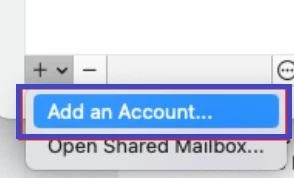
- Click on the + sign to add a new account.
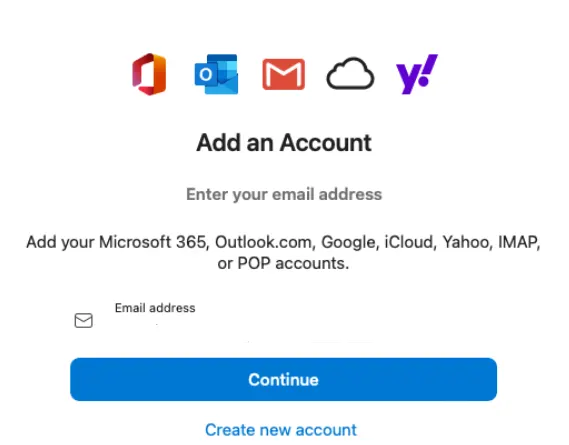
- Enter your Gmail credentials to complete the setup.
- Once the Gmail account is configured, you will see all your Gmail emails are visible in Outlook.
Step 3: Move Outlook for Mac emails to Gmail
In the final stage, drag and drop emails or folders under the newly configured Gmail account. If you want to move emails from an account that is not already configured, then you can choose to import an OLM file from the File > Import option.
Limitations of the Manual Method to Import OLM File into Gmail
Though the manual method to import OLM file into Gmail account is completely free to use, there are a few limitations to it. Here is the list of common reasons why the manual OLM to Gmail transfer is not feasible.
- The manual method to import OLM file into Gmail account can be done only when you have Outlook for Mac installed.
- Users have to perform various steps to manually migrate Outlook for Mac emails to a Gmail account, which is time-consuming and sometimes results in data loss.
- For large organizations, the manual method is not at all feasible as there are a huge number of mailboxes to migrate.
- There is no option to filter out emails in the manual method.
- The original formatting and folder hierarchy is not maintained in the manual import of OLM file into Gmail account.
Automated Solution to Import OLM Files into Gmail Account
As discussed, the manual method to import OLM file into Gmail account has some limitations. In order to address these limitations, we have come up with an advanced professional OLM Converter solution. BLR OLM Converter is one such software that can import OLM files into Gmail account instantly without harming the original formatting and properties of email items. Using this software, each mailbox item, like emails, contacts, calendars, notes, etc., can be migrated to Gmail account without any hassle.

This OLM Converter allows users to convert multiple OLM files simultaneously, which saves a lot of time. Other great features include an easy migration from OLM to iCloud, Gmail, Office 365, and other file formats. Moreover, this software is capable of converting OLM to PST, HTML, PDF, EML, MBOX, and many other formats. You can also convert OLM to PST file manually which takes time.
Conclusion
In the above article, we have discussed both manual methods and automated tools to import OLM file to Gmail accounts. While the manual method is free, it requires a lot of effort for importing emails, as various steps need to be followed. The manual methods have a few limitations, and there is always a risk of data loss. Thus, there is a need for a professional solution that can perform the task for users, maintaining data safety and integrity.