



Read time: 3 Min
MBOX files are created by many email clients, such as Thunderbird, Apple Mail, Entourage, or Postbox. Keeping old data easily accessible and secure, most of the time, users preferred to import MBOX emails to Proton Mail.
However, in Proton Mail, there is no direct feature to migrate MBOX to Proton Mail, but there are a few workable solutions. In this guide, you will learn the easiest and most effective ways to import MBOX files to Proton Mail account. Read the blog for the complete MBOX to Proton Mail migration.
Why Import MBOX to Proton Mail?
There are various benefits of importing MBOX file into Proton Mail, some of them include;
- Proton Mail keeps your emails safe and secure.
- It will be easy to read old emails in a secure place.
- You can open MBOX file data without any hassle.
- Access emails anytime and on any device.
- It is easier to search and manage emails after importing them.
- Helps keep your old communication organized.
How to Import MBOX File to Proton Mail Manually?
To manually migrate MBOX emails to Proton Mail, you need to use an email client that supports this file format. Here we will use Thunderbird and complete the migration, follow the instructions-
- Install Mozilla Thunderbird on your computer and open it.
- If you are a paid Proton Mail user, download and run Proton Mail Bridge and log in to your account.
- Use the Bridge details to add your Proton Mail account in Thunderbird. Wait until your mailbox syncs.
- In Thunderbird, go to Tools → ImportExportTools NG (install the add-on if needed).
- Click Import MBOX File and select the MBOX file from your system.
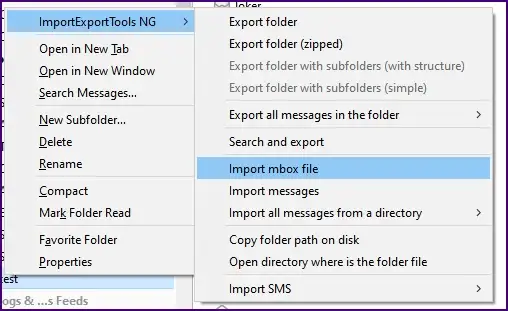
- After the emails appear, drag and drop or copy them into your Proton Mail folders.
- Wait for the synchronization to finish and check your MBOX emails.
Limitation of Manual Solution
With this native approach, there are various drawbacks that hinder smooth email migration.
- Users can get stuck in a loop because they need to repeat the process for large files.
- Big file migration takes time, and there is a chance of formatting loss.
- Installation of Thunderbird or Proton Mail completes the migration process.
- Technical knowledge is needed to know about the migration and email clients to make the conversion process successful.
How to Import MBOX to Proton Mail Directly?
If you want to transfer MBOX emails into Proton Mail, then you can use the BLR MBOX Converter tool. Using this mbox converter tool you can directly move multiple MBOX files into Proton Mail without any data loss. With its preview mode, you can view MBOX file data and select the emails.

Another feature of this application is that users can convert MBOX to PDF, HTML, PST, MHTML, MSG, TXT, and other formats. Users can use this application on any Windows OS edition. Get the free trial edition of this utility to check all features.
Conclusion
In this blog, we talk about a simple, free, or direct method to import MBOX to Proton Mail account. If users have a few emails, then they can easily use the free method. For bulk conversion, users need to use an automated tool. BLR MBOX Converter software helps users import any size of MBOX files into a Proton Mail account without worrying about the formatting. This blog gives you brief steps to export MBOX files. I hope this blog helps you transfer MBOX files to Proton Mail.




