Read time: 3 Min
For all users who want to view MBOX file on their system, this guide will teach you how to open emails from MBOX file. Additionally, we will discuss the issues you may face when opening an MBOX file and the methods to open it on your system.
Before explaining how to open an MBOX file, let’s first understand the issues you might face while accessing an MBOX file.
Challenges Faced When Open MBOX File Directly?
Unfortunately, Windows does not have a built-in application to open MBOX file directly. Since MBOX files are supported by email clients, they can’t be open without those applications.
- Emails Fail to Open: This error message may appear to users, indicating that the file is either missing or has been moved from its original location.
- Oversized File: If your MBOX file is too large, sending/receiving emails becomes slower. After that, loading new messages takes more time.
- Unable to open MBOX File: Most of the time, the file just won’t open for no apparent reason.
- Platform Limitation: Since MBOX is supported only by desktop-based clients. MBOX email data is tied to the system’s local storage. It is also possible that it cannot be accessed elsewhere.
- Invalid File Error: If you attempt to open the wrong directory, or the external drive containing the MBOX file is corrupted. In this situation, users can encounter an error stating “No valid mbox files were found“.
Methods to Open MBOX File on Windows
Here in this section, we will discuss a few workable solutions to access MBOX emails in Windows manually.
Method 1. View MBOX File Using Thunderbird
Thunderbird is an open-source application that supports MBOX file. Here are the steps to view MBOX file data;
- Open Thunderbird on PC, if you don’t have Thunderbird, then download it from the official website.
- Open and set up an email account with it.
- Click on the Import button to import MBOX to Thunderbird account.
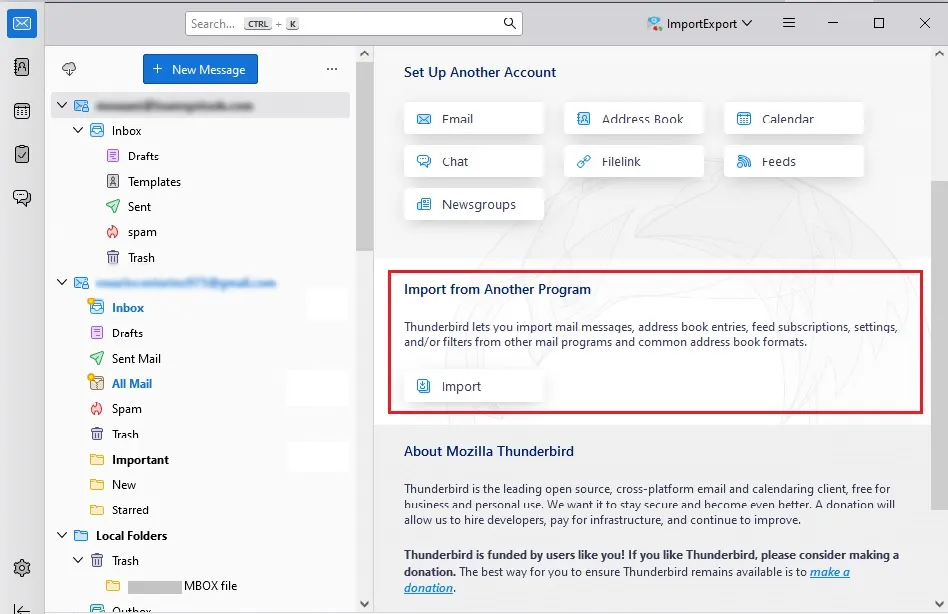
- Browse the data file that you want to access.
- When the import process is done, you can view or read MBOX emails within Thunderbird.
Method 2. Open MBOX File Notepad or Text Editor
If users only want to read email content without formatting, then they can use the Windows Notepad or any text editor to read MBOX files:-
- Right-click on the MBOX file and pick Open With.
- Select between Notepad and WordPad.
- The file will open in plain text mode, showing visible emails and data in sequential order.
- While this method does not preserve formatting, it does allow you to retrieve email text fast.
Method 3. Access MBOX File Using Apple Mail
Apple Mail/Mail app is the default email client for macOS. This email client supports MBOX files natively.
- Open Apple Mail on a Mac PC.
- Click File > Import Mailboxes.

- Select Files in MBOX Format and press Continue.
- Browse and select the MBOX file, and finally click Open.
- Here are some methods to open MBOX file in Windows. Try out the solution and find out what’s best for you.
Alternative Solutions to View MBOX File Using Professional Tool
If you have multiple MBOX files that you need to open, then using the BLR MBOX Converter will be helpful. MBOX converter software allows you to access emails from multiple MBOX files at a time without any hassle. You can view your emails in proper formatting and with all data, including attachments.

Additionally, using this tool, you can convert MBOX to PST, PDF, CSV, EML, and many other file formats. Most importantly, the tool also helps in importing MBOX emails to various webmail accounts as well. Download the demo version of the software to know how it works.
Conclusion
At this point, you should have a good understanding of what MBOX files are and how to open them on different platforms. Here, we mention the different methods to access MBOX file data. Additionally, we also suggest an easy way to convert or migrate MBOX file data into different formats or servers.