

Read time: 4 Min
Many Mac users want to get hold of their old Outlook emails and therefore wish to import PST to iCloud Mail accounts along with email, contact, and other valuable information. But they do not know the proper approach to perform this task. If you are facing a similar problem, then don’t worry, we are going to share easy methods to import PST to iCloud Mail.
In this blog, we’ll let you know how to import PST files to iCloud with or without Outlook installation. When using a normal approach, you will have to rely on the Import/ Export tool available in Microsoft Outlook for importing the PST emails to an iCloud account. However, there is the PST file converter, which implies automatic conversion of PST data to iCloud Mail.
Why Import PST to iCloud?
While getting prepared to perform the migration process, it is important to understand why users import PST to iCloud. Now, let me highlight the reasons for the migration more or less at the primary level.
- If users are looking for a solution to access PST emails on a MAC system, users have to migrate their Outlook PST into iCloud Mail.
- When the PST file is imported to iCloud, you can effectively organise the Outlook emails on mac OS and iOS.
- It assists you in locating all the devices that are syncing with iCloud.
- iCloud Mail is platform independent, as it is just as simple to use on any device as on a computer.
- It is also possible to turn on two-factor authentication to protect your iCloud Mail.
- A PST file stored on the local computer is prone to virus attacks and file corruption.
Easily Import PST Email to iCloud Mail
It is not possible to directly import PST emails to iCloud, but there are some methods by which PST emails can be imported to iCloud. Smooth migration of emails can be done with the help of the Import/Export feature of Outlook. This process is used when you have to transfer Outlook from Windows to Mac, and for this, you need to have Outlook installed on your Mac. To continue with this process, follow the instructions given below.
Stage 1: Configuring iCloud Email with MS Outlook
- Download & Install Outlook Application.
- The next step is to click on the File button.
- Next to the file button, click the Add Account button.
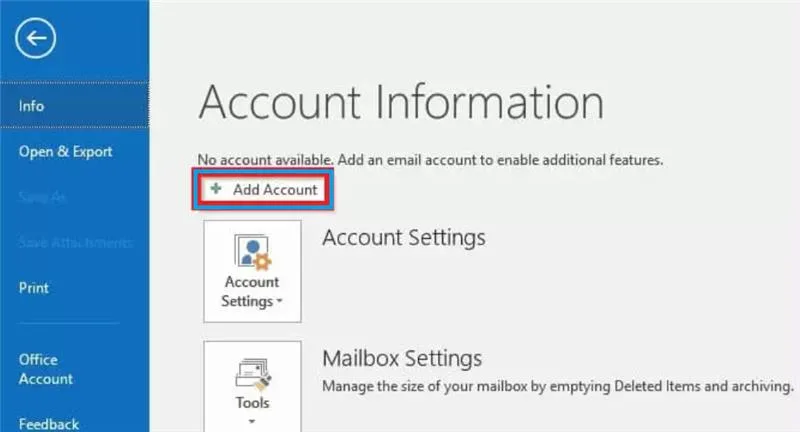
- Select the additional server type option from the Add account option.
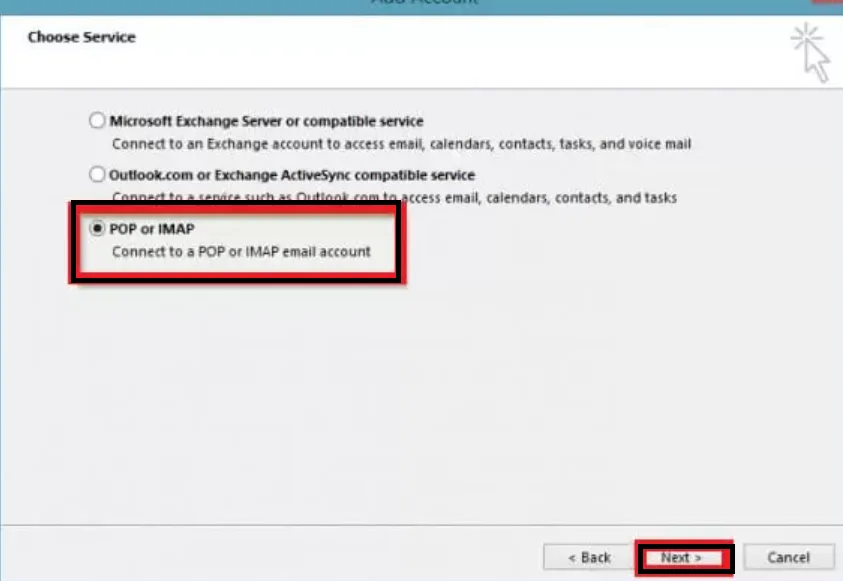
- Subsequently, type POP or IMAP in the dialogue box that appears.
- Now, you type the necessary details of your iCloud email account that you want to sync with Outlook.
- Then just click on the More Settings option.
- Then go to Change to the Advanced option and set IMAP and SMTP ports.
- Verify the employed login from the secure password Authentication.v
- Finally, it will configure your iCloud email account in MS Outlook.
Stage 2: Load the entire PST email data on the Mac iCloud Account
The next step of using the iCloud email account created after creating the iCloud email account is to import the PST file to the iCloud email account. Below are the steps to successfully import the PST file.
- Open Outlook.
- Go to the File option.
- Subsequently, click on the option Open & Export.
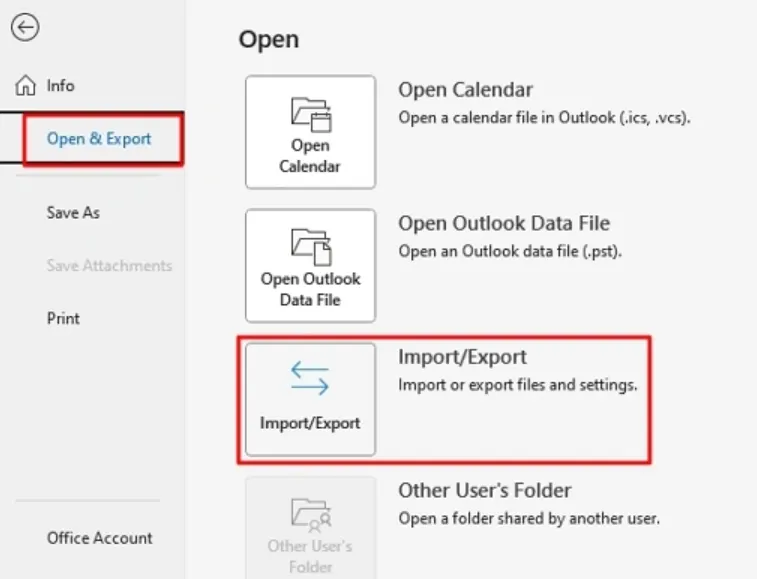
- The above option will display, then choose the Import/Export option.
- Choose Import from another program and click on the Next button.
- Then, choose the Outlook Data File (.pst) option and click on the next option.
- Now, type in the Browse button and choose the specific file that you want to import.
- Then, select other options according to requirements and click Next.
- Next to that, set the target path for the resulting output where you wish to save your iCloud folder.
- Thus, after all the changes have been made, click on the Finish button to complete the conversion process.
It is the overall procedure of moving a PST file of a user to his/her iCloud email address through the interface of MS Outlook. Finally, in the end step, we successfully imported PST to iCloud Mail.
Limitation of Manual Method
Manually importing PST files to iCloud Mail can have several restrictions, as stated below:
- It could be a very cumbersome and time-consuming task to import PST files to iCloud Mail.
- iCloud Mail does not support PST file import directly.
- Some of the manual systems may not effectively deal with the email attachments, thereby making the firm prone to loss of the attachments or improper handling of them.
- If you do it incorrectly or lose or corrupt data in the process, you may lose that data for a long time.
- Different invitational emails may have different email clients and software, which may not fully support each other, making it complicated to import the mail.
Professional Recommended Method for PST data to iCloud Mail Migration
BLR PST converter software is the best and risk-free solution to migrate single as well as multiple Outlook PST files to iCloud Mail. By using the program, users can import Outlook PST emails, contacts, and calendars into an iCloud account. You can also easily import PST to Gmail or other email clients with it as well. In addition, the Outlook PST converter tool can export PST to other file formats as well.

Advantages of BLR PST Mail Converter Software
- PST files can be converted to MSG, PDF, DOC, HTML, CSV, MBOX formats, or any other file format for users’ convenience.
- Permits users to import large Outlook PST files to iCloud Mail.
- It will assist you to delete duplicating emails from the PST folders.
- Convert Outlook PST to Thunderbird, Office 365, Gmail, AOL, IMAP, and other email clients.
- Support different versions of Outlook.
- The software supports all Windows editions.
Conclusion
In the above article, we have provided the most effective ways to import PST to iCloud. We have discussed the manual and professional ways to transfer PST emails to iCloud. While there are manual ways of performing the task, the approach exposes the data to loss or similar mishaps. If you do not wish to deal with those problems, then you can prefer the expert-recommended solution. It is very capable of migrating PST files to iCloud Mail without error in the base hierarchy. This explanation manages to cover all aspects of the essential details. Now go for a specific process as the need arises.
Frequently Asked Questions
Q1. What are the chances of selectively migrating emails from PST to iCloud Mail?
Yes, professional solutions allows user to migrate only selected items from PST file, for example, I can migrate only certain folders or certain emails, instead of copying the entire email box or folder.
Q2. Is there any way to import PST files into iCloud Mail without using any software?
iCloud Mail does not directly allow users to import their PST files. It is important to use the professional PST conversion tool to convert and import the PST files to the format supported by iCloud Mail.
Q3. Must Outlook be installed to transfer PST files to iCloud Mail?
There are some tools that need Outlook to open PST files, but most of the other powerful tools read PST files directly without the need for Outlook. Look for information about this tool in the tool specification section.
Q4. Is my email attachment also transferred during the transfer process, or is it lost?
Yes, a good Outlook PST data converter retains all email properties, including attachments, formatting of the email, and metadata of the emails.
Q5. How can I migrate emails from PST to iCloud Mail in the simplest way possible?
The simplest solution is to use a professional PST to iCloud transfer tool. These tools help import PST files into a format that you can upload or synchronize with your iCloud Mail account.