Read time: 2 Min
Sometimes there is a need to move OST file to iCloud mailbox for backup, or to access it on Apple devices. But this can’t be done directly as iCloud doesn’t allow OST file to be uploaded directly. In this article, we will discuss how to import OST to iCloud with attachments, including emails, contacts, calendars, and other mailbox data.
Why Import OST to iCloud Mail?
Depending on the requirements, there are several reasons why a user wants to import emails and other data from OST to iCloud Mail. Some of the most common reasons include:
- Migration: When a user switches from Windows to macOS and wants to move all Outlook data to Apple devices
- Safety: If you are an iCloud user and Outlook crashes, importing the OST file helps you access your mailbox data.
- Security: iCloud provides a secure cloud environment, while the OST file is more vulnerable to corruption and data loss.
- Accessibility: Since iCloud works seamlessly with Apple devices, users prefer having all their data accessible on their current Apple device.
How to Import OST to iCloud Mail Manually?
To perform OST to iCloud, one can follow the steps mentioned below:
- Open Microsoft Outlook
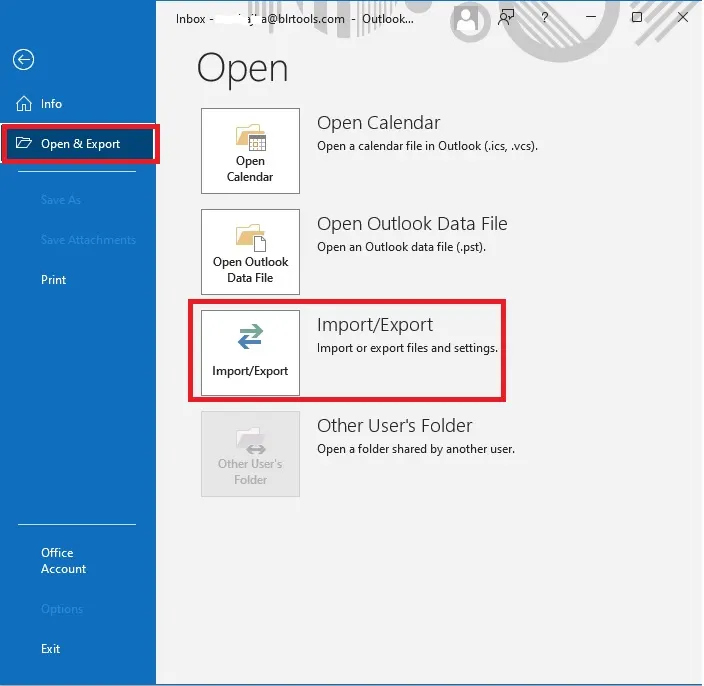
- Move to File > Open & Export > Import/Export
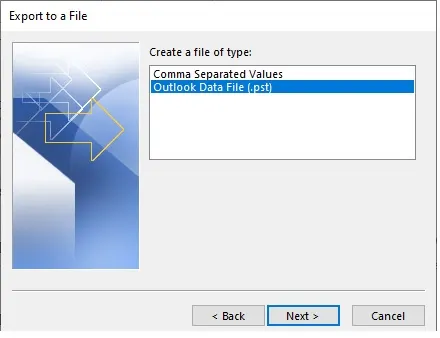
- Now click Export to File > Outlook Data File (.pst)
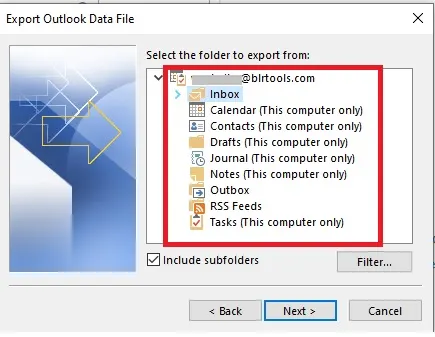
- Choose the folders you want to export
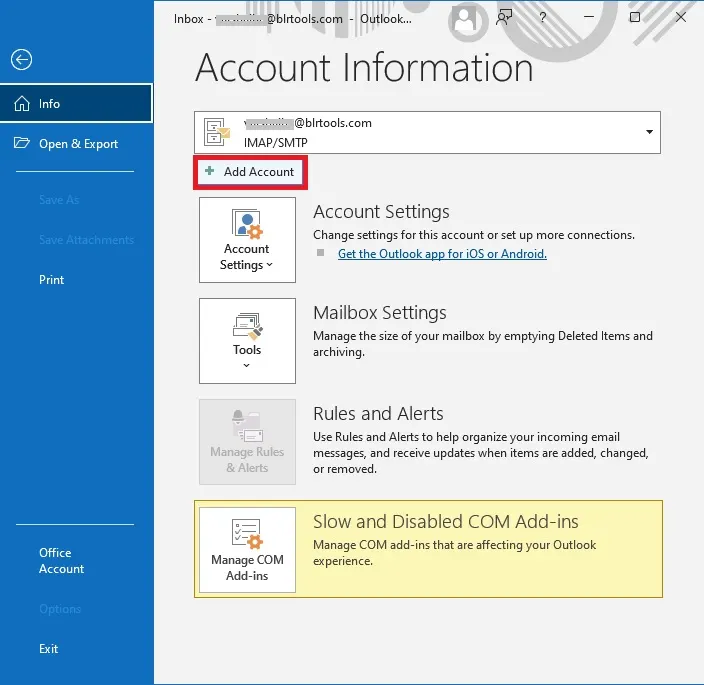
- In the next step, Go to File >> Add account .
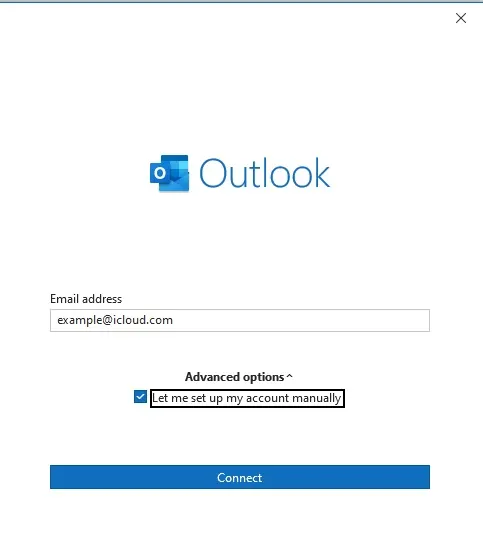
- Then enter your Apple ID and click to connect.
- Outlook will automatically sync your iCloud mail account.
- Now, drag emails and folders from PST into the iCloud mailbox.
Limitations of Manual Method
The manual method to import OST to iCloud manually has few limitations also:
- If the OST file is inaccessible, then this manual solution will not work.
- Importing emails manually would require a lot of time.
- Requires a properly configured iCloud Mail account with Outlook.
- Corrupted OST file can’t be imported manually.
- Attachments may not be imported correctly or may be missed.
- A risk of data loss is always there in manual method.
How to Import OST to iCloud with Automated Tool?
BLR OST to PST Converter offers an efficient and secure solution to import emails from an OST file to an iCloud mailbox, along with complete data. The tool is designed to simplify the task of importing OST file to iCloud Mail by providing an easy-to-use GUI. Users only need to select the OST file, choose iCloud Mail as the export destination, and enter their login credentials. The tool will start exporting OST data to the iCloud mailbox.

Moreover, you can use it without worrying about your data loss or affecting its integrity. To be on the safe side, you can use the demo version of the software. The trial one will import 15 emails from each of the OST folders.
Conclusion
This how-to tutorial guides you to import OST emails to iCloud with attachments safely in an effective and user-friendly way. You can use the above solution and complete the importing process without any hassle. Try out the demo version before moving to the licensed one. With this tutorial, you have a clear understanding of the complete process of uploading OST to iCloud.