Read time: 3 Min
According to a recent survey, most users prefer a secure online platform over desktop clients, such as Outlook. For this reason, most of them are switching to a user-friendly email service like Gmail, along with their email accounts. However, the task becomes difficult when your complete data is stored in an OST file. Since there is no manual way to import OST to Gmail account, it is quite difficult to complete the task. Don’t worry, by the end of this article, you will be able to import OST emails to Gmail account without any hassle.
Why Import OST to Gmail Account?
There can be various reasons for users to migrate OST to Gmail mailbox, some of them include:
- An OST file is tied to the Outlook environment and can only be accessed on a particular system. In contrast, Gmail allows you to access your data from any device connected to the internet.
- If you receive an OST file, you cannot access it without Outlook. In such cases, most users prefer to import OST file to their Gmail mailbox.
- If your Outlook not opening, and you are left with only the OST file. Then, uploading your data to Gmail is the best option for better accessibility.
- Gmail provides secure cloud storage that keeps your data safe. This way, your old emails remain protected and easily accessible anytime.
How to Migrate OST File to Gmail Account?
Here, we will discuss the manual as well as the expert solution for migrating OST emails to Gmail in a few simple clicks. Before we begin, ensure that Outlook is installed on your computer. Also, the OST file should come from the same Outlook profile. It will not work on an orphaned or damaged OST file. Let’s begin.
Method 1. Manually Import OST to Gmail
You need to follow some lengthy steps to move your OST file data into your Google account. Let’s check out what they are.
The user must find OST file location first; it is located mainly here: C:\Users\user\AppData\Local\Microsoft\Outlook. After that, follow these steps.
- Open Outlook on your system.
- Go to File > Open & Export > Import/Export.
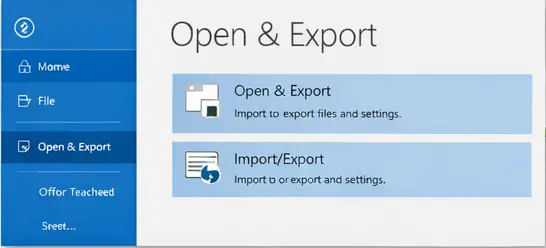
- Choose Export to a file > Outlook data file(.pst).
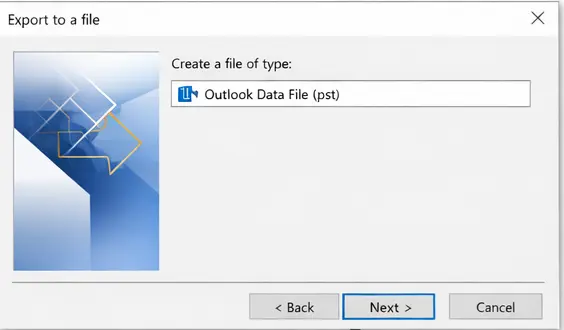
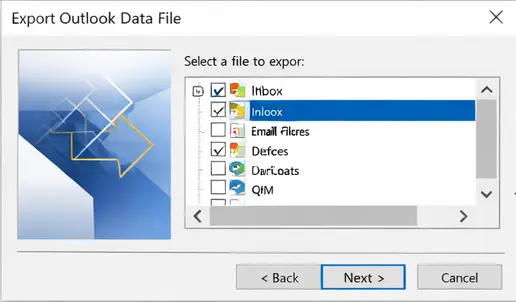
- Select the email folders you want to export.
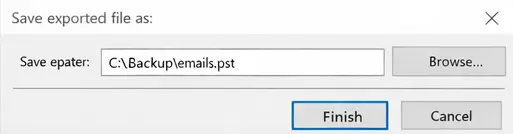
- Browse the location to save the data file.
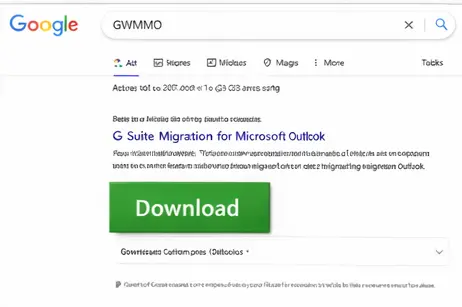
- Now, in Google search, find the GWMMO (G Suite Migration for Microsoft Outlook) tool and download it.
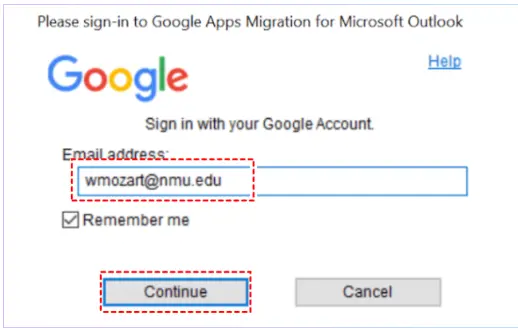
- After that, launch it and enter your Gmail login details.
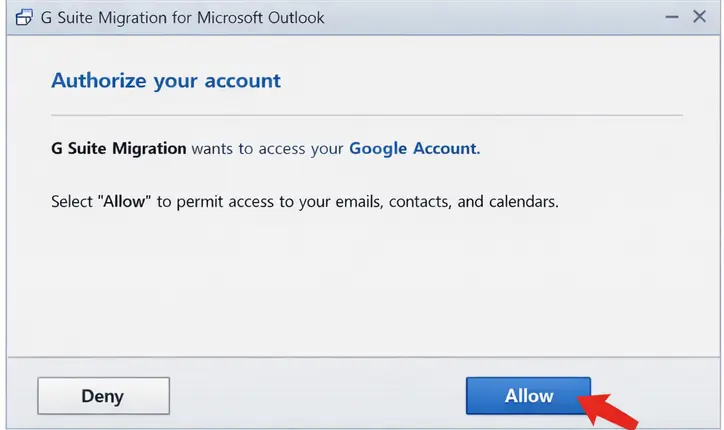
- Permit the synchronization; for that, click the Allow button.
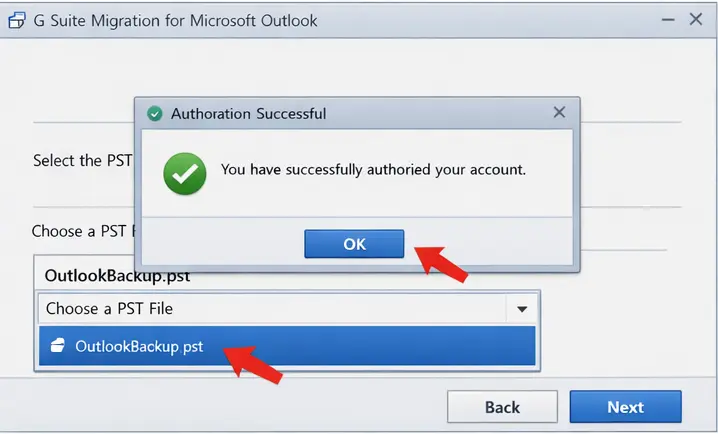
- After the confirmation shown, select the PST file from the drop-down list.
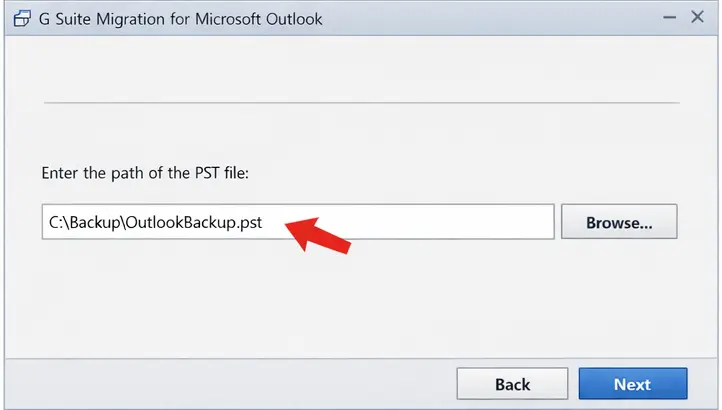
- Then paste the path where your exported PST file is saved.
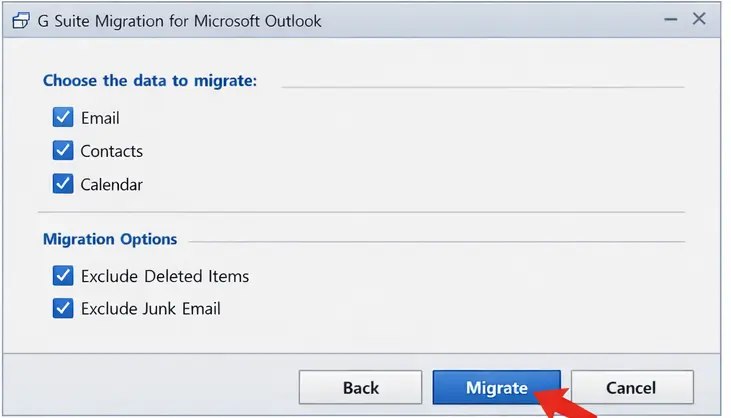
- Choose the data you want to upload and click on the Migrate button.
The manual method of OST to Gmail migration is a time-consuming process and doesn’t guarantee data integrity. Moreover, it doesn’t work with orphaned or damaged OST file so the need for an automated tool arises.
Method 2: Import OST to Gmail Instantly
With the help of the BLR OST to PST Converter, it is easy to move emails from .ost file into Gmail mailbox. Most importantly, OST converter tool supports orphaned, corrupted, or inaccessible OST file. All you need to do is add the OST file and choose Gmail as an export option. After that, the tool will ask you to enter your Gmail login details, and then the tool will start shifting your data.

Moreover, the software will maintain the folder and the sub-folder hierarchy while uploading your emails. Additionally, it also gives you an option to import OST to Office 365, Exchange Server, and IMAP Servers. Also, you can delete the duplicate emails, if there are any. To learn more about it, you can use the software’s demo version.
Conclusion
The above guide covers both the manual method and the automated solution to import OST to Gmail account. If the OST file is intact and accessible manual method by converting OST to PST and using Google’s migration tool is the best solution for you. But when the OST file is inaccessible due to an unavailable Outlook profile, you have to take the help of an automated solution. Using automated software ensures hassle-free import, while maintaining original properties & formatting intact.