



Read time: 3 Min
This error can be frustrating when you want to access important emails that are saved in MBOX format. But users can now resolve this issue with the best steps. This article will help you with the causes and fixes of the MBOX file not found error.
Why Facing “No Valid MBOX Files Were Found” Error?
MBOX is a widely used email file format supported by many email clients. However, problems occur when you try to open MBOX file and find that it is invalid. This situation often raises the question: Why is this happening? The answer lies in the following reasons:
Corrupted or Damaged MBOX Files: MBOX files can be corrupted due to abrupt shutdowns, virus attacks, improper file handling, etc. Also, the MBOX file structure is altered, which is why email clients may not recognize it.
Incorrect Location or Name: MBOX-supported email clients ask that the MBOX file be saved in a specific directory. An inappropriate file format or name change could end in an import failure.
Unsupported MBOX format: MBOXO, MBOXRD, MBOXCL, and MBOXCL2 are versions of the MBOX format that are used in multiple email clients. The email client may not load the file if it fails to recognize the specific MBOX format.
Large MBOX Files: When users import large MBOX files into email clients, it can cause issues. This issue may appear on the screen if users load huge MBOX files.
Here, we discuss the reasons for facing the invalid MBOX file issue. Let’s discuss the way to fix this error.
Methods to Fix “No Valid MBOX Files Were Found” Error
Here in this post, we will discuss some manual solutions to fix the MBOX file error. Let’s talk about each of them in detail.
1. Verify MBOX File Location or Format
If you change the location of your MBOX file, then it causes the issue. If you face this issue, first try to locate the MBOX file location.
- Check that the MBOX file is stored in the correct directory required by the email client.
- If the file has the correct .mbox extension. If necessary, rename it properly.
- Try to open the MBOX file in a text editor such as Notepad++ or VS Code.
- Confirm it contains valid email data.
2. Correctly Import MBOX in Mozilla Thunderbird
If you are trying to import MBOX emails into Thunderbird, then follow this step carefully:
- Install ImportExportTools NG Extension: Go to Thunderbird > Add-ons Manager > Search ImportExportTools NG add-on> Install it.
- Import MBOX to Thunderbird: Right-click on the chosen folder > Select “ImportExportTools NG” > Pick the option “Import MBOX File” > tap on the MBOX file.
- Check Emails: If emails don’t load, the file might be corrupted.
3. Open MBOX File in Another Email Client
If one email client fails to open MBOX files, then you can use another one, such as Apple/Mac Mail, Postbox, Eudora, etc. Follow these steps and import MBOX to Apple Mail account:
- Open the Apple Mail email client.
- Go to “File” in the menu bar.
- Select “Import Mailboxes…”
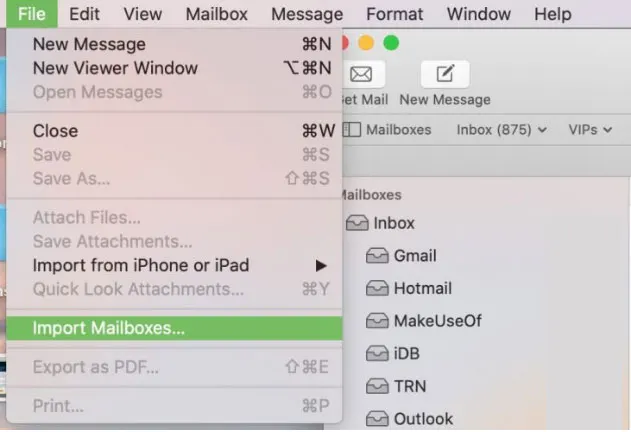
- A dialog window will show up. Go with the “Continue” icon after opting for the “Files in mbox format”.
- Click “Choose” after picking the MBOX file from its location.
The emails from the MBOX file will start to be imported into Apple Mail. For large MBOX files, this process might take a while. The imported MBOX emails will typically show up in a new folder. Click the “On My Mac” area of your Apple Mail sidebar when the import is done.
Alternative Solution to Fix Corrupted MBOX File
If you are still facing the issue, then your MBOX file must be corrupted. To fix the corrupted MBOX file data, you can use the BLR MBOX Converter tool for that. This tool helps users who want to open MBOX emails with attachments safely. Users can convert MBOX files to different formats with the help of this professional software. This application can also convert MBOX to PST, PDF, EML, EMLX, MSG, HTML, etc.
For a detailed process, try out the demo version of the software to know how it works.

How to Avoid the “No Valid MBOX Files Were Found” Issue?
This issue might come up in the future. If users want to save their MBOX files, then they can follow these simple pro tips that help to reduce this error.
- Create a complete backup before modifying or moving MBOX files.
- Avoid renaming or altering the MBOX structure manually.
- Check if the email client update is working with MBOX formats.
- Use advanced or antivirus software to prevent corruption caused by malware.
- Regularly set up large MBOX files to avoid performance issues.
Conclusion
The methods above help fix the “No valid MBOX files were found” error and restore access to MBOX emails. Issues caused by corruption, compatibility, or large file size can be resolved using this guide. If the problem continues, use a professional tool like BLR MBOX Converter for a quick and reliable solution. The free demo version is available to try.




