



Read time: 3 Min
If you are trying to import an MBOX file into your Thunderbird but the Import MBOX option is greyed out or disabled, then you are not alone. There are many users who face this issue while moving emails from a MBOX file to Thunderbird.
There can be various reasons for the Thunderbird import MBOX file greyed out error. The best part is that this issue is usually caused by incorrect configuration and can be fixed easily. In this guide, we will explain why the Thunderbird import MBOX option is greyed out and how to fix it quickly.
Why is Thunderbird Import MBOX Greyed Out?
There can be various reasons for facing the Thunderbird MBOX import greyout issue. Some of them include;
- In older Thunderbird, there is no direct way to import MBOX file. So check out which version of Thunderbird you are using.
- You installed the ImportExport extension but forgot to enable it, so you can’t import the data file.
- Profile issues can disable certain options. If your Thunderbird profile is corrupted, then you may find the import option disabled.
- An add-on may not work properly with outdated or very new versions
Here are some common reasons for facing this issue. Let’s fix it. Below, you’ll find different solutions to enable the Thunderbird import feature.
How to Fix “Thunderbird Import MBOX Greyed Out” Issue?
Here are the simple fixes to solve the greyout issue with the Thunderbird import option. Let’s discuss all of them in detail.
1. Install ImportExportTools NG
This add-on helps you export or import Thunderbird emails. Sometimes, it may stop working or become incompatible with your email client. In that case, it’s best to reinstall it. Here are the steps to do so.
- Open Thunderbird and go to Tools → Add-ons and Themes.
- Search for and install ImportExportTools NG and then restart Thunderbird
- After that, go to Extensions and make sure it is enabled
- After that, check whether the tool is working or not.
- Right-click on Local Folders → ImportExportTools NG → Select Import MBOX file.
- Browse the data file and import MBOX to Thunderbird mailbox.
If you can import the MBOX file, then the issue is resolved. If not, then try out other methods.
2. Update Thunderbird Client
Keeping Thunderbird updated helps fix bugs, improve performance, and ensure add-ons work properly. Therefore, maybe updating the application can solve the issue. Steps to update Thunderbird:
- Open Thunderbird on your system.
- Click on Help in the top menu.
- Select About Thunderbird.
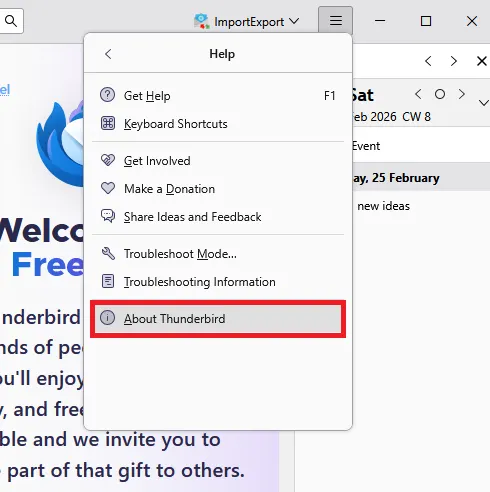
- Thunderbird will automatically check for updates.
- If an update is available, click Update to the latest version and restart the application.
- After updating, check if the issue is resolved.
3. Create a New Thunderbird Profile (If Needed)
If all the above-mentioned solutions don’t work, then maybe your Thunderbird profile is corrupted. Here are the steps to create a new profile;
Close Thunderbird completely.
- Press Windows + R to open the Run dialog box and enter the command: thunderbird.exe -P and press Enter.
- The Profile Manager window will open.
- Click on Create Profile.
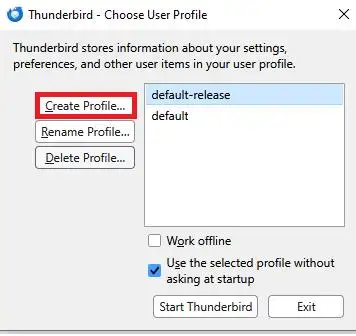
- Click Next, then enter a name for the new profile and click Finish.
- Select the new profile and click Start Thunderbird.
If using these solutions, you are still facing the “Thunderbird Import MBOX Greyed Out” error, then you need expert help.
Alternative Solution to Move MBOX file to Thunderbird
If you are still unable to open MBOX file in Thunderbird, then whether your MBOX file is corrupted or damaged. In that case, MBOX to PST Converter is the best tool to use that will effortlessly move all data from the MBOX file into the Thunderbird mailbox. BLR MBOX Converter is a secure and easy-to-use tool that will transfer your data in a few simple clicks without needing any add-ons.

Try out the demo version of the software to know how it works.
Conclusion
It might be frustrating when you see the issue “Thunderbird Import MBOX Greyed Out” in Thunderbird. With this guide, users can easily fix it by following the steps outlined below. Restoring functionality can be aided by improving Thunderbird, fixing the MBOX file, patching it, or using ImportExportTools NG. For a smooth import process, you can try out BLR MBOX Conversion software if you still experience problems.




