

Read time: 3 Min
Microsoft Outlook is one of the most popular email clients widely used for personal as well as corporate use. Outlook uses a PST file to save user emails and other data, like contacts, calendars, notes, journals, etc. On the other hand, Gmail is a free web-based email system that almost everyone has their own personal Gmail account. Both platforms are different, but there are situations when a user has to import PST email to Gmail. Let us learn various methods to import PST to Gmail without Outlook.
Reasons to Import PST to Gmail Account
There could be any reason why a user chooses to import PST emails to a Gmail account. A few common reasons are:
- Gmail provides 15GB of free storage.
- Gmail is accessible on any device or operating system.
- Importing Outlook data to Gmail allows the user to use Google Apps on it for better productivity.
- The Gmail data is synced instantly across devices.
Different reasons for importing PST emails to Gmail are discussed above; now it is time to see how transferring Outlook PST emails to Gmail works.
Methods to Import PST to Gmail Mailbox
After going through the common reasons why users need to import PST emails to a Gmail account, let us now focus on various methods to access PST emails in Gmail.
Method 1. Import Outlook PST Files into Gmail via Gmail Account Configuration
Step 1: Configuring Gmail Account in Outlook
- Open the File option, Select Account Info.
- Select ‘Add Account’ click on ‘Connect’, and type in your email address.

- Go to the Google Sign-In page, enter credentials, and click on ‘Sign In.’
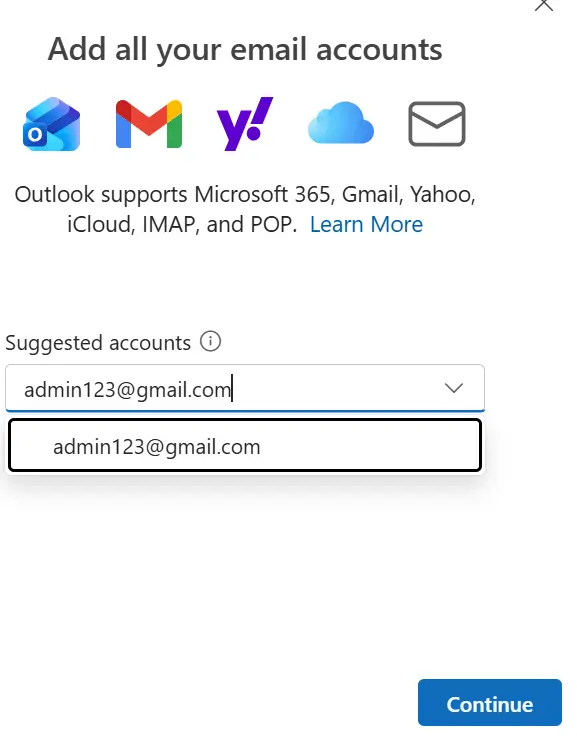
- Now, in the end, hit the ‘Done’ button to finish the setup.
Step 2: Import Outlook PST Mail Data to Gmail
- Access your Gmail Account.
- Create a new folder in the Gmail Inbox, right-click, and assign the name of your choice.
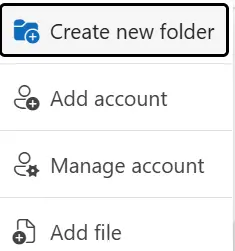
- Select the required data, open the Outlook mail folder (right-click and select ‘Copy Folder’).
- Copy the data and paste it into a newly created folder in Gmail.
- This allows the process to import PST into Gmail.
After completion, you can get access to your Gmail Account and view all the Outlook Email data imported quickly.
Method 2. Using Google’s GWMMO Tool to import PST to Gmail without Outlook
Follow the steps mentioned below to import a PST file through GWMMO:
- First, download and install the graphical web mapping materialisation tool: GWMMO.
- Open the GWMMO tool. Thereafter, click on “Migrate data” within Google’s GWMMO tool.
- Now select “Internet mail (IMAP/PST files email)” and then click on the Next option.
- Out of the given options, choose the “Outlook PST file” and click Next.
- Write/Type the admin email address of your Gmail account and click NEXT.
- Choose migration options (date period, folders to be migrated, and others) and click “Next.”
- Hit on option “Add PST data file” option and then search to find the PST data file to import.
- Select the conversion type or, for example, whether to copy the emails, appointments, and contacts.
- In order to start loading or importing PST emails into Gmail, click on the option labelled ‘Migrate’.
Though the manual method to import PST emails to Gmail account is completely free, these methods don’t guarantee the safety of data. Most of the time, users tend to lose information when the migration process is not followed precisely. Therefore, it is suggested to take the help of a good PST Converter application to move emails from PST file to Gmail account.
Method 3. Advanced PST Converter to Import PST to Gmail
Users who need to import PST to Gmail without Outlook can use BLR PST Converter software. It is designed with efficiency to retain the original properties and formatting of emails intact during import. The software helps to import a large PST file and has the option to import only selected emails by applying filters.

Additionally, using this tool, you can also migrate PST to Office 365, Exchange Live, Yahoo Mail, and IMAP Servers. Also, while importing, this tool allows you to select the specific folder and move it only. Especially, if PST file is corrupted, then this tool will repair corrupt PST file and import your emails without affecting data integrity.
Conclusion
Users prefer Gmail over Outlook because it provides more advanced functionalities. Most Outlook users who have PST email backup files are seeking an option to migrate, load, and import PST to Gmail. We have presented an easy method for PST file migration to Gmail without requiring an MS Outlook client. We have also suggested a professional tool to make the task easier for you. If you want to avoid a time-consuming manual method, you can use PST Converter.