

Read time: 3 Min
Many users keep their old emails stored in PST file that is exported from Microsoft Outlook. This file contains all your emails, contacts, calendars, and complete mailbox data. When a user moves to Microsoft 365, a common question arises: how do I open PST file in Office 365?
However, the challenging part is that Office 365 does not allow you to directly open a PST file. You need to go through the series of steps that need to be followed.
In this guide, we will discuss the manual and direct ways to access PST emails and other data in Office 365. Before going through the steps to open PST file in Office 365, it’s important to understand the challenges you might encounter.
Common Challenges While Opening PST File in Office 365
When you try to access PST emails in Office 365, you will face some problems, such as –
- Office 365 does not provide a direct option to open PST file in its interface.
- The process will be lengthy and confusing for non-technical users.
- Large PST files take a long time to open and may fail during transfer.
- Network interruptions can stop the import and require restarting.
- Incorrect permission or role settings can block the process.
- There is a risk of duplicate emails after the import.
- Attachments or metadata might not appear correctly if the process fails.
Here are a few issues you can face when open old PST archive in Office 365 account. At this point, a question asked by many users: Can I view PST file in Microsoft 365? Technically, the answer is yes, but how easily you can do it depends on the method you choose.
How to Open PST File in Office 365 Manually?
If you want to view your PST emails in Microsoft 365, then you can use the Outlook client for that. Here are the steps.
- Open Outlook and add your Office 365 account to it.
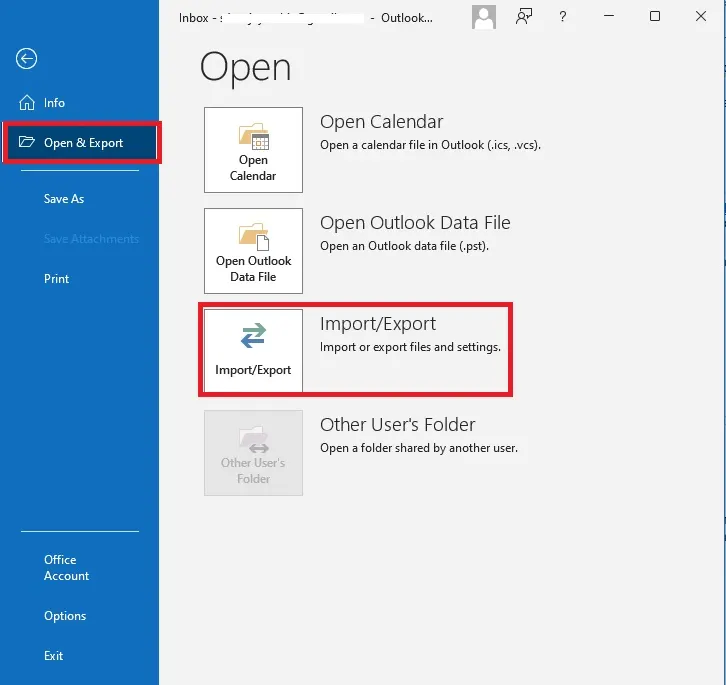
- Now, click on File > Open&Export > Import/Export.
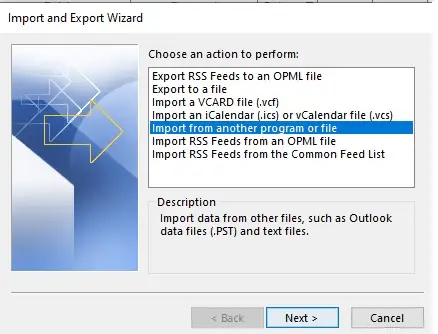
- Choose Import from another file > PST File.
- Browse for the PST file from your system.
- Right-click on the folder and move it to your Office 365 account.
Done! Now you can view PST file data in your Office 365 mailbox. However, with this manual solution, there are a few limitations.
- You can only view PST file data unless you manually move emails into your mailbox.
- Drag-and-drop is time-consuming for large or multiple PST files.
- To view your emails, you need technical knowledge for proper folder management.
- A large PST file will eventually slow down your Outlook performance.
- If Outlook Import/Export Greyed Out, then you can’t read your PST file data.
Method to Open PST File in Office 365 Instantly
BLR PST Converter is a wonderful and easy-to-use software that will help you to open PST emails and other data into Office 365 mailbox. This software will simply import PST to Office 365 and allow you to view your data. Moreover, it supports large as well as corrupted PST file.
Additionally, this tool allows you to repair Outlook PST file and helps you to get a new and healthy data file. Download the demo version to know how the tool will help you.

Conclusion
Opening or accessing a PST file in Office 365 does not need to be difficult. By using Outlook’s built-in import option or a reliable tool, you can easily open PST file, read emails, and manage mailbox data by following the steps explained above. Hope this post will be helpful for you in accessing PST emails in Microsoft 365.