



Read time: 3 Min
MBOX is a common email file format that stores complete mailbox data in a single file. However, Hotmail (now known as Outlook.com) does not support MBOX files directly. This means you need an alternative solution to open MBOX file in your Hotmail account.
This guide will simplify the complete MBOX to Hotmail migration. Even if the MBOX file is large in size, you can easily import it. Continue reading and find the best solution for you.
Why Import MBOX to Hotmail Account?
Importing MBOX emails to Hotmail account is beneficial because Hotmail offers various features.
- Hotmail has strong spam protection to block unwanted emails.
- With Outlook.com, you can secure your important data with ease.
- Personalized homepage for quick access.
- Built-in features like online chat and other useful tools.
- Easy communication with friends, family, and colleagues.
- Simple search bar to quickly find emails in your mailbox.
- Access emails from mobile phones, tablets, laptops, and computers.
- Better organization to improve productivity.
- Stores emails and contacts in one place for anytime, anywhere access.
Manual Solution: Import MBOX to Outlook.com Account
To manually import MBOX emails into a Hotmail account, you need an email client that supports MBOX files. Here, we will use Mozilla Thunderbird. If you already have it installed, you can follow the steps below. If not, first download and install Thunderbird, and then continue with the process.
- Run the Thunderbird application and add your Hotmail account to it.
- For that, click on Setting icon > Account Settings > Add Account.
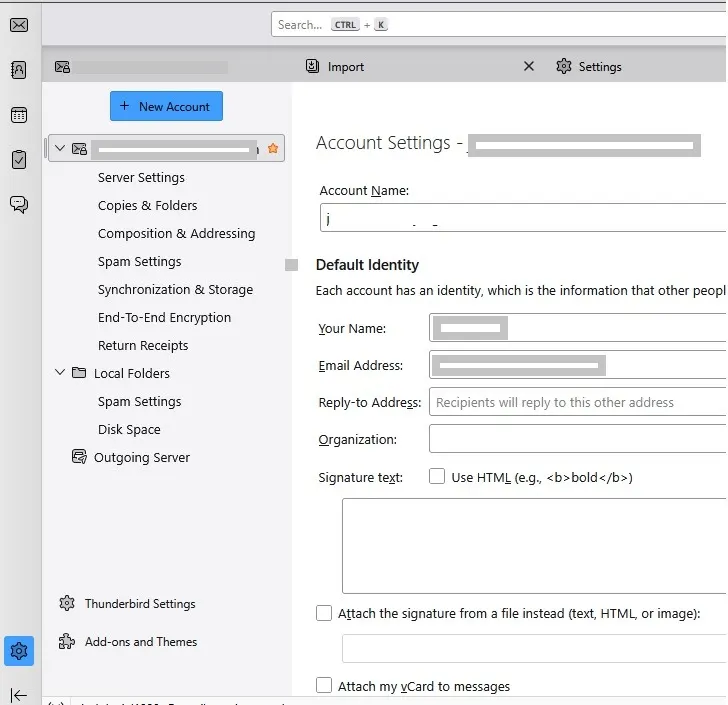
- Now your Hotmail is connected to your client, and you need MBOX file.
- Click on Import and import MBOX to Thunderbrid account.
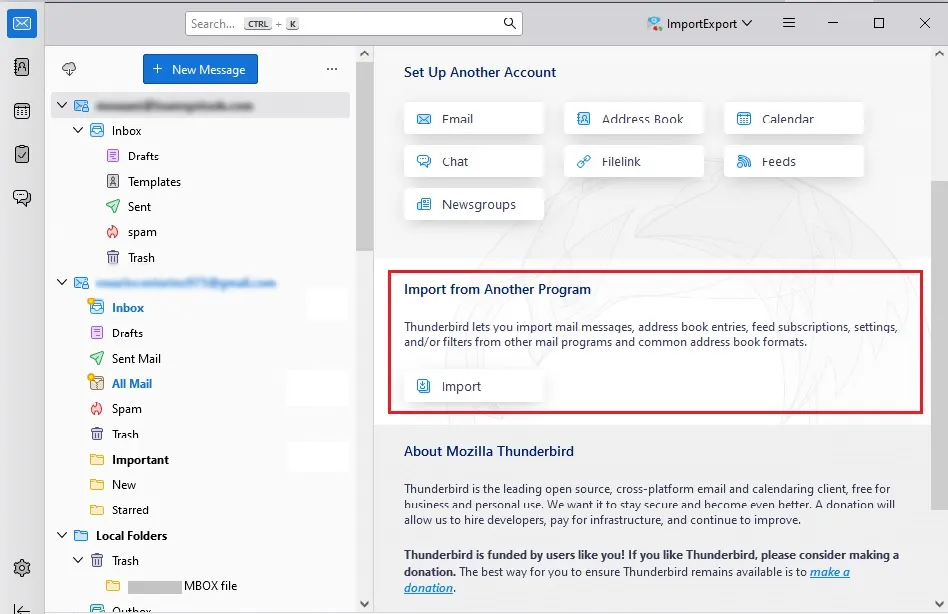
- Now, you right-click on the MBOX file you exported and move it to your Hotmail account.
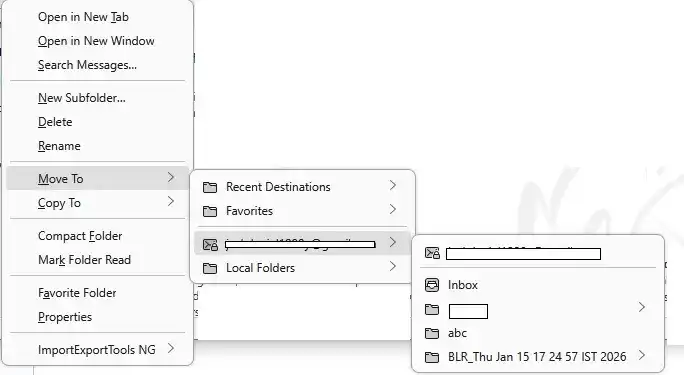
- After that, login to your Outlook.com, and you will find the folder that has all your MBOX file data.
Here, we complete the migration process. However, there are a few limitations with this solution.
- Take lots of time to complete the migration process.
- No guarantee for data safety.
- The MBOX email structure can be retained if users choose a large-sized MBOX file.
- Depends on Internet speed and emails.
- Best to move the small number of MBOX files to Hotmail.
- Need technical expertise before moving emails from MBOX to Hotmail.
Direct Method to Import MBOX to Hotmail Account
To effortlessly migrate MBOX emails to Hotmail account, you can use the BLR MBOX Converter tool. With its simple and user-friendly interface, you can easily import your data without any hassle. Moreover, MBOX to PST converter tool will maintain email folder and sub-folder structure and hierarchy.

Additionally, using this tool, you can also import MBOX to Office 365, MBOX to Zimbra Mail, MBOX to Amazon Work Mail, Gmail, Yahoo Mail, and all IMAP Server accounts. Try out the demo version of the software to know how it works.
Conclusion
Any technique might be used by users to import MBOX to Hotmail accounts. The manual method can freely import MBOX emails to a Hotmail account, but it has some limitations, such as taking a long time, dependency on the internet, etc. On the other hand, BLR Tools gives a simple solution to migrate MBOX files to a Hotmail account with attachments while preserving the original structure. The free method is good to convert small-sized MBOX files to Hotmail, but if users have large-sized MBOX emails or folders, then they can select the professional application. Try the direct method to upload MBOX files to Outlook web by using this simple technique.




