



Read time: 4 Min
Thunderbird is an open-source, free email client that also creates MBOX files when backup your emails. Sometimes, users have MBOX files, and they often want to access MBOX emails in Thunderbird Mailbox, but they don’t know the right method. This post will be helpful for users who want to import MBOX to Thunderbird clients.
Reasons to Import MBOX to Thunderbird
There are many reasons to upload MBOX files to Mozilla Thunderbird. Some mention below:
- Sometimes, users create MBOX files from different email clients such as Apple Mail, SeaMonkey, and Eudora. They need to transfer their MBOX files to Thunderbird for easier and better email management.
- In the technological era, many users save MBOX files as backup and they now want to access their backup in Thunderbird.
- Users who want to access Google Takeout data that they saved as MBOX want to move to Thunderbird for better management.
- Thunderbird allows users to access MBOX files offline.
- Businesses or professional individuals frequently need to keep email records for legal or compliance reasons. Mozilla Thunderbird is an excellent tool for managing long-term archives.
Here are a few benefits of importing MBOX emails to Thunderbird. Let’s discuss the solutions for the migration.
How to Import MBOX into Thunderbird Manually?
Importing MBOX file into Thunderbird depends on the version you are using. If you install the Thunderbird 115 version, then there is a built in import feature. On the contrary, if it is an older version, then you need to install the ImportExportTools NG add-ins. Here are both scenarios.
1. Import MBOX to Thunderbird 115
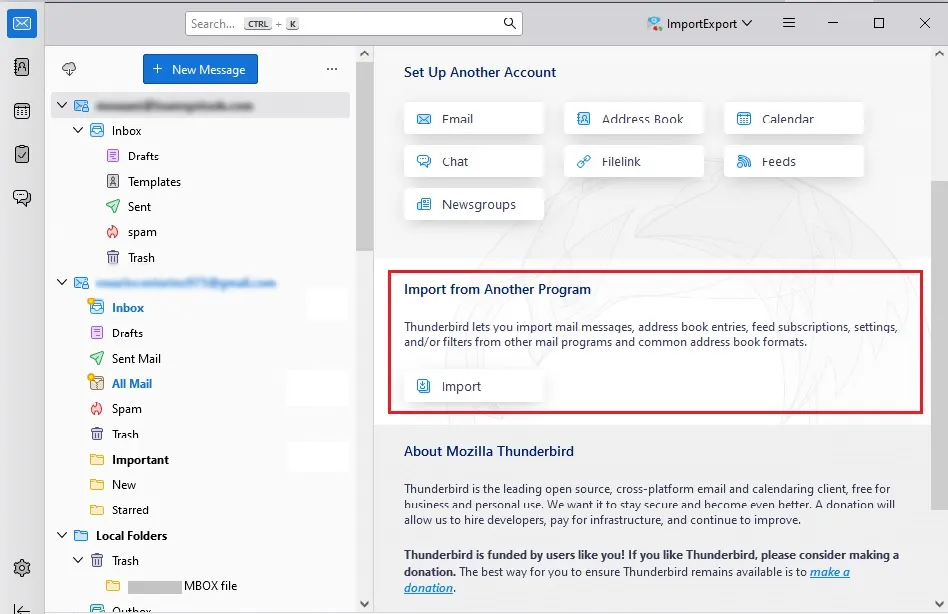
- Click on the Import button in your TBird profile.
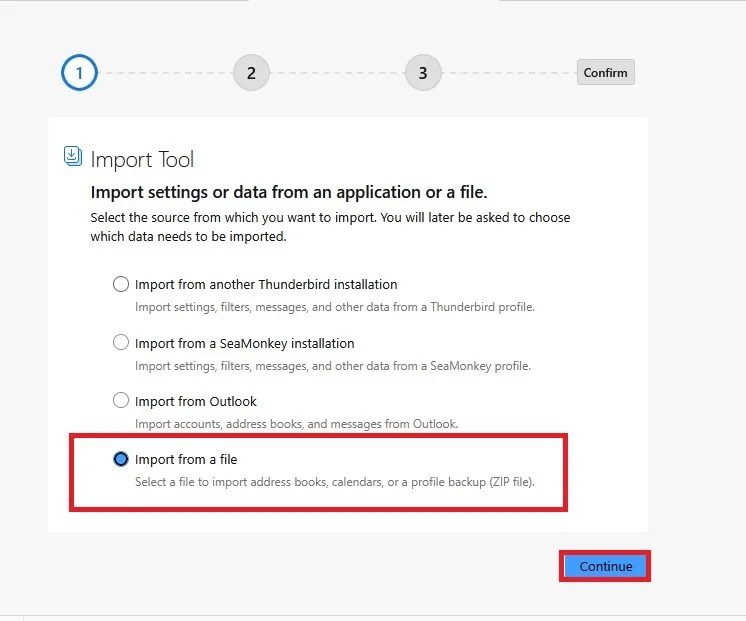
- After that, choose Import from a file and click on the continue button.
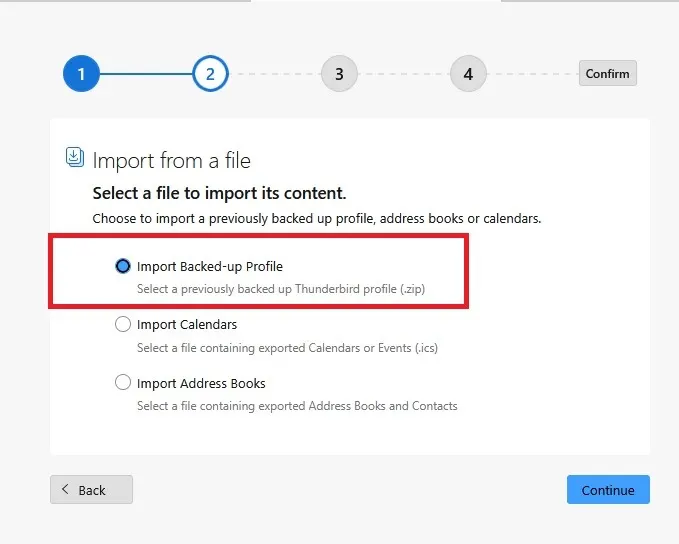
- Select the Import backup profile and hit continue.
- Now select the Import Zip file, and it must be less than 2 GB.
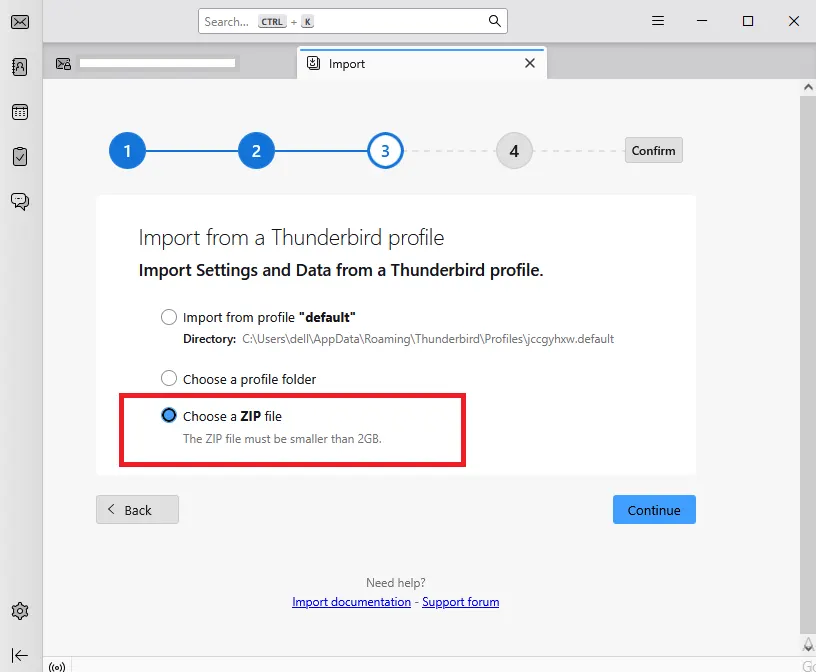
- Choose the folder and complete the import process.
2. Upload MBOX to Thunderbird Using Add-ins
To open MBOX file in Thunderbird, you need to install add-ins in Thunderbird if you are using an older version. Here are the instructions.
- Open Thunderbird and add an email account for new users.
- After that, click on Tools > Themes and Add-ins
- Search for ImportExportTool NG and add it to Thunderbird.
- Now, right-click on the local folders.
- Choose ImportExp[ortTools NG > Import MBOX files > choose from given options.
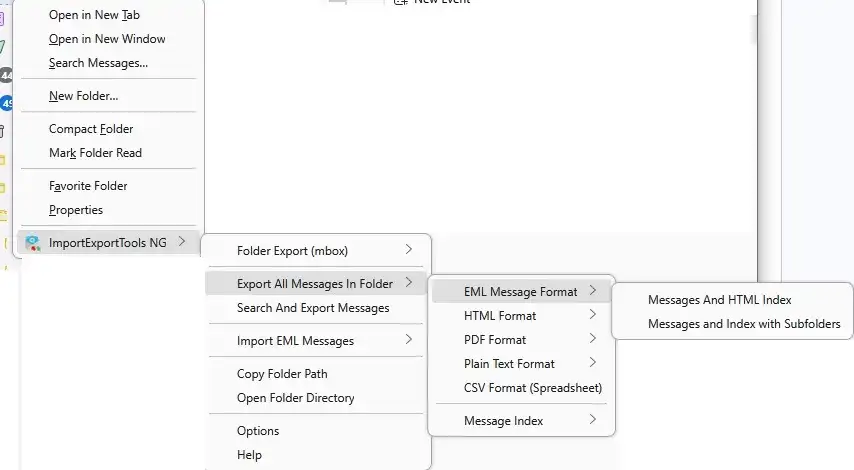
- Browse the MBOX file and open it into the Thunderbird mailbox.
Done! Here, complete the manual import MBOX to Thunderbird client. However, with this solution, there is a file size restriction (less than 2 GB). also you can import one MBOX file at a time.
What Happens If the MBOX File is Corrupted?
If the MBOX file you are trying to import is corrupted, then the manual method will fail. You can try out the BLR MBOX Converter software. MBOX to PST tool will access the corrupted MBOX file and create a new and healthy MBOX file. After that, you can easily move the data file into the Thunderbird profile.

Also, you can use this tool and convert MBOX to PST, PDF, EML, CSV, and all other file formats. While converting this tool, the software will maintain the folder and sub-folder hierarchy and structure. Also, it will import MBOX to Gmail, Office 365, and all other webmail accounts. Download the demo version of the tool and know its working.
Conclusion
In this blog, you will learn a simple and free way to import MBOX files into Mozilla Thunderbird. The manual method is easy on both Windows and Mac. You can either place the MBOX file in Thunderbird’s profile folder or use the ImportExportTools NG add-on to import it. However, the free method may have a risk of data loss.
For a safer option, you can use the professional solution from BLR Tools. It also helps repair corrupted or damaged MBOX files without affecting your data.




