



Read time: 3 Min
Many users who rely on email clients like Thunderbird, Apple Mail, or Eudora for email management store their emails in MBOX format. However, when they switch to Outlook, the problems arise since Outlook does not support the MBOX file. Because of this limitation, users often struggle to access their MBOX emails in Outlook.
In this article, we will discuss why MBOX files cannot be opened in Outlook and how to import MBOX to Outlook. Follow this complete guide to safely upload MBOX to Outlook client.
Why Import MBOX to Outlook Client?
When users try to move their MBOX emails into Outlook, they access issues. Most importantly, the compatibility issue. Here are some other reasons;
- Outlook uses PST and OST formats; it doesn’t support MBOX files.
- MBOX is supported by clients like Thunderbird, Apple Mail, and Eudora, not Microsoft Outlook.
- The file structure of MBOX and Outlook is different, making direct import impossible.
- MBOX saves your entire mailbox data in a single text-based file, while Outlook uses structured data files.
- Outlook has no built-in option to open MBOX file in its mailbox.
How to Import MBOX to Outlook Windows?
If you are looking for a manual solution to import emails from MBOX file into Outlook client, here is the solution for you.
1. Convert MBOX File to Outlook by Thunderbird
- Install and open Mozilla Thunderbird on your computer.
- Click on Tools > Account Setting > Account Action > Add Account.
- Enter your webmail login details and choose automation configuration.
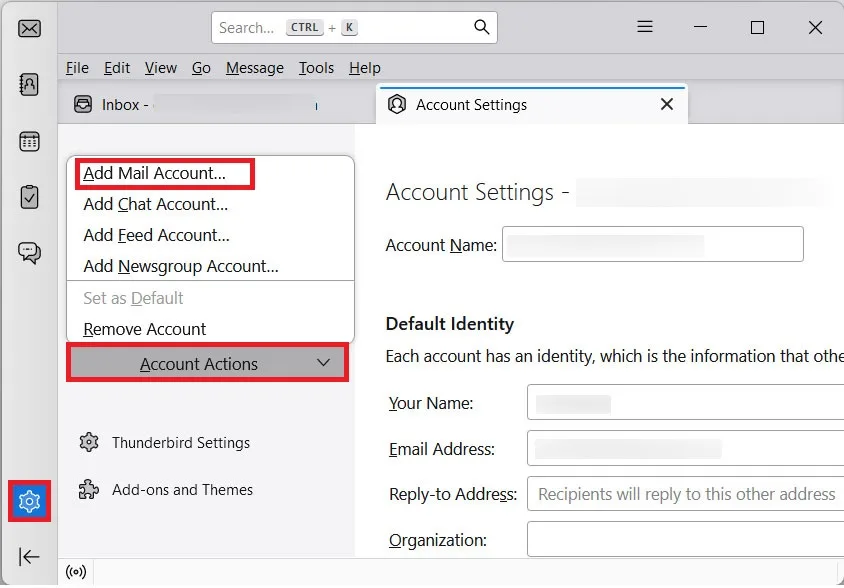
- After that, restart Thunderbird, and you will see your webmail data.
- Open Add-ons in Thunderbird and install ImportExportTools NG, then restart the app.
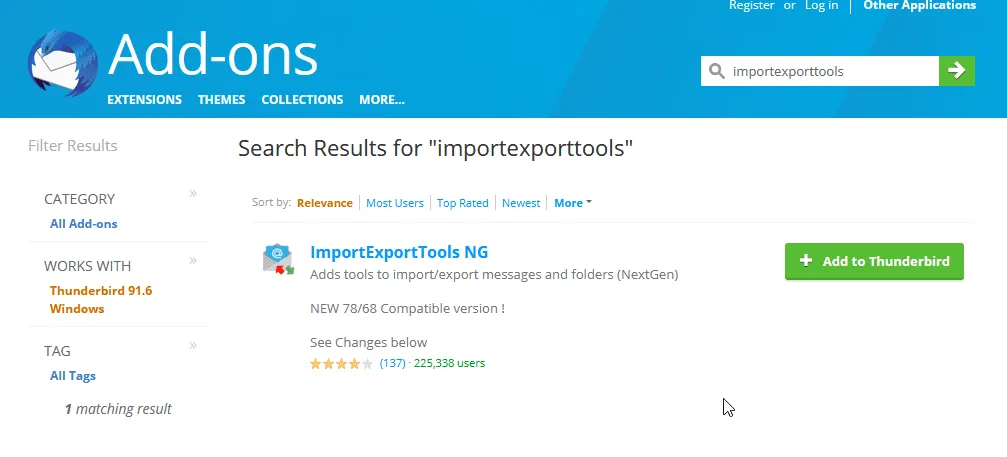
- Right-click on Local Folders and import your MBOX file using the add-on.
- Open Outlook and add the same email account used in Thunderbird.
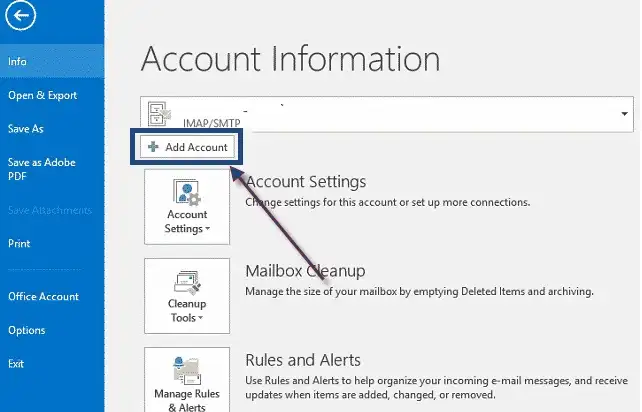
- Now open the uploaded MBOX folder.
- Select the emails, right-click Copy to, and select the new email account that you connected.
- Repeat the process for each folder to copy the emails to this new account.
2. Import MBOX to Outlook by Drag and Drop
First, import MBOX to Thunderbird profile. After that, you need to convert MBOX to EML files. After that, find all the EML files and drag them into Outlook. Here are the steps;
- Using the Thunderbird Import feature, upload MBOX file.
- Restart Mozilla Thunderbird to apply the changes.
- Select the email and drag it to your desktop to save it in EML format.
- After that, open Outlook and drag and drop the EML files.
Manual Methods Limitations
Although the manual solution can complete the importing, there are a few limitations with it.
- Drag-and-drop transfer may lead to Thunderbird crashing/freezing when importing multiple MBOX files.
- There is no option to preview or filter emails before importing.
- If Thunderbird ImportExportTools NG not working, then you can’t convert the MBOX file data.
- The folder structure and hierarchy may not be preserved properly when manually import MBOX files to Outlook.
Alternative Solution to Import MBOX to Outlook in Bulk
BLR MBOX Converter is a secure and efficient way to import MBOX emails into Outlook supported file. After that, it will be convenient to import the converted data file into Outlook. Most importantly, you can import multiple MBOX files at once without losing a single bit of data. So use this tool and convert MBOX to PST file, and then upload it into Outlook.
Download the demo version of the software to know how it works.

Conclusion
Importing MBOX files to my Outlook account can be tricky if users use the manual/free method. The manual method has multiple steps and requires downloading many email clients to convert MBOX emails. With the proficient strategy, users can move out bulk MBOX files to My Outlook without any data limitation and worry. The manual method is free, but it consumes users’ precious time in conversion. Choose wisely, the method to upload MBOX files in Microsoft Outlook.
FAQ’s
Q1. Will my email attachments remain safe when importing MBOX files to Outlook manually?
Not always. There is a risk of losing data or attachments when using the manual import method.
Q2. Can I import Gmail MBOX to Outlook profile?
Yes, the tool supports import MBOX file from Gmail, Thunderbird, Apple Mail, and all other supported email clients.




