

Read time: 3 Min
Over time, all the emails you receive or send are stored in a single MBOX file. Most of the email clients don’t archive old emails automatically, thus all the old and new emails will be saved in a single MBOX file. Due to this, there are chances of data loss, and you can’t open MBOX file items.
Here in this post, we will discuss the benefits of splitting the MBOX file and how to perform the actual splitting process.
Why Split Large MBOX File into Smaller Files?
- Improved Performance: Any email client will load smaller MBOX files more quickly. Furthermore, it minimizes lag and stops working on any OS when users access MBOX files.
- Reduced File Corruption: If you use the huge files, they can become more prone to corruption. Accessing a large MBOX can lead to inaccessible emails.
- Easy Email Management: Once users divide MBOX files into small parts, they can be simply backed up, migrated, and shared.
- Manage File Size: Breaking MBOX files enables you to navigate around the size limit restrictions placed on many email clients.
- Data Protection: By splitting the MBOX file into smaller parts, users can get smooth email access and better data protection.
How to Split MBOX File manually?
Here in this blog, we will discuss multiple solutions to manually split large MBOX file into smaller parts. Let’s check out what these methods are.
1. Split MBOX File By Folder Division (Using Mozilla Thunderbird)
Install Thunderbird email client on your system to complete the splitting process. If the client is already installed, then follow the instructions.
- Open Mozilla Thunderbird
- Create multiple new folders (e.g., MBOX-Part-1, MBOX-Part-2)
- Now, click on Import options and upload the MBOX file. It will appear under the local folder section.
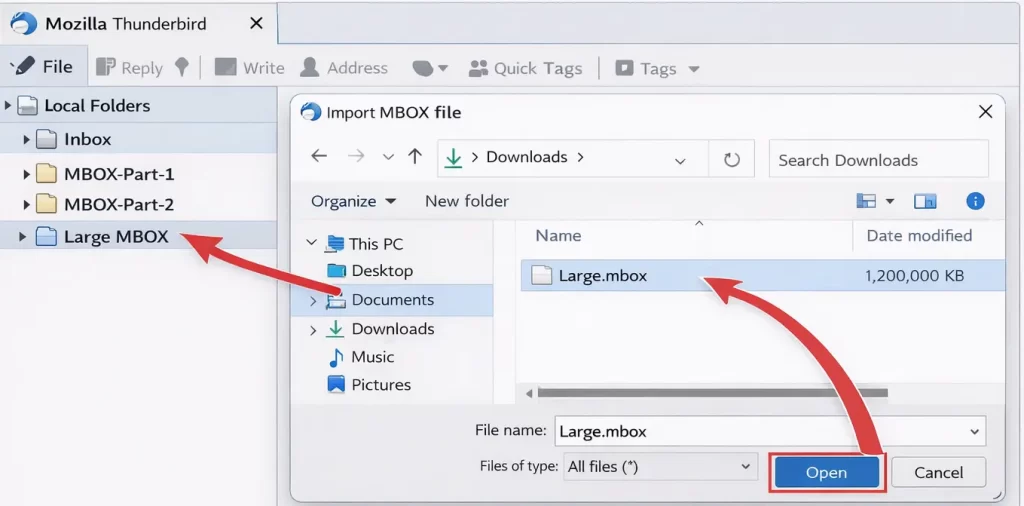
- Open the original mailbox containing the large MBOX file
- Select emails manually (by date, size, or count)
- Drag and drop selected emails into the newly created folders.
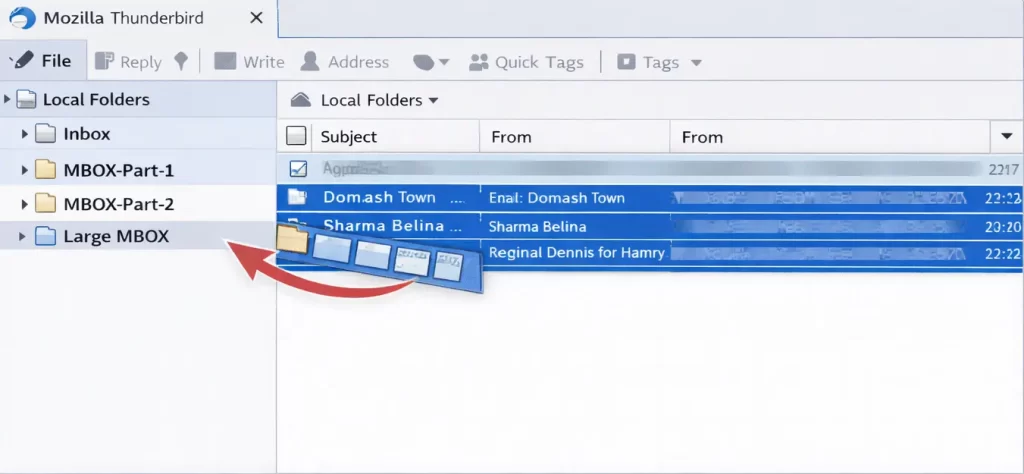
- In this you can save emails from a large MBOX file into separate MBOX files in the Thunderbird profile directory.
2. Split MBOX File by Date Using Thunderbird Filters
There are a few filters offered by Thunderbird that allow you to create filters to move emails to other folders. Here are the steps to split MBOX file into smaller files.
- Open Thunderbird and go to Tools > Message Filters > Create a new filter.
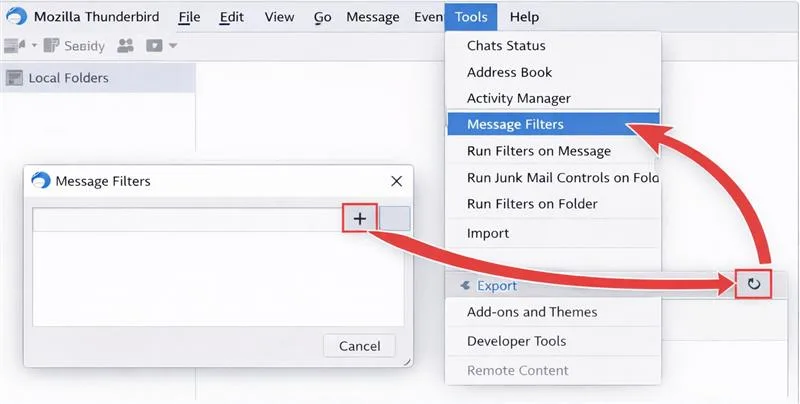
- Set conditions like: Date is before/after a specific range
- Choose the action Move message to a new folder
- Run the filter on the mailbox
- Repeat for different date ranges
- Each destination folder creates a separate MBOX file.
3. Split MBOX File Using Apple Mail (macOS Only)
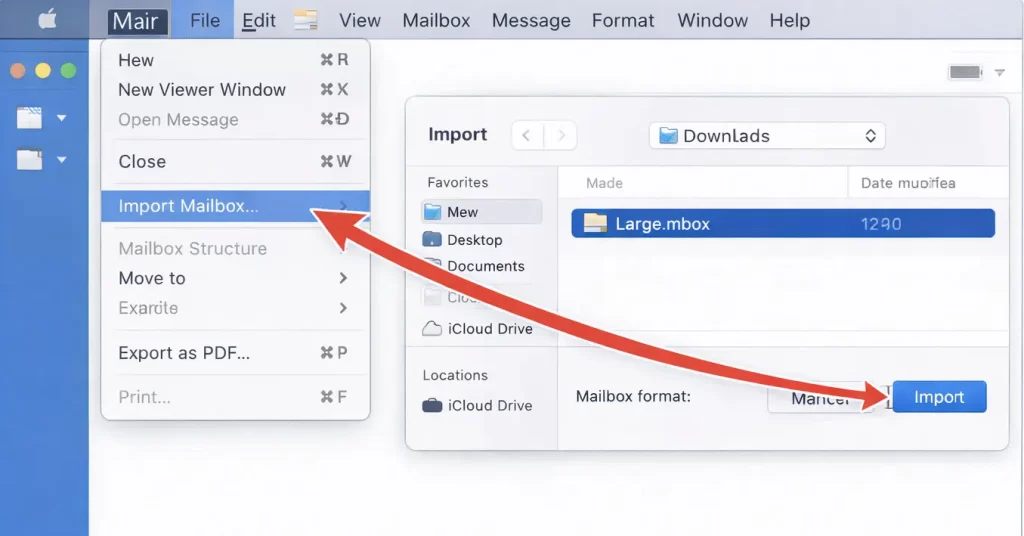
This method will work only on a Mac system with the Apple Mail client installed on it. First, you need to import MBOX to Apple Mail, then split it. Here are the instructions that you need to follow:
- Open Apple Mail and import the MBOX file.
- Create multiple mailboxes.
- Manually select emails and move them to new mailboxes.
- Export each mailbox individually as an MBOX file.
4. Plain Text Editor to Break MBOX Files
- Before dividing MBOX files, always keep a copy of the original MBOX file.
- Launch the editor like Notepad++ or VS Code to open the MBOX file.
- Find Email Start Points: “From” is the first line of every email.
- Select all emails by using (CTRL + A), copy and paste them into a new file. It will be saved as .mbox extension. To split the file, repeat as required.
Although these manual methods will split MBOX file, there will be few limitations.
Limitations of Manual Splitting Method
- This method is not preferable for large MBOX files.
- There are high chances of missing or duplicate emails thus causing data loss.
- A small mistake can corrupt the entire MBOX file.
- Manual methods require technical knowledge.
- Attachments, formatting, and email details may be lost.
Alternative Solution to Split MBOX File
If users want the most efficient way to handle oversized MBOX files, then they can use the professional BLR MBOX Converter tool. This mbox converter solution can give you the option to split MBOX file into small parts into .pst format. Using this tool you can also save emails and other data from MBOX to PDF, EML and more. This application is workable with all Windows editions. There is no need to install multiple email clients like Thunderbird or Apple Mail to break an MBOX file.

Conclusion
Large MBOX files often affect the performance of your client issues or file corruption. To avoid these issues or improve better email access, it is best to split MBOX file into smaller ones. While manual methods have limitations, using a reliable solution like BLR MBOX Converter allows users to split MBOX files by size into various PST file efficiently. Download the free trial to split large MBOX files effortlessly.