



Read time: 4 Min
Mozilla Thunderbird is an open-source email client that can be installed on Windows, Mac, or Linux systems. It allows users to add multiple email accounts and manage emails perfectly. Despite advanced email filtering and management features, users still migrate to Gmail for better accessibility. If you are looking for a solution to export Thunderbird emails to Gmail account, then you are at the right place. Gmail doesn’t directly import Thunderbird emails, user has to configure the Gmail account in the Thunderbird email client first and then drag and drop emails manually to the Gmail folder. Before learning the steps, let us first learn various reasons why users prefer Gmail over Thunderbird.
Why Users Export Thunderbird Emails to Gmail Account?
There are many reasons why users migrate from Thunderbird to Gmail, some of the common reasons are:
- Thunderbird is a desktop-based email client and can be accessed only from the device it is installed on, while Gmail is a web-based client and accessible anywhere from any device.
- The Thunderbird application may crash sometimes and halt communication, but Gmail is always up and running.
- Gmail has better spam filters and security features than Thunderbird.
- Gmail provides 15 GB of free email storage, while Thunderbird saves emails on the user’s system, occupying hard disk space.
- Gmail provides you with strong security features like two-factor authentication, a spam filter, and advanced encryption to secure email storage.
- Users can migrate Thunderbird to Google Workspace account for cloud access and centralized management of emails.
How to Migrate Thunderbird emails to Gmail?
In this section, users will learn simple methods to migrate or export Thunderbird emails to Gmail for free. Users just need to follow each step with utmost care.
Step 1: Enable IMAP in Gmail Account
First step is to enable IMAP settings in Gmail account. To enable IMAP in a Gmail account, follow the steps mentioned.
- Sign in to your Gmail account with your email and password.
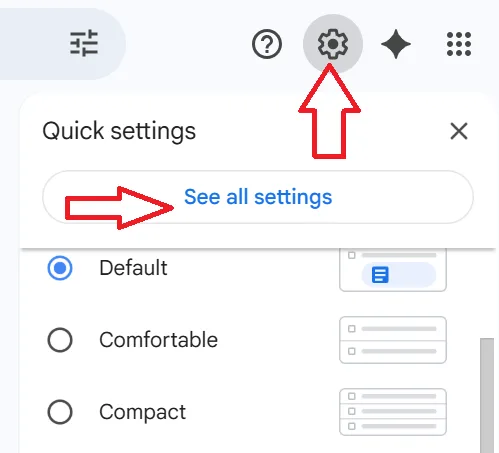
- Select Settings and click the See All Settings option.
- Now, click Forwarding and POP/IMAP and select Enable IMAP.
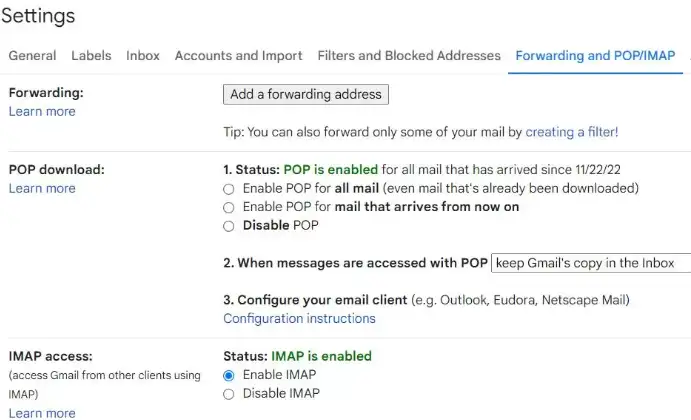
- Click on the Save Changes button.
Step 2: Add Gmail Account to Thunderbird
The next step is to configure the Gmail account in the Thunderbird application. Follow the steps:
- Open the Thunderbird application.
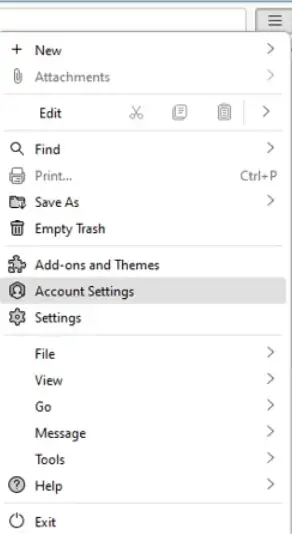
- Select Tools from the menu and then choose Account Settings.
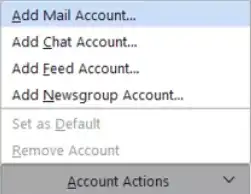
- Now, select Add Mail Account from Account Actions.
- Enter your Gmail ID and Password and click Continue.
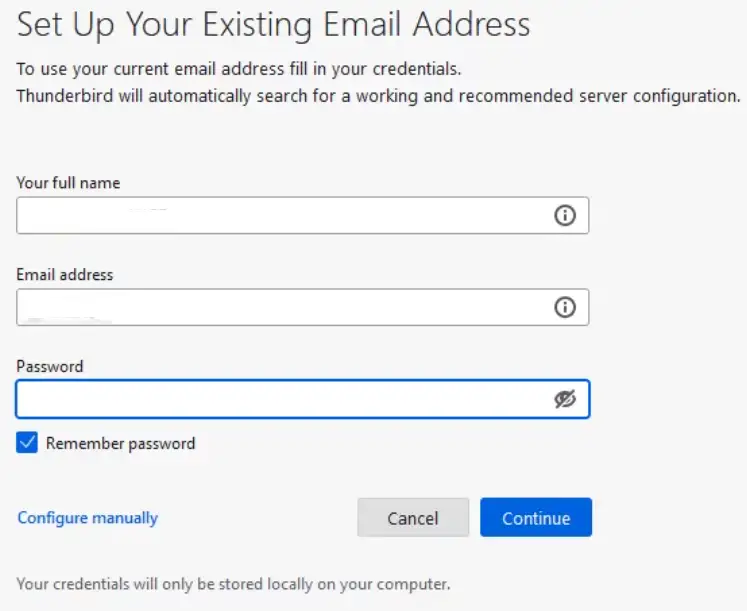
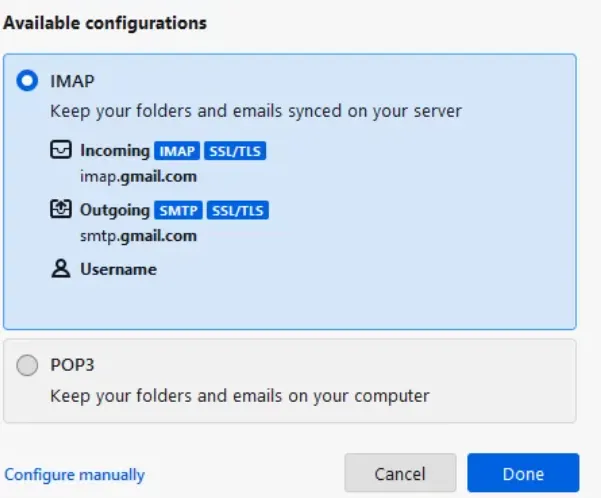
- Now enable the IMAP option and click the Done button.
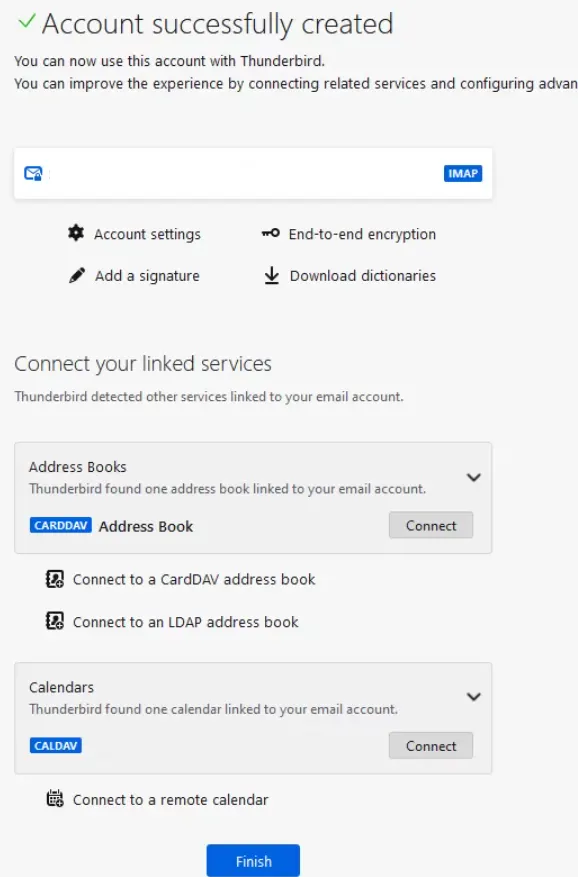
- You will get the ” Account Successfully Created message, click Finish.
Step 3: Move Thunderbird Emails to Gmail
In the final step, users have to move emails from Thunderbird folders to Gmail.
- Select the emails you want to move and right-click.
- From available options, select Copy To > Gmail Account(Newly configured Gmail ID) > Folder(Folders inside Gmail).
- All selected emails are now migrated to Gmail. You can also verify by logging into your Gmail account.
Export Thunderbird Emails to Gmail Directly – Automated Solution
Users can follow the above-mentioned steps to migrate emails from Thunderbird to Gmail. Nevertheless, this method has some restrictions that make the need for a professional solution. Users can download or use the BLR MBOX converter to convert or export Thunderbird emails to a Gmail account directly. Using this MBOX to PST Converter software, it is easier to export all Thunderbird emails, labels/folders, contacts, and calendars into a Gmail account without Thunderbird. This solution is fully safe to export any size or Thunderbird files to Gmail. Both technical users and non-technical users can also use this solution to convert Thunderbird files to a Gmail account.

Furthermore, users can also use this utility to import MBOX files to Zoho Mail, Amazon WorkMail, AOL, Office 365, etc. Users can install this solution in any Windows OS edition, such as Windows XP, Vista, 7, 8, 8.1, 10, and 11. Users can start with the free version of the program to check the full features and options.
Final Thoughts
In this guide, we discussed two different methods to export Thunderbird emails to Gmail account. The first method is fully free to upload Thunderbird emails to a Gmail account. The second option is a professional tool to load Thunderbird email to Gmail or Workspace account by adding an MBOX file and choosing the destination account as Gmail. Simply choose any of the methods suggested above to convert or export Thunderbird emails or contacts to a Gmail account.




