



Read time: 3 Min
If you have multiple MBOX emails to migrate, you need a trusted solution to complete the migration. Many users still struggle to find a direct method to import MBOX into Zoho Mail. In this guide, we explain the best and easiest ways to migrate MBOX emails to Zoho Mail smoothly.
Why Import MBOX File to Zoho Mail?
MBOX emails are widely used by multiple email clients, such as Thunderbird, Apple Mail, SeaMonkey, Eudora, etc. However, ZohoMail doesn’t have the feature “import MBOX,” which makes it difficult for users to access MBOX emails in their ZohoMail account.
- This email allows users to access their emails from any device.
- No need to install multiple email clients to access emails, unlike the MBOX format.
- After importing MBOX to Zoho Mail, it is easy to access emails from any device.
- Zoho Mail gives robust security measures such as encryption, spam filtering, etc.
- This mail has advanced capabilities like folder sharing or Streams.
After knowing the reasons to migrate MBOX to Zoho Mail, let’s know the complete process of importing MBOX emails to Zoho Mail inbox.
Manual Solution to Import MBOX to Zoho Mail
To manually import your MBOX file data, you first need to convert MBOX to EML files. After that, it is easy to move the converted EML files into Zoho Mail account using the import feature. Let’s discuss the steps in detail.
Step 1. Convert MBOX to Zoho Mail Compatible Format
- Open Thunderbird.
- Click on the Import button and import MBOX to Thunderbird client.
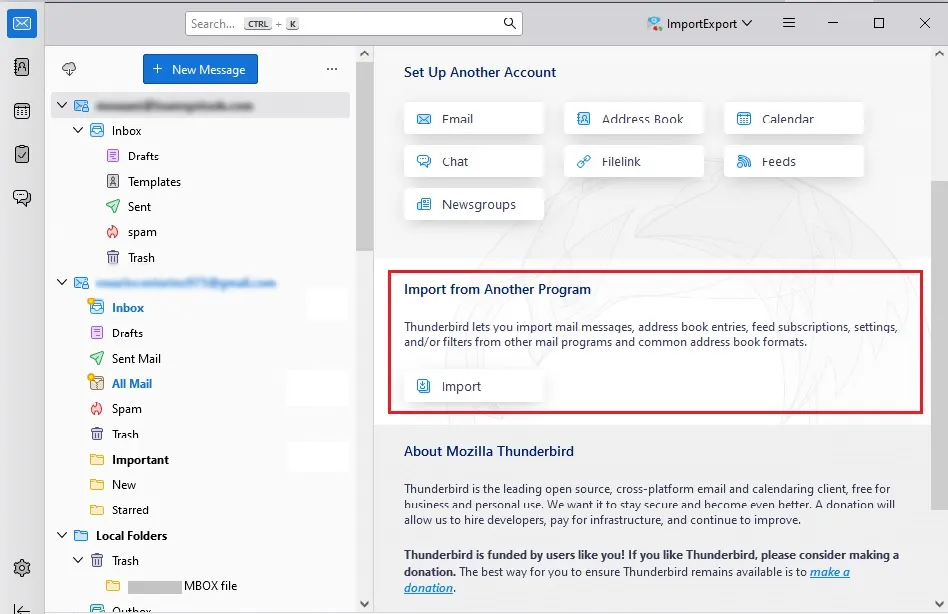
- Now your MBOX file is present in Thunderbird.
- Then, install the “ImportExportTools NG” add-on.
- Go to Tools > ImportExportTools NG > Export folder > Choose EML format.
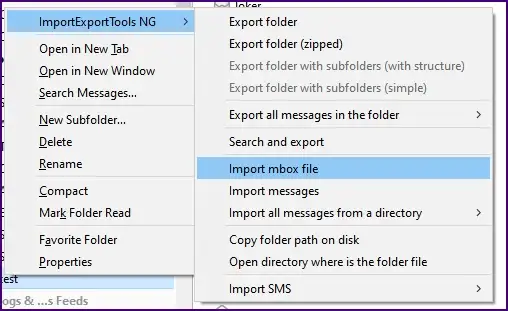
- Pick a folder to save exported EML emails.
- Check MBOX emails that are now converted into EML format.
Step 2: Import Converted Files into Zoho Mail
- Log in to your Zoho Mail account.
- Go to Settings > Import/Export Emails.
- Select Import Emails or pick “EML format.”
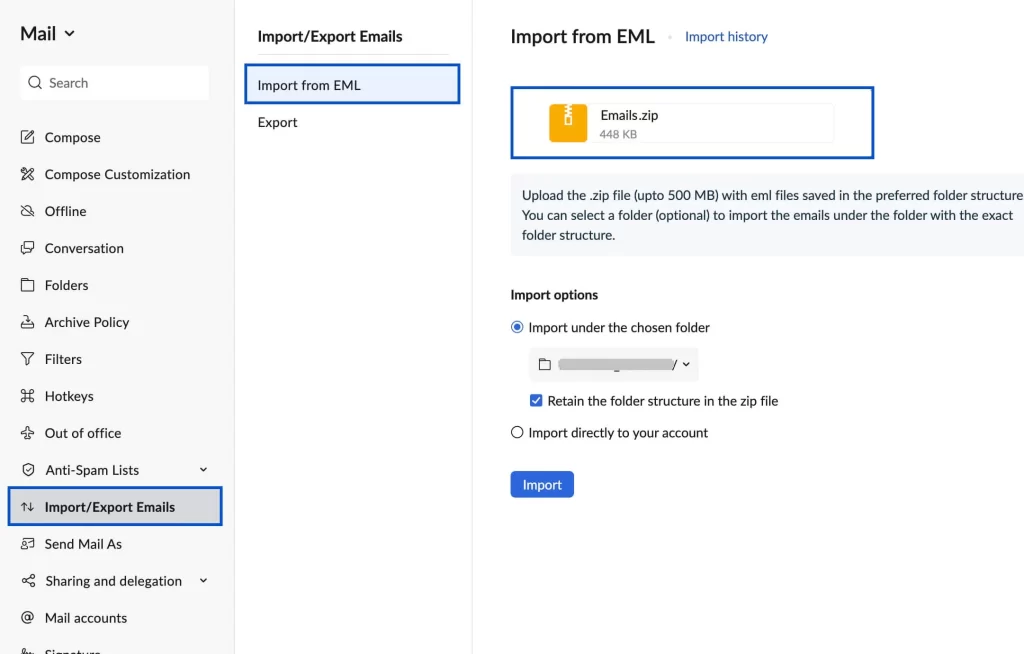
- Click Upload or select the EML files. (Pick converted MBOX files).
- Start the import process.
- MBOX emails will appear in the Zoho Mail inbox.
Here you manually import emails from MBOX file into Zoho Mail account. However, there are a few limitations with this solution.
- Users need to download multiple email clients.
- Need complete knowledge of Thunderbird and Zoho Mail.
- Take a lot of time to convert MBOX to Zoho Mail.
- Bulk conversion is not possible.
- If Thunderbird ImportExportTools NG not working, then you can’t import emails.
- If users miss a single step, then they can lose important MBOX emails.
How to Import MBOX to Zoho Mail in Bulk? ( Using Automated Tool)
Users can use the manual methods mentioned above to transfer MBOX files into Zoho Mail. However, a professional mbox to pst converter solution is best for moving multiple folders or large amounts of data securely. With BLR MBOX Converter, you can easily and reliably import large numbers of MBOX files into Zoho Mail without any data loss.

Using this tool, you can import multiple MBOX files into Zoho mailbox without any hassle. With its simple and user-friendly interface, it is easy to complete the migration process. Additionally, with this tool, you can also import MBOX to Gmail, Office 365, Exchange, and IMAP Servers.
Conclusion
Zoho Mail does not support direct MBOX import. Users moving from Thunderbird or other MBOX-based email clients can use manual methods for a few files. However, for bulk MBOX migration, a reliable solution is needed to import all emails and folders smoothly into Zoho Mail.




