

Read time: 3 Min
Microsoft Outlook is one of the most popular email clients preferred by individuals and businesses worldwide. Outlook stores user emails, contacts, calendars, notes, etc., in a Personal Storage Table(PST) file. Though Outlook is available for both Windows and Mac, users sometimes want to convert PST to MBOX to access emails on different email clients like Apple Mail, Eudora, or Thunderbird.
Top Reasons to Convert PST to MBOX File
There are several reasons why users prefer to convert PST to MBOX files. We have listed a few of the common reasons below:
- Affordability: MS Outlook is expensive for normal users, while many email clients that use the MBOX file are open source.
- Cross-Platform Compatibility: MBOX files can be accessed on a wide number of email clients on both Windows and Mac systems. Thus, it is easy to open MBOX file in different systems.
- Increased Accessibility: Many users love MBOX because it has a simple architecture and is supported in all systems.
- Platform Migration: Upgrading Outlook to Thunderbird or Apple Mail- requires conversion PST to MBOX so that accessing the information is made a lot easier.
- Backup & Archiving: MBOX file is small in size or easier to manage for archiving.
Manual Methods to Convert PST to MBOX File
In this section, we will discuss two manual methods to convert PST to MBOX format without any hassle.
Export PST to MBOX via Microsoft Outlook
Step 1: Export PST file from Outlook
- Open Outlook,
- Select File > Open & Export > Import/Export.

- Choose Export to a File.

- Select Outlook Data File (.pst) and click Next button.

- Select the folders you want to save.

- Save the exported PST file to your system.
Step 2: Import PST to Thunderbird
- Open Thunderbird
- Now, open Mozilla Thunderbird and go to Tools and click Import option.

- Select Import from Outlook option and click Continue.

- Moving forward, choose the items you wish to import and click Continue.

- Click Start Import to import PST files, then click Finish to end the process.

Step 3: Export Emails from Thunderbird to MBOX
- Open Thunderbird
- Go to Tools > Add-ons & Themes,
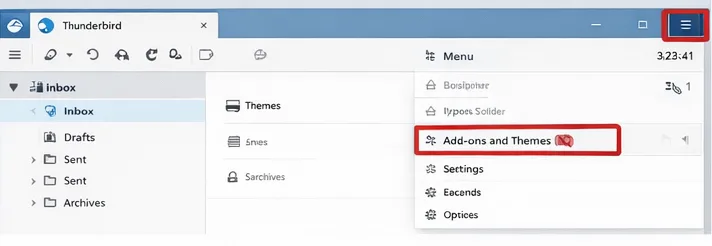
- Search for ImportExportTools NG, and install it.

- Right-click the folder you imported in Thunderbird.
- Now select ImportExportTools NG > Export folder.
- Choose the MBOX format and save it to your desired location.
You now have your PST data available in an MBOX file. Large PST files might not sync properly, and this process can be time-consuming.
Limitations of Manual PST to MBOX Conversion
Although manual methods exist, they are usually met with severe challenges that may impact their ability to successfully export PST to MBOX
- The manual method is time-consuming, especially if you have a large amount of data to process.
- It requires a high level of technical knowledge and is not feasible for non-technical users.
- Due to a lengthy process, the chances of data loss are high.
- Unable to effectively handle large PST files.
Many users prefer a professional approach for a seamless PST to MBOX converter because of these disadvantages.
Automated Method to Convert PST to MBOX File
While the manual method for PST to MBOX conversion is simple, there are still some limitations to it, as discussed in the above section. To eliminate the risks involved, using professional software for the secure conversion of PST files to MBOX format is suggested. Try BLR PST Converter software to convert your files seamlessly while keeping the original hierarchy of the mailbox intact.

This PST converter software guarantees conversion without any data loss in minimal time. A few of the impeccable features of this software are:
- It directly loads PST files and exports PST to MBOX, with no need to install Outlook.
- Maintain folder hierarchy, email formatting, and attachments.
- The software allows you to convert PST to EML, PDF, HTML, and so on.
- Batch conversion is supported, enabling you to convert several PST files to MBOX simultaneously.
- Work with all Outlook versions, including 2019, 2016, 2013, and older.
- It is also possible to import PST into Gmail so as to access it and be managed effectively and safely in the cloud.
Conclusion
Converting PST to MBOX is recommended to keep your important emails safe and organized. In the above blog, the method to convert PST to MBOX file is already described in detail. However, the manual method is perfect for small conversions, they are inappropriate when dealing with large files. For best results its better to take the help of a professional PST converter for efficient and safe conversion.