



Read time: 3 Min
If you want to access MBOX file data in Outlook, then converting MBOX emails into MSG is best for better access, sharing, or migration. At that point, when users try to convert their MBOX emails into message files, you must find out that it’s not that simple.
If you are trying to convert MBOX to MSG, you might find the process confusing at first. Don’t worry, this guide will walk you through simple and reliable ways to perform the conversion while keeping attachments, formatting, and email properties intact. Before we move ahead and learn about the conversion process, let’s discuss the reasons for doing so.
Why Need to Convert MBOX to MSG Files?
Converting MBOX emails into MSG files have their own benefits, some of them include,
- Single Email File: MSG file is an Outlook file that saves its single email. This format is easy to manage, store, share, or backup.
- Works with Microsoft Outlook: MSG is the default format of Outlook for saving single messages. You can open and read these files directly in any Outlook version.
- Easy to Share: You can send a specific email instead of sharing the entire MBOX mailbox. This saves both time and space.
- Lightweight & Safer: Since each email is saved individually, MSG files are easier to handle and have less chance of corruption than large MBOX files.
- Better Security: Once converted to MSG, emails can be stored in Outlook, which provides security features like encryption and safe access.
- Helpful for Legal Needs: MSG files keep important metadata, which is useful for eDiscovery and compliance. You can easily drag and drop MSG files into Outlook.
How to Convert MBOX to MSG File Manually?
To manually convert MBOX emails into MSG files, you need both Thunderbird and Outlook applications installed on your system. After that, follow these instructions –
- Open Thunderbird and click on the Import button.
- Click on the Import button and choose the respective options.
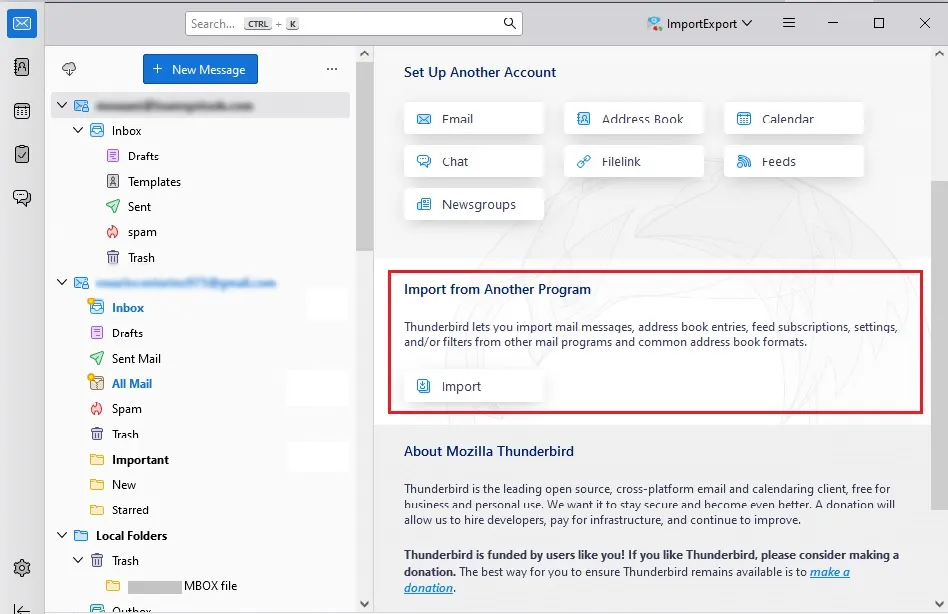
- After you import MBOX to Thunderbird, you can access your data.
- Now add the Thunderbird email account to Outlook via IMAP.
- After configuration, drag the emails from the imported MBOX folder to the IMAP folder in Thunderbird.
- Open Outlook and wait for the emails to sync.
- Now, open the email you moved to Outlook.
- Go to File → Save As.
- Select the MSG format and save the file.
Done! Here, complete the MBOX to MSG conversion manually. However, with this solution, there are a few limitations, such as –
- A large MBOX file can take hours to import and then convert.
- While converting some emails or attachments may be missed.
- The original folder structure, formatting, and hierarchy are not always kept.
- If while converting there will be an error, then there is no proper support to fix it.
Direct Solution to Convert MBOX to MSG Files with Attachments
For hassle-free and bulk conversion, try out the BLR MBOX Converter tool. The single MBOX to PST converter tool can easily convert MBOX emails to MSG files in bulk without any data loss. All versions of Windows OS, both new and old, can be used with the program.

Additionally, using this tool you can also convert MBOX to PDF, HTML, CSV, ICS, and many other file formats. Get the free demo edition of this tool to check more features.
Conclusion
Users can learn simple and effective ways to convert MBOX to MSG for Outlook. A professional tool provides a safe method to export MBOX files without losing email formatting or data. The software can be installed on all editions of Windows.
The manual method may be suitable for technical users who have experience in this area. You can choose any approach that best fits your needs to export MBOX files to MSG. We hope this article helps you find the right solution for converting emails into the Outlook MSG format.




