Read time: 7 Min
If you’ve ever opened Outlook at a certain point, you must have been greeted with a frustrating “Error 500: Something Went Wrong” message. Then you’re not alone. This is a server-side error that can appear anytime without any warning and affect your workflow.
This article will help you to fix the Outlook Error 500 effortlessly. Firstly, we will discuss what this error is, the reason for the issue, and finally the solution to fix it.
What Is Outlook Error 500?
HTTP Error 500 is a standard web error code that stands for Internal Server Error. When Outlook displays this error, it typically means:
- Microsoft’s servers encountered an unexpected condition
- The request your client sent could not be processed
- A configuration or authentication issue is blocking your session
The error message usually reads something like:
“Something went wrong. We’re sorry, we’re having some trouble right now. Please try again later. Error Code: 500”.
Why Does Outlook Error 500 Occur?
There are various common reasons when Outlook users face the 500 error: Something went wrong. Some of them include;
| Reasons | Description |
|---|---|
| Microsoft Server Outage | Temporary problems with Microsoft servers affecting Outlook services |
| Corrupted Browser Cache/Cookies | Old or damaged browser data is interrupting Outlook Web Access |
| Outdated Outlook | Older Outlook versions causing communication or performance issues |
| Damaged Outlook Profile | Corrupted user profiles leading to login or authentication errors |
| DNS or Network Problems1 | Internet or DNS issues preventing proper server connection |
| Microsoft 365 Account Issues | Licensing, subscription, or permission-related account problems |
| Antivirus or Firewall Interference | Security software blocking Outlook network access |
Here we discuss the common reasons for facing the error. Now let’s fix it.
How to Fix Outlook Error 500: Something Went Wrong
1. Check Microsoft Service Status
Before you use any method to fix the issue, first verify if the problem isn’t on Microsoft’s side.
- Visit the Microsoft 365 Service Status page: https://status.office.com
- Check for any active incidents or degraded performance affecting Exchange or Outlook.
- You can also check @MSFT365Status on Twitter/X for real-time updates.
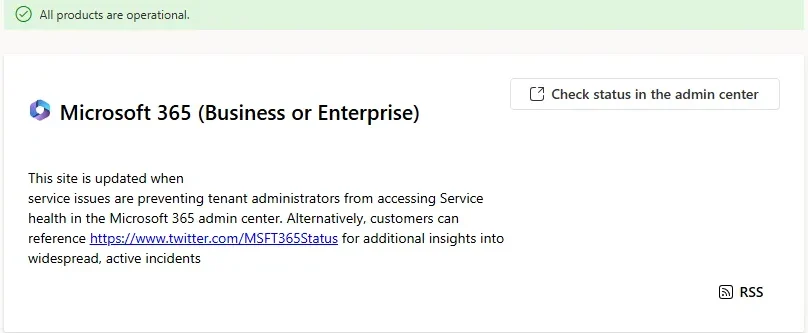
If there’s a known outage, simply wait for Microsoft to resolve it. There’s nothing you can do on your end until their servers are back to normal.
2. Refresh the Page or Restart the App
It sounds obvious, but a simple refresh often clears Outlook Error 500s.
- For Outlook Web (OWA): Press F5 or Ctrl + R (Windows) / Cmd + R (Mac) to refresh the page.
- For Outlook Desktop App: Close the application completely (check the system tray to ensure it’s fully closed).
- Reopen Outlook and sign in again.
3. Clear Browser Cache and Cookies (Outlook Web)
If you use Outlook through a browser, a corrupted cache is one of the most common causes of Outlook Error 500.
To resolve the issue, first open Google Chrome, then follow these steps:
- Press Ctrl + Shift + Delete
- Set the time range to All time
- Check Cookies and other site data and Cached images and files
- Click Clear data
- Reopen Outlook Web and log in again
After clearing, close and reopen the browser before opening Outlook.
4. Try a Different Browser or InPrivate/Incognito Mode
Browser extensions or settings might be causing conflicts.
- Open a new InPrivate (Edge) or Incognito (Chrome).
- Navigate to outlook.office.com
- Log in and see if the error disappears
If it works in Incognito, a browser extension is likely the culprit. Disable extensions one by one to find the offending one. Also try switching browsers.
5. Disable Browser Extensions
Extensions like ad blockers, VPNs, or privacy tools can interfere with Outlook Web. If disabling all extensions fixes the error, re-enable them one by one to identify the problematic one.
6. Update the Outlook Client
Running an outdated version of Outlook can cause compatibility issues with Microsoft’s servers. Find out which version of Outlook you are using; if it is an older one, then update it.
For Microsoft 365 / Office 365:
- Open Outlook
- Go to File > Office Account (or Help > Check for Updates)
- Click Update Options > Update Now
- Allow the update to download and install
- Restart Outlook
For Microsoft Store version:
- Open the Microsoft Store
- Click Library (bottom-left)
- Click Get updates
- Update Outlook if an update is available
7. Repair the Outlook App
Windows has its own built-in repair tool for Office applications that can fix corrupted files without a full reinstall.
- Press Windows + I to open Settings
- Go to Apps > Installed Apps (or Apps & Features on Windows 10)
- Find Microsoft Office or Microsoft 365
- Click the three-dot menu and select Modify
- Choose between:
- Quick Repair — Faster, doesn’t need internet
- Online Repair — More thorough, requires internet
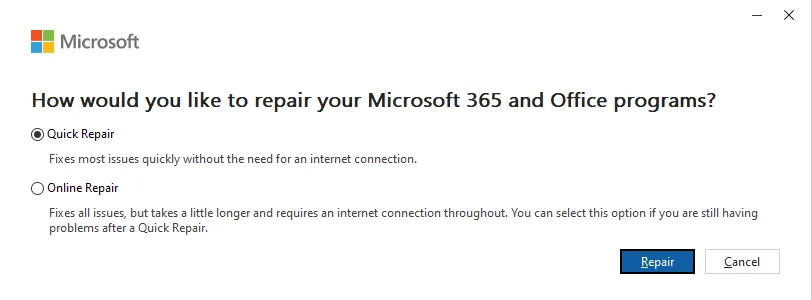
- Click Repair and follow the prompts
- Restart your computer and reopen Outlook
8. Disable Outlook Add-ins
The add-ins you add in your Outlook profile to increase work efficiency sometimes create conflicts and cause server communication errors.
- Open Outlook
- Go to File > Options > Add-ins
- At the bottom, next to Manage, select COM Add-ins and click Go
- Uncheck all add-ins and click OK
- Restart Outlook
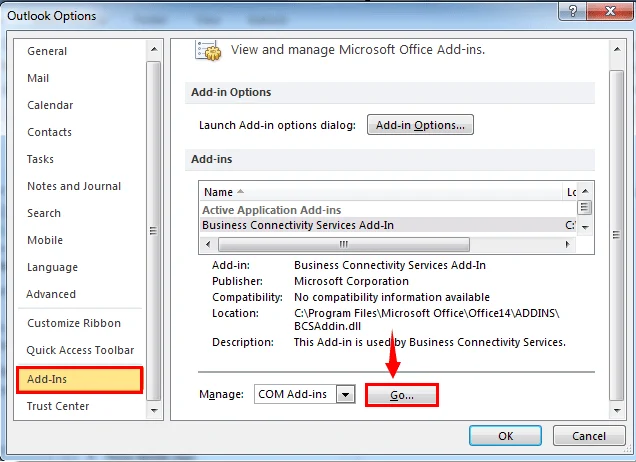
If the error is gone, re-enable add-ins one at a time to find the culprit.
9. Create a New Outlook Profile
A corrupted profile can cause errors including Outlook Error 500. Creating a new profile often resolves most of the errors. Don’t delete your old profile; just rename it and then create a new one.
- Close Outlook completely
- Open Control Panel (search for it in the Start menu)
- Go to Mail (Microsoft Outlook) > Show Profiles
- Click Add and enter a name for the new profile
- Follow the wizard to add your email account
- Set the new profile as the default
- Reopen Outlook with the new profile
Tip: Sometimes, this issue may be caused by a corrupted OST file. In such cases, you need to recover data from the corrupted OST file to resolve the problem. For that, you can use the BLR OST Recovery Tool and handle a corrupted OST file effortlessly.

10. Flush DNS Cache
DNS issues can prevent Outlook from properly connecting to Microsoft’s servers.
- Press Windows + S, type cmd
- Right-click Command Prompt and select Run as administrator
- Type the following commands one by one, pressing Enter after each:
- ipconfig /flushdns
- ipconfig /registerdns
- ipconfig /release
- ipconfig /renew
- netsh winsock reset
- Restart your computer
- Reopen Outlook
11. Temporarily Disable Antivirus or Firewall
Some antivirus software can block Outlook’s connections to Microsoft servers. Disabling them temporarily can solve the error. Also, temporarily turn off Windows Defender Firewall:
- Go to Control Panel > System and Security > Windows Defender Firewall
- Click Turn Windows Defender Firewall on or off
- Select Turn off for both private and public networks
Re-enable your security software immediately after testing. If disabling security software resolves the issue, add Outlook as an exception in your firewall/antivirus settings rather than leaving protection disabled.
When to Contact Microsoft Support
If you’ve tried all the above fixes and still see Outlook Error 500, then it’s time for you to seek expert support. Reach out to the support team at Microsoft.
- Microsoft Support website: https://support.microsoft.com
- Microsoft 365 Admin Center (for business accounts): Check the Service Health dashboard
- In-app Help: File > Help > Contact Support.
Tips to Prevent Outlook Error 500 in the Future
To prevent Outlook Error 500 in the future, follow these steps;
- Keep your Outlook app updated to ensure better compatibility and bug fixes.
- Regularly clear your browser cache to avoid stale data issues.
- Only use trusted add-ins to reduce conflicts.
- It’s also important to monitor Microsoft 365 service status and maintain a stable internet connection.
- Make sure your Microsoft 365 license remains active to avoid permission-related errors.
Conclusion
You may find Outlook Error 500 a bit complicated, but in most cases, it can be fixed with simple steps such as checking Microsoft’s server status, clearing the cache, or updating Outlook. By applying the fixes in the correct order and keeping Outlook properly maintained, you can quickly resolve the issue and prevent it from recurring. If the error continues, contacting Microsoft Support is the best option.