

Read time: 3 Min
In today’s cloud-driven environment, moving email to IMAP server is a more reliable option. PST files is used by Outlook users to locally store their calendars, contacts, emails, and other data. In today’s cloud-driven environment, moving email data to IMAP-based servers is a more reliable and accessible option. Understanding how to import PST file to IMAP is crucial, regardless of whether you’re changing email providers or need a cloud backup.
This guide describes the causes, manual techniques, difficulties, and the simplest expert solution.
Why Import PST to IMAP Server?
Several reasons lead users to import PST to IMAP account, a few of the common reasons are:
- Users can access their emails from any device at any time with IMAP, so you’re not limited to a single computer.
- Keeping your emails on an IMAP server is safer than storing them locally in PST emails.
- When switching mail servers or providers, it’s crucial to move your PST files to an IMAP account.
- When all emails are stored on the server, it reduces the possibility of data loss during a system crash.
- If users upload PST files in IMAP accout then they can open PST emails with Outlook.
- Storing emails on a server leads the user to free up local storage.
Because of these factors, users would rather transfer PST to IMAP account than rely solely on the local Outlook data file.
Manual Method to Migrate Outlook PST to IMAP
You can set up an IMAP account in Microsoft Outlook and then transfer emails from a PST file to it. Here’s how:
Step 1: Login IMAP Account in MS Outlook
- Open Outlook, and Click File, and Click Account Info.
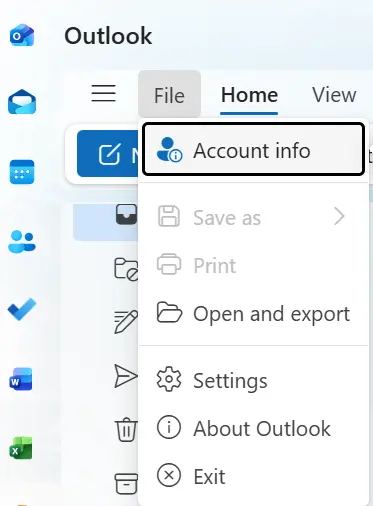
- Click Add Account.

- Enter your IMAP email address, server details, and credentials.
- The IMAP mailbox will appear in the folder pane after it has been added.
Step 2: Add PST File in Outlook
- Click the File option, select Import/Export, and click Open & Export.
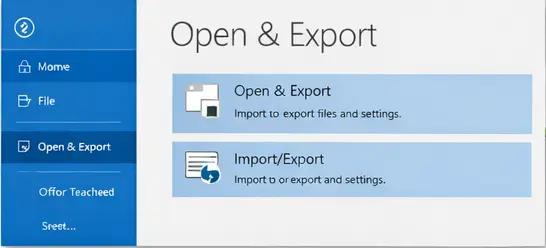
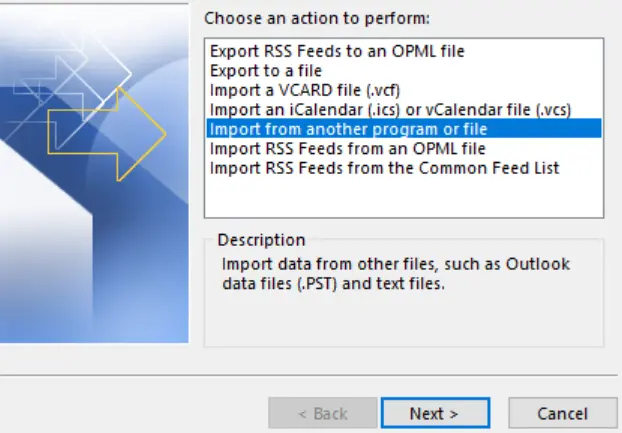
- Select Import from another program or file.
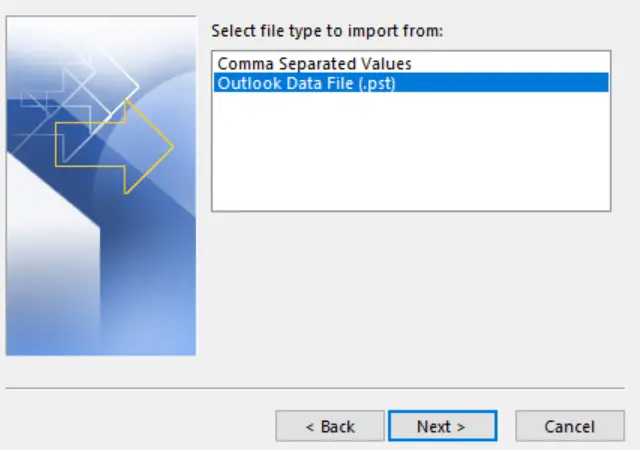
- Now choose Outlook Data File (.pst) from the available options and locate the PST you want to import.
- Now select the IMAP mailbox as the destination.
- Start the import process, and Outlook will copy PST data into your IMAP folders.
Limitations of the Manual Method
As we have discussed manual method to import PST to IMAP account using Outlook’s built-in import/export feature. The manual method is not always the best solution as it is time-consuming and requires good technical knowledge. It is best suited only if you have a small number of emails to import. Users with one-time transfers and small PST emails are better suited for this approach. However, when working with big mailboxes or numerous PST file several problems are faced by users. The typical restrictions you should be mindful of are listed below:
- Requires Outlook installation.
- Cannot handle very large PST files efficiently.
- Folder structure may break in some cases.
- Time-consuming for multiple PST emails.
- Risk of incomplete migration.
If you need to upload PST to an IMAP account in bulk, manual steps might not be enough. That’s where the need of a professional PST to IMAP migration tool becomes important.
Instant PST to IMAP Migration with Professional Tool
The manual method has a few limitations, which we have discussed above. To overcome these limitations user need to use an automated tool to import PST to IMAP account. BLR PST Converter is one such solution that can help you to import PST files to IMAP account instantly. Outlook PST converter software allows the import from corrupted or damaged PST files, also recovering all user emails and importing them to IMAP server. It allows users to convert PST to different formats like EML, HTML, RTF, PDF, MSG, etc.

Conclusion
Importing emails from PST to IMAP ensures better accessibility, security, and data continuity. Manual methods are sometimes ineffective when dealing with a large number of emails. A professional software for PST to IMAP migration offers a fast, safe, and error-free method of data transfer.