



Read time: 3 Min
If you are trying to import MBOX to IMAP Server, then you are most likely moving from a desktop client to a webmail server. But you are not aware of how to migrate your MBOX emails to an IMAP Server account. Don’t worry, this blog will guide the step by step guide for MBOX to IMAP migration.
MBOX file is a single mailbox file used by clients like Thunderbird and Apple Mail, but this file can’t be directly imported into most IMAP servers. That’s why many users search for safe and efficient methods to import MBOX to IMAP accounts without data loss.
Before we talk about the complete importing, let’s discuss the reasons for that.
Why Import MBOX File to IMAP Account?
There are several reasons why users choose to migrate their emails from MBOX to an IMAP server. Some of the most common include:
- You can open your MBOX emails on any device after moving them to an IMAP account.
- IMAP keeps emails synced across different email services.
- You can easily organize, move, and manage your emails.
- No need for an MBOX-supported email client anymore.
- Deleted emails can often be recovered from the server.
Import MBOX to IMAP Server Manually
If you want to manually transfer MBOX emails to IMAP account, then you need a MBOX-supportive email client installed on your system. If not, then you can use Thunderbird and follow these instructions.
- Open Thunderbird and add your IMAP account.
- To do that, click on Settings > Account Settings > New Account.
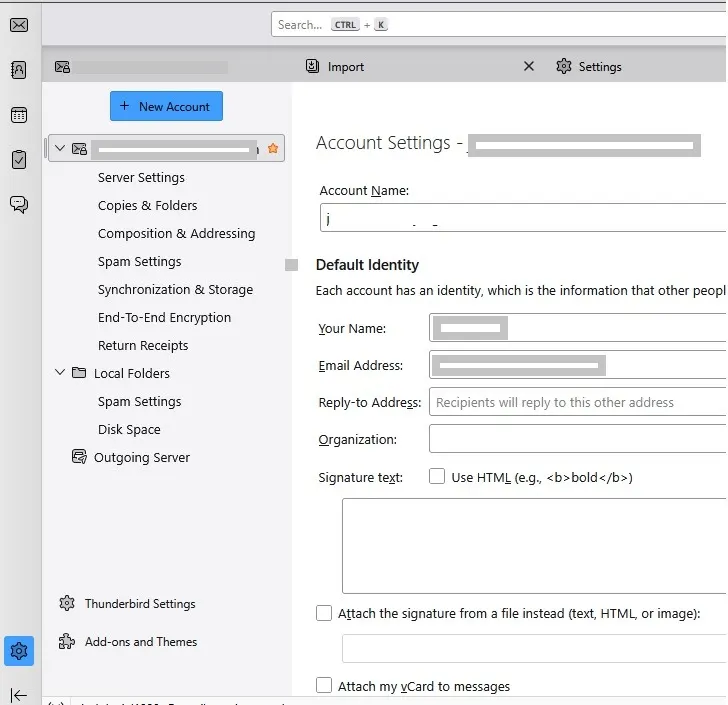
- Enter your webmail account details, and let Thunderbird configure it automatically.
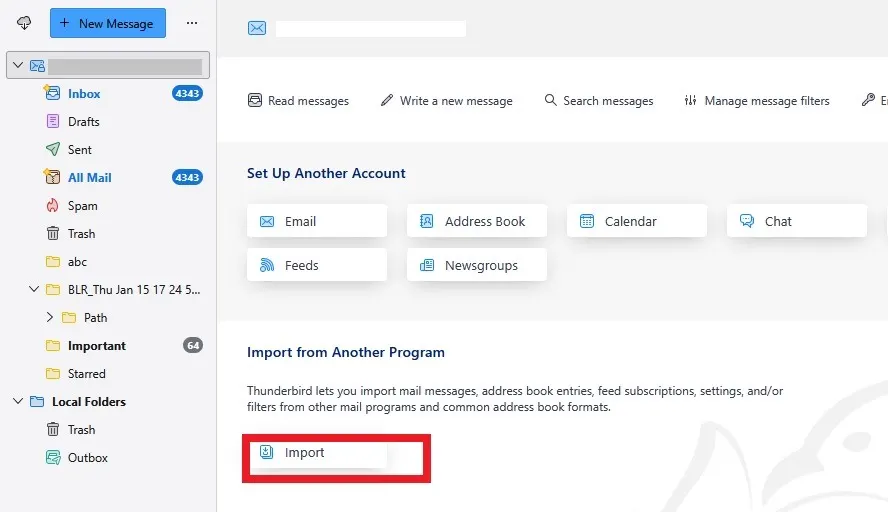
- After that, you need to import MBOX to Thunderbird client.
- For that, click on the Import button.
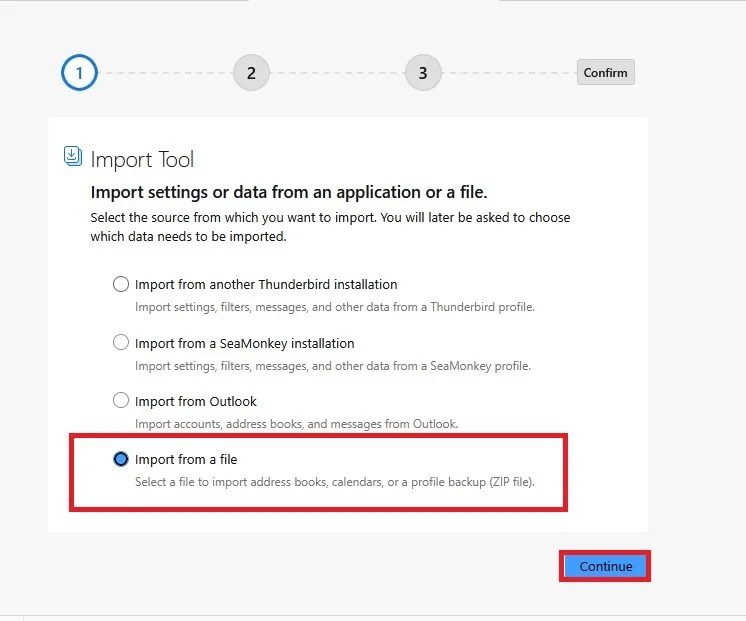
- Then choose Import from a file > Import Backup profile and choose the MBOX file in zip format.
- Now you have an MBOX file, right click on it and move to your IMAP account that you configured recently.
Here are the manual steps to manually import emails from the MBOX file into IMAP Servers. Despite this, this method has a few limitations.
- You need to follow each step to import MBOX to the IMAP email account.
- Technical knowledge is required to complete the conversion process.
- Not as fast as a third-party tool.
- Chance of losing data when using the free method.
- Multiple Email clients are needed.
- Confusing for new users who are using this method.
Directly Import MBOX to IMAP Server in Bulk
Manually importing emails form MBOX file is time-consuming and complicated. To avoid any hassle, you can use the BLR MBOX Converter Software. MBOX to PST Converter tool offers a quick and safe way to complete the migration process. There is no need to use any MBOX-supported email client. You can simply select the required MBOX files or folders and import them directly into an IMAP account easily and smoothly.

Along with this, this tool can also import MBOX to Gmail, Office 365, Yahoo Mail, and all other webmail accounts. While importing emails, this tool maintains folder and sub-folder hierarchy and structure. For more info, you can use the demo version of the software.
Conclusion
In this blog, we learn the 2 techniques to import MBOX to IMAP mail accounts along with attachments. The first method can be difficult for non-technical users. The manual method has lots of restrictions, such as data loss, taking a lot of time, and cannot be operated easily by non-technical users. In contrast to this, we also suggest an automated tool that can easily import MBOX files to IMAP webmail accounts in bulk without any data loss.




