



Read time: 3 Min
There are many users who use the MBOX-supported email clients, but accessing these emails in an iCloud account can be challenging. As iCloud is a webmail service, it doesn’t support direct MBOX import. In this blog, we’ll explore the best and safest ways to import MBOX files into iCloud account, including both manual methods and the direct solution. Before that, let’s know the reasons for the MBOX to iCloud migration.
Why Import MBOX to iCloud Mailbox?
There are various reasons depending on the user’s need to migrate MBOX file to iCloud mailbox. Here are some common ones.
- Works well with Apple devices: iCloud works smoothly with Apple Mail and other Apple tools, giving users a better experience.
Access emails on multiple devices: iCloud syncs emails automatically, so users can open their emails on iPhone, MacBook, iPad, and other Apple devices.
Manage all emails in one place: Importing MBOX to iCloud helps users keep multiple email accounts or old emails together in one account.
Easy sharing and collaboration: Emails saved in iCloud can be shared easily without switching between different email clients.
Automatic email backup: iCloud automatically backs up emails, helping users recover important messages if they are deleted by mistake.
Here are the benefits of importing MBOX emails to iCloud mailbox. Now, let’s discuss how the actual migration process works.
Manual Solution to Import MBOX to iCloud Account
Here we will discuss the two solutions to move MBOX emails to iCloud mailbox. Follow the instructions as mentioned.
1. Import MBOX to iCloud Using Thunderbird
- Install and open Thunderbird on your computer.
- Add your iCloud email account in Thunderbird (via IMAP settings).
- Go to Tools > Add-ons and install the ImportExportTools NG
- Right-click on local folder and choose ImportExportTools NG > Import MBOX file.
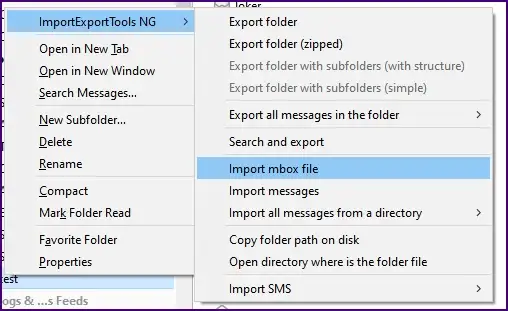
- Here, you import MBOX to Thunderbird mailbox. Now open the imported MBOX folder and select the emails.
- Drag and drop the emails into your iCloud mailbox in Thunderbird.
- Check your iCloud and find the sync data from the email client.
Note: To import your data, you need to install Thunderbird on your system. Moreover, if Thunderbird ImportExportTools NG not working, then importing will not be possible (only if you are using an older Thunderbird version).
2. Migrate MBOX File to Thunderbird Using Apple Mail
Noted that this solution is for Mac users who are using Apple Mail for managing emails. If all these are there, then follow the instructions and import MBOX to Apple Mail and then move to iCloud.
- Open Apple Mail on your Mac and go to File > Import Mailboxes.
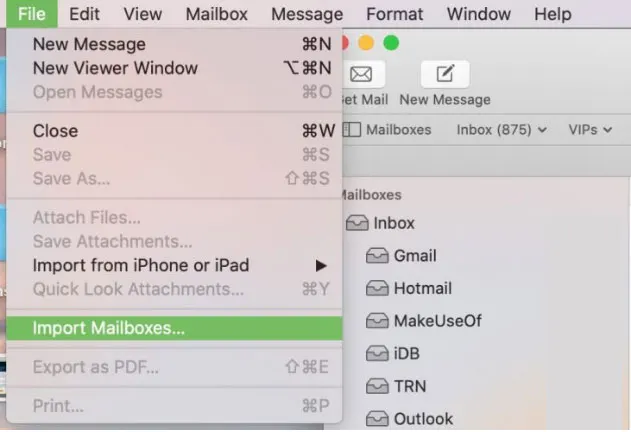
- Select Files in MBOX format and click Continue.
- Browse and choose the MBOX file you want to import.
- The imported emails will appear under “My Mac” in Apple Mail.
- Sign in to your iCloud account in Apple Mail.
- Drag and drop the imported emails or folders into your iCloud mailbox.
- Wait for the sync to finish so emails upload to iCloud.
- Done! Here is the complete process of MBOX to iCloud importing. But you can’t import a selective email folder with a manual approach.
Direct Solution to Import MBOX to iCloud in Bulk
Try out the BLR MBOX Converter tool and complete the migration process. This professional mbox to pst tool allows users to import multiple or selected MBOX files into an iCloud account without size limits. While importing MBOX emails, the tool keeps attachments and key attributes intact.

Try out the demo version of the software to learn more about the import process.
Conclusion
In this blog section, we discuss how importing MBOX to iCloud is important to access and open MBOX files anytime and anywhere. It is an easy process to import MBOX to iCloud if we use the professional method. When users choose the manual method to move MBOX to iCloud, they face multiple restrictions, such as data loss, taking a long time, and needing an expert user on the side.
FAQ’s
Q1. To import MBOX files into iCloud do I need a Mac system?
No, you can use Thunderbird client on Windows by configuring your iCloud account through IMAP settings. After that, you can import your data.
Q2. Will MBOX email attachments be imported into iCloud?
Yes, with this tool, you can import MBOX to iCloud with attachments, but manual methods may miss some attachments, especially when the MBOX file is large in size.




