


Read time: 4 Min
Apple Mail is a default email client for macOS and iOS developed by Apple Inc and is available for free. On the other hand, Gmail is a web-based email client developed by Google and is also available for free. One can configure Gmail with any desktop-based email clients using IMAP or POP3 settings. Sometimes users want to import Apple Mail to Gmail account, but they don’t know how to start. So here in the blog, we will go through various steps involved to access Apple Mail in a Gmail/G Suite account.
Free Method to Import Apple Mail to Gmail
The manual method to import Apple Mail to Gmail or a G Suite account includes configuring the Gmail account in the Apple Mail client and then dragging and dropping emails to a folder in Gmail. The complete process can be divided into two steps, which are described here in details
Step 1: Enable IMAP in Gmail
- Sign in to your Gmail Account.
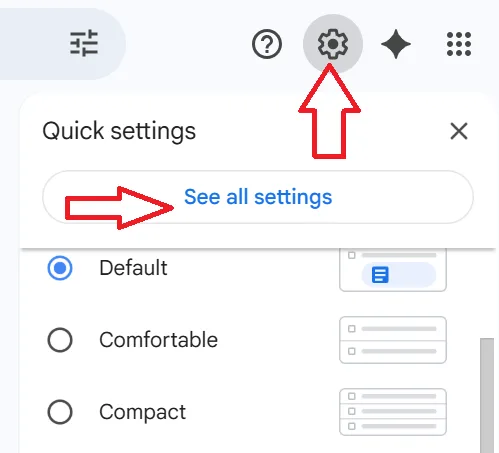
- Click on Settings and select See All Settings.
- Now click Forwarding and POP/IMAP settings, and click Enable IMAP.
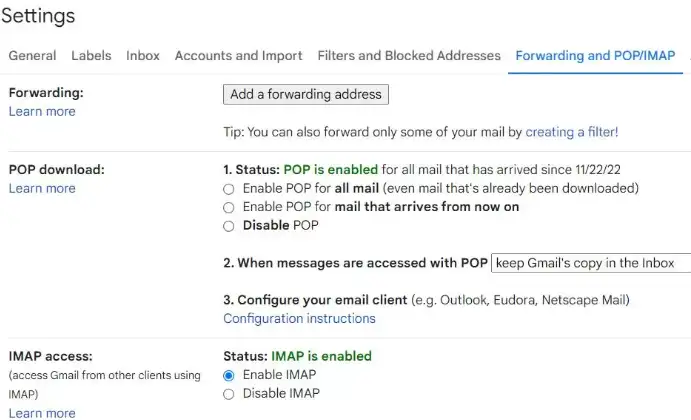
- Click Save Changes to save the settings.
Step 2: Add Gmail Account to Apple Mail & Move Emails
- Open Apple Mail.
- Click on Accounts.
- Select Preferences and click on Add Account.
- Select Google and enter your ID and Password.
- Now Gmail is configured in Apple Mail.
- Move local folders from Apple Mail to a folder in the Gmail Account.
- Now that you have moved folders from Apple Mail to Gmail, you can check them into Gmail.
Note: This method is completely free to sync Apple Mail with Gmail, but it takes a lot of time. Users can easily move small amounts of Apple Mail emails into a Gmail account. To move a large number of emails from Mac Mail to Gmail, use professional software.
Recommended Solution by Experts to Import Apple Mail to Gmail or G Suite
If users want to import bulk Apple Mail emails into a Gmail or Google Workspace account, then they can use the professionally recommended solution named BLR MBOX Converter tool. This mbox converter tool can directly convert Apple Mail emails into a Gmail account. No other email client installation is required to accomplish the Apple Mail Gmail migration.

Users can install this advanced application in any Windows OS edition. This Apple Mail to Google Mail migration tool is compatible with all MS Outlook editions, in case users need to convert MBOX email to Outlook PST format. To know more about the software, try the free demo edition of this tool without paying any money. The free demo edition imports the first 15 emails from Apple Mail/Mac Mail to a Gmail account.
Comprehensive Functionality BLR MBOX Converter Software
- Convert bulk Apple Mail emails into Google Workspace in one time.
- Save time and effort, unlike the manual method.
- Advanced filter features.
- The date filter makes the conversion easier.
- Users can use this tool to import MBOX to Office 365.
- Free demo edition to check the working of the software.
- No technical knowledge is required to operate the software.
Final Thoughts
If users are still trying to figure out how to import Apple Mail emails into a Gmail account without any hassle, then this blog will be helpful for them. Users can learn the manual and direct professional method to import Apple Mail to Gmail or G Suite without any hassle. This blog gives cost-free solutions to users who have a small number of Mac Mail emails. If users have a large number of emails in Apple Mail and they want to simply import them into Gmail, then I suggest they choose the professional method. The expert method is safe to migrate Apple Mail to Google Workspace in bulk. I hope this blog is helpful to sync Apple Mail with Gmail.