

Read time: 3 Min
Many users have old email backups in MBOX files and want to access them in their personal Gmail account directly. In that case, they search for a solution to transfer MBOX to Gmail account. However, there is no direct option in Gmail to import MBOX file and that’s where this.
Why Need to Import MBOX to Gmail Account?
There are various benefits when transfer MBOX to Gmail mailbox, some of the common include:
- Gmail provides cloud-based accessibility, which means once users upload MBOX to Gmail they are available on any device with an internet connection.
- Transferring MBOX to Gmail accounts makes it easier to manage and search old conversations without relying on desktop clients.
- By moving MBOX email data to Gmail, anyone can protect it from accidental loss due to system crashes or corruption in local storage.
- Gmail offers a single, user-friendly space where you can open MBOX files in Gmail and continue communication without interruption.
- Lastly, many people import MBOX in Gmail when switching from other email clients like Thunderbird, Apple Mail, or Eudora. Instead of handling multiple platforms.
How to Import MBOX to Gmail with Thunderbird?
If you want to upload MBOX to Gmail manually, then you need to use a MBOX supportive email client. Here, we will complete the import using the Thunderbird application. Follow the instructions:
- Download and open Thunderbird on your computer.
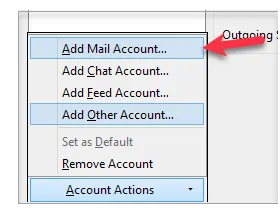
- After that, click on Account Settings > Account Action > Add Mail account.
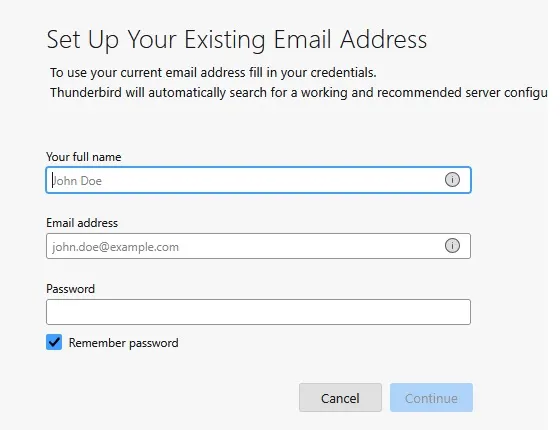
- Enter your Gmail email address and password, and choose the configure automatically option.
- In Thunderbird, install the add-on called ImportExportTools NG.
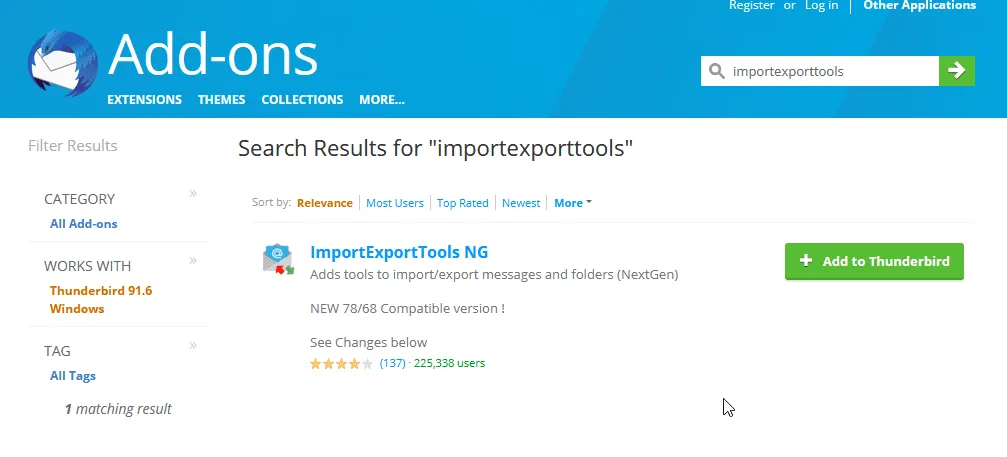
- Find Local Folders on the left side.
- Right-click it and choose the Import MBOX file.
- Browse the MBOX file from your system.
- Select the emails and import MBOX to Thunderbird mailbox.
- Drag them or use Move To and choose your Gmail Inbox (or another folder).
- Wait while Thunderbird uploads the emails to Gmail.
Here, complete the MBOX to Gmail import process. However, there are a few limitations, such as time-consuming, needing technical knowledge for account configuration, and missing emails or attachments.
Method to Import MBOX to Gmail without Thunderbird?
If you are looking for an instant and secure way to upload MBOX to a Gmail account, BLR MBOX Converter can help. The MBOX converter software effortlessly imports complete data from MBOX files into a Gmail mailbox without affecting data integrity. Moreover, there are no changes to the folder and subfolder hierarchy or structure.  Download the demo version of the tool to see how it works.
Conclusion
The purpose of this page is to assist you on how to import MBOX to Gmail from various sources. We have shown how to use the Thunderbird client to open MBOX file in Gmail. The mbox mail converter software can be used to import MBOX email from Gmail to a new Gmail account without the need for any other program or knowledge.