

Read time: 4 Min
Mozilla Thunderbird is a secure, customizable, & open source email client developed by the Mozilla Foundation. It is a cross-platform program that can run on Linux, Android, FreeBSD, macOS, and Windows operating systems. On the other hand, Microsoft Outlook is a widely used email client preferred by users worldwide due to its advanced security features and better integration with Microsoft 365, Microsoft Exchange Server, Microsoft Teams, and OneDrive. When a user switches from Thunderbird to MS Outlook, it’s not easy to migrate Thunderbird emails to Outlook directly, as both platforms use different formats to store emails. There is a free manual method to export Thunderbird emails to Outlook, which is discussed in this blog. We will also share a professional solution to make the email migration fast and secure.
Manual Method to Export Thunderbird Emails to Outlook
There are two different manual methods that we can use to export Thunderbird emails to Outlook.
- Thunderbird to Outlook Using Gmail.
- Export to Outlook through EML.
Method 1: Export Thunderbird to Outlook using Gmail
The first method includes configuring a Gmail account in Thunderbird first and then moving Thunderbird emails to Gmail. In the next step, the same Gmail is configured in Outlook to access Thunderbird emails.
Step 1: Enable IMAP in Gmail
- Log in to your Gmail account and click on the Settings icon.
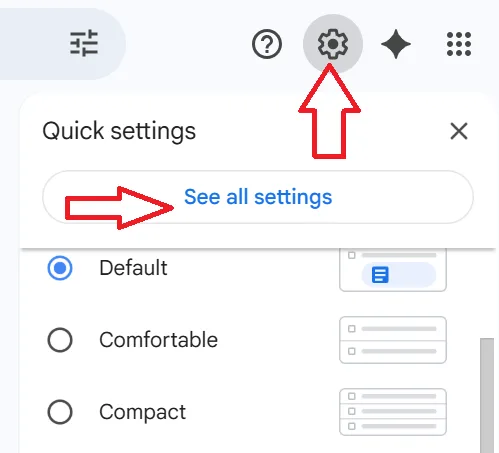
- Choose the See all Settings option.
- Now, select Forwarding and POP/IMAP and click on Enable IMAP.
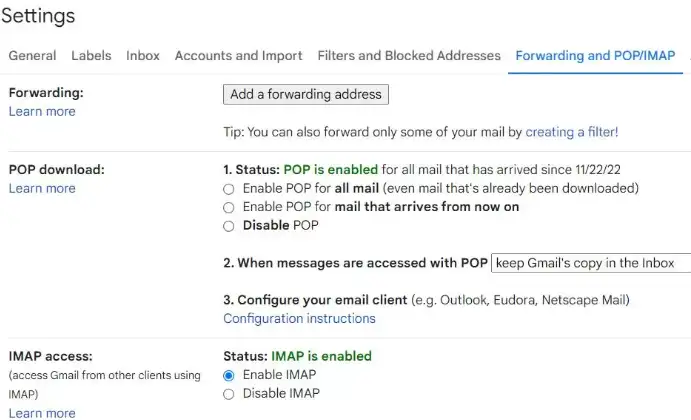
- Finally, click on the Save Changes option.
Step 2: Configure Gmail account in Thunderbird
- Open Thunderbird.
- Click on the menu icon & select the Account Settings option.
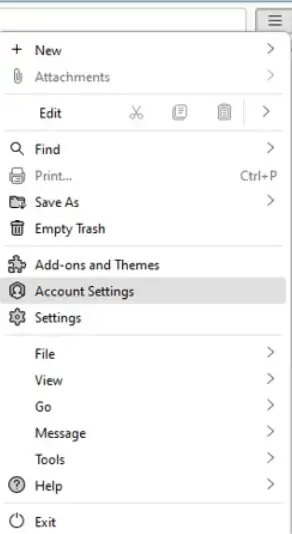
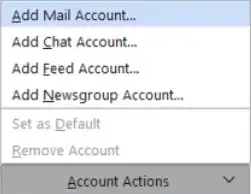
- Now, click on the Account Actions, and select the Add Mail Account option.
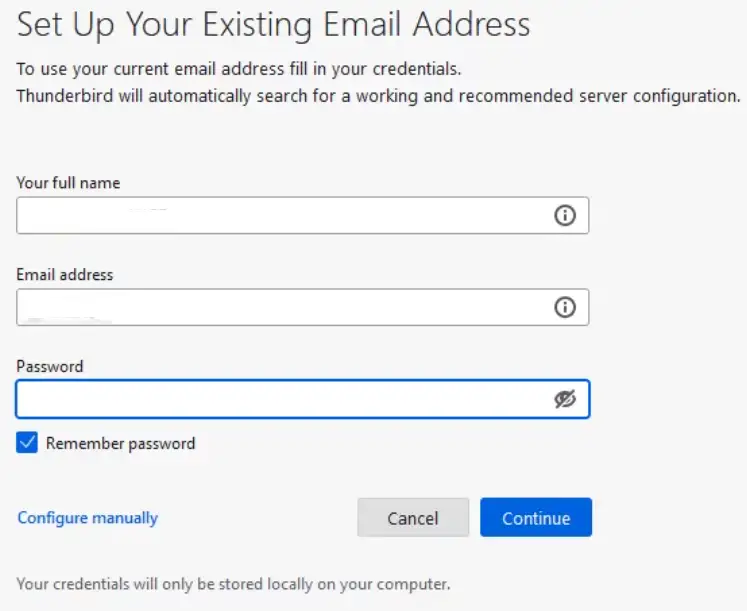
- Enter your email credentials.
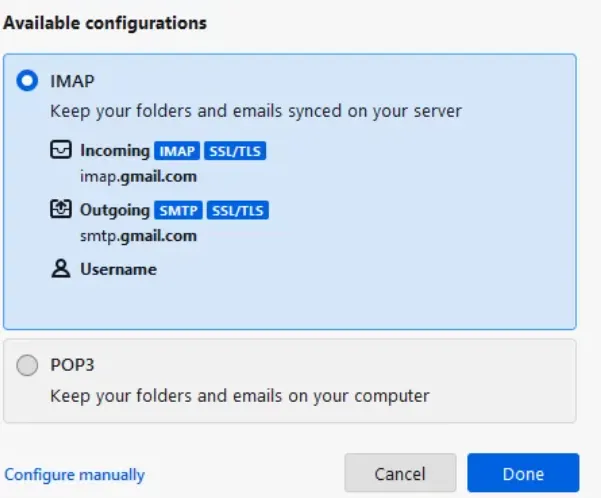
- Now enable the IMAP option and click the Done button.
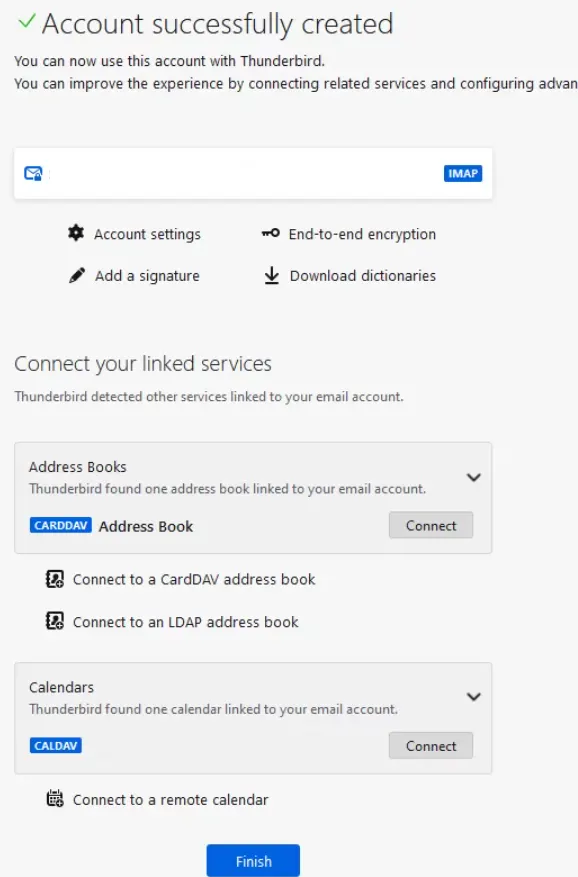
- You will get the ” Account Successfully Created message, click Finish.
- Create a new Folder under configured Gmail ID.
- Copy all the Thunderbird emails into the newly created folder.
Step 3: Configure Gmail account in Outlook
- Now Open the Outlook application.
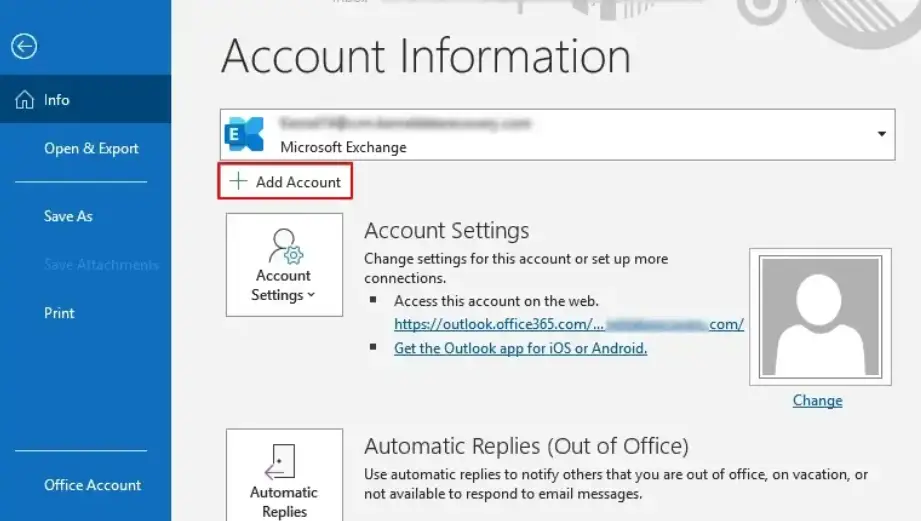
- Click Add Account to add the same Gmail Account.
- Allow Outlook to sync all Gmail folders.
- Copy and paste the new folder you create to Outlook.
Method 2: Drag and Drop Thunderbird Emails into Outlook
In this method, Thunderbird emails are saved to EML format first and then import EML files to Outlook. Follow the steps mentioned below:
Step 1: Export Thunderbird Emails
- Open Thunderbird.
- Choose the folders from which you want to export emails.
- Select emails you want to transfer.
- Right-click and choose the Save As option.
- Choose the location to save EML files.
Step 2: Import EML to Outlook
- Open MS Outlook.
- Create a new folder in the Outlook.
- Open the folder where EML files are stored.
- Drag and Drop EML files to newly created folder in Outlook.
Automated Solution to Move Thunderbird Emails to Outlook
Although it is possible to manually convert Thunderbird’s MBOX files to Outlook’s PST format, doing so can often be risky and difficult. It requires a lot of user time and expertise to follow the complex steps involved in manual methods. Moreover, there is always a risk of data loss if the data is important, you must take the help of a professional MBOX converter tool. BLR MBOX converter tool is a top-notch professional solution for converting Thunderbird emails to Outlook PST and other file formats. This program allows you to export Thunderbird emails to Outlook, including calendars, contacts, and events. This wizard allows you to simply see the whole mailbox folder before the conversion begins. The application also has an easy-to-use graphical interface. Furthermore, it is fully compatible with the latest versions of the Windows operating system for Windows.
Conclusion
Users have two choices when it comes to moving Thunderbird emails to Outlook PST. The first option, which is free but time-consuming, has a risk of data loss. If you’re comfortable with technical tasks or have the patience to do each step by hand, like adjusting IMAP settings and via the drag-and-drop method, you can go for manual methods. Using a professional tool is the second option. The entire procedure is streamlined by this program, which makes it quicker and easier. It’s particularly useful because it gives you more options by converting Thunderbird emails to many formats, including EML, MSG, HTML, & RTF.