Read time: 3 Min
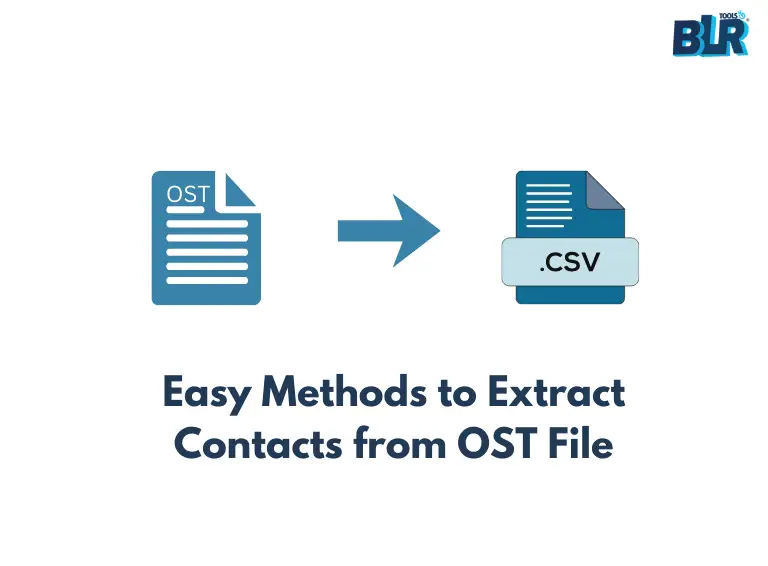
OST is an Outlook file used to store mailbox data synchronised with Exchange Server, Office 365, or Outlook.com account. It allows users to work offline with their emails when there is no connectivity, and these changes are later synced when the connection is available with the server. On the other hand, CSV or Comma-Separated Value is a simple file in text format used for storing data in tabular form. Sometimes users need to extract email data into CSV format for easy accessibility. Follow this blog for manual as well as automated solutions to convert OST to CSV for error-free conversion without losing any information.
Why do we need to Convert OST to CSV File?
There are multiple reasons why users need to convert OST email data to CSV format. We have listed a few of them here:
- CSV files are accessible across different platforms, such as Excel or Google Sheets.
- Email data, such as sender, subject, and date, can be extracted into a .csv file for easier sorting and analysis.
- CSV makes it easy to move Outlook data into other programs that support CSV files.
- Being lightweight and easy to open, CSV files are perfect for long-term storage.
How to Convert OST Emails to CSV File?
There are two different methods to convert OST emails to a CSV file. One method is the manual solution, which works if you have Outlook connected to the Exchange server. If the OST file is orphaned or inaccessible, and you want to open OST file without Outlook, you have to take the help of a professional tool. The solutions we are going to discuss in this blog;
- Manual Way to Open OST Emails in an Excel File.
- Automated Tool to convert OST to CSV with attachments.
Let’s discuss these methods in detail with complete steps.
Method 1: Export OST to CSV Using Outlook
If you have an active Outlook profile and OST is connected with it, then follow the given steps.
- Open Outlook on your system.
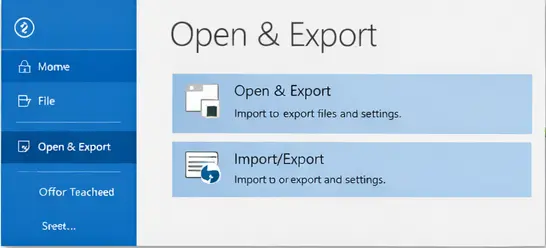
- After that, click on File > Open & Export > Import/Export.
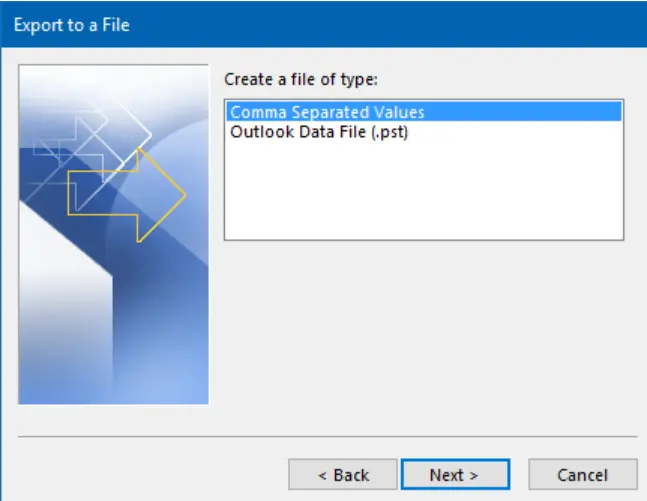
- Choose Export to a File > Comma Separated Value (CSV).
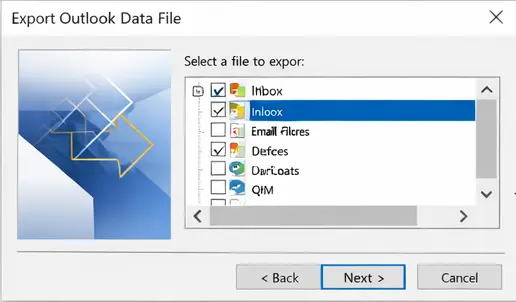
- Choose the email folders you want to export.
- Browse to the location to save the exported data file and hit the Finish button.
Done! Here, complete the OST to CSV exporting. However, with this solution, there are a few limitations –
- You need Outlook installed on your system with an IMAP account added that creates the OST file.
- If your OST file is corrupted or damaged, then it will not work.
- Most importantly, it will not export an orphaned OST file to CSV file.
Method 2: Convert OST to CSV without Outlook
With the BLR OST to PST Converter Tool, it is easy to convert emails from corrupted or orphaned OST files without any hassle. The software effortlessly converts your emails without needing to install Microsoft Outlook. Most importantly, the tool maintains email folder and sub-folder structure and hierarchy. If you want to export selective folders from the OST file, then you can choose them as well.

Conclusion
The blog explains various methods to export emails from OST file to CSV format, which can be accessed with MS Excel or Google Sheets for analysis purposes or easy management. Using Outlook’s built-in Import/Export feature, we can convert OST to CSV for free if the OST file is connected to the Exchange Server. Otherwise, you can take the help of a professional OST Converter to save OST email data to CSV format.