Read time: 3 Min
An Offline Storage Table (OST) file is used to store emails, attachments, tasks, contacts, calendars, etc., and other user information offline. When Outlook is used with Exchange Server or with an IMAP account OST file is created on the user’s system to store a copy of mailbox data. This offline copy comes in handy when the Exchange Server connection is not available. The user can work offline, and later on, the changes made are synchronized with the server when the connection is established.
Contacts play a vital part in communication; the user might need to export contacts from the OST file. This article will guide the user to extract contacts from OST file, whether it is connected to an Exchange Server or from an orphaned OST file.
Why Need to Export Contacts from OST File?
There are various situations when users want to save the OST file contacts. Here are some common ones:
- Exporting contacts from OST file can be helpful when you need to share them with other users.
- If you are switching to a new client or a different system, then having the contacts saved in a common format comes in handy.
- The OST file is prone to corruption, thus it is safe to extract contacts from OST file for future use.
- Once you export OST file contacts, you can easily access them in offline mode without internet connectivity.
- Sharing complete mailbox data when needed, contact details are not suitable. Instead, export contacts from OST file and share them easily.
How to Retrieve Contacts from OST File Manually?
If you are looking for a manual way to save contacts from an .ost file, the .ost file must be connected to the original Outlook profile and accessible. Follow the steps mentioned below to export contacts from the OST file.
- Open Outlook and select the account connected to the OST file.
- Click on File > Open & Export > Import/Export.
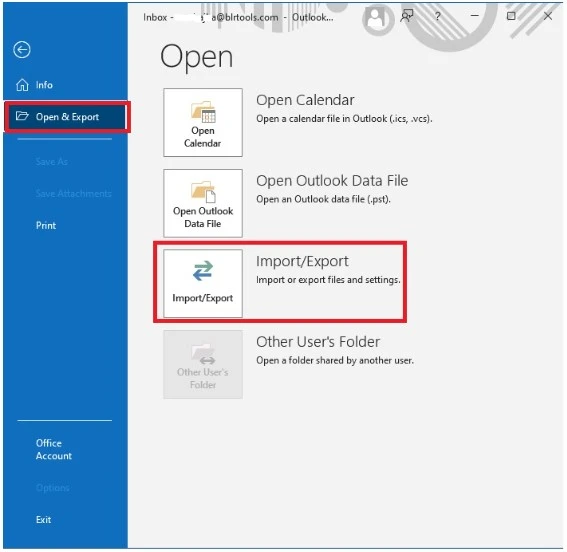
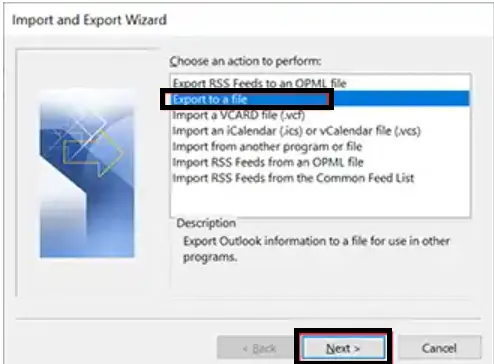
- Choose Export to a File → click Next.
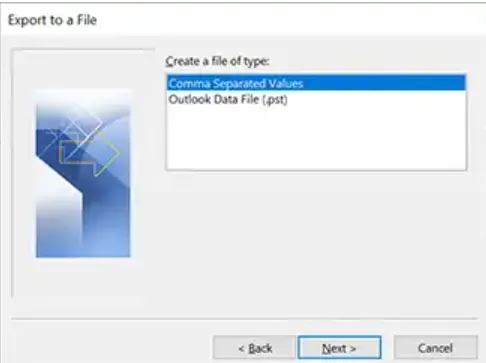
- Select “Comma-Separated Values” from the given options.
- Select the Contacts folder from the OST mailbox.
- Browse to the location where you want to save the file, and then click Finish.
Limitations of the Manual Solution
With this solution, there are a few drawbacks –
- Need Outlook installation.
- Doesn’t work for orphaned and corrupted OST files.
- Not suitable for extracting bulk data at once.
- If the import export tool is greyed out, then you can’t export the data.
How to Extract Contacts from OST File Automatically?
With the help of the BLR OST to PST Converter, one can easily export contacts from OST file with ease. The software supports extracting contacts from orphaned, damaged, or inaccessible OST file without affecting your emails. Most importantly, if your OST file has lots of contacts, the tool will maintain the integrity. It supports the OST file from Outlook 2021/2019/2016 and all other older versions.
Here the software convert OST to CSV format. Now you can easily access your OST contacts.
Why use OST Contact Extractor Tool over a manual solution?
With the automated tool, various prominent features make it better for efficient contact extraction:
- Extract contacts from OST file without affecting your mailbox data.
- Simple and user-friendly interface for both technical and non-technical users.
- Option to export emails from OST to EML, PST, PDF, CSV, and many other file formats.
- Compatible with Windows 11, 10, 7, 8, and all other older versions.
- Using this tool, you can also import OST to Office 365, Gmail, and many other webmail accounts.
- Date range filter to export contacts from the specific time period.
- Support orphaned or corrupted OST files without any hassle.
Conclusion
In this post, we discussed the two possible solutions to extract contacts from the OST file. You can retrieve contacts manually for free, but this method has some limitations. However, the professional software will extract your contacts without any limitations. Now you can choose the solutions and export the OST file contacts as per your needs.
Frequently Asked Questions
Q1. How can I open contacts extracted from the OST file?
Contacts extracted from the OST file are saved to a CSV file, which can be accessed with MS Excel or Google Sheets.
Q2: Does the manual method work on an orphaned OST file?
No, you need to have the OST file linked to the original Outlook profile to extract contacts from OST file. You can use the professional tool suggested above to recover contacts from an orphaned OST file.
Q3. If my OST file is corrupt, can I still recover contacts?
If the OST file is corrupt, the manual method won’t work. Use the software suggested above to extract contacts from a corrupt OST file.
Q4. Are there any file size limitations for using the BLR OST to PST Converter?
No, there is no file size limitation; you can recover contacts from an OST file of any size.