Read time: 6 Min
You open Outlook to check your emails, and instead of your inbox, you find a “The RPC server is unavailable” message.
Your Outlook is not opening, and you can’t send emails. And above that, you have absolutely no idea what an “RPC server error” is or why you are suddenly seeing it.
Don’t worry. This error is not very common, but with the right measures, it can be fixed. This guide is written specifically for you and includes a step-by-step process for fixing the issue. Before that, let’s talk about the “RPC Server Unavailable” error and why you are facing it.
What Does “RPC Server is Unavailable” Mean?
RPC stands for Remote Procedure Call, a communication protocol used by Windows. It allows applications and services to communicate with each other across local and remote systems. You might see this error when:
- Opening Outlook
- Sending or receiving emails
- Syncing your calendar or contacts
- Connecting Outlook to a work email server (like Microsoft Exchange)
- After your PC wakes up from sleep, and Outlook can’t reconnect
Why RPC Server Unavailable Error Occur?
Here are the most common reasons you are facing the server unavailability issue. Some of them include;
- A Windows background service that Outlook depends on got accidentally turned off
- Your internet connection dropped, and Outlook lost its link with the mail server
- The company’s email server (Exchange) is temporarily down
- Outlook data file got corrupted
- Firewall is blocking Outlook’s connection
- Outlook’s own profile or settings got mixed up, or the profile got corrupted
Here are a few reasons for this error to occur. Now, based on these situations, let’s find the best fix for you to solve this issue.
How to Fix “RPC Server Is Unavailable” in Outlook?
Let’s try the methods to resolve the server error, starting with the simplest solution and then moving to more advanced ones.
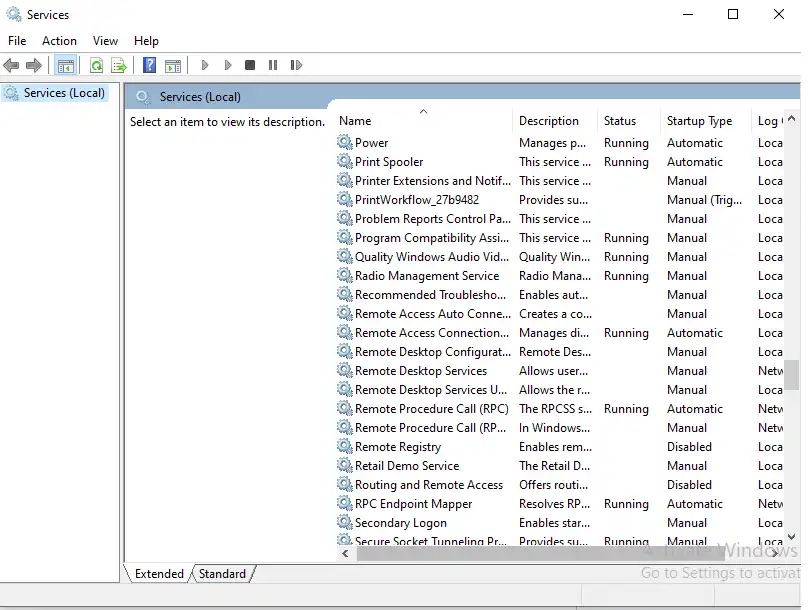
1. Restart RPC Services
The first step is to verify whether the RPC services are running or not. Follow the instructions to check it out.
- Press Windows + R.
- Type services.msc and press Enter.
- Locate the following services:
- Remote Procedure Call (RPC)
- RPC Endpoint Mapper
- DCOM Server Process Launcher
- Ensure all services are running.
- Verify that the Startup Type is set to Automatic.
If any service is stopped, start it and restart your computer.
2. Check Network Connectivity
Since RPC depends on network communication, unstable connectivity can trigger the error. Try the following:
- Restart your router.
- Verify internet connectivity.
- Check Ethernet or Wi-Fi connections.
- Ping the target device.
- Disable VPNs temporarily.
You can also refresh network settings using Command Prompt:
- ipconfig /flushdns
- ipconfig /renew
Method 3. Configure Windows Firewall
Sometimes, your system firewall rules block RPC communication. Here are the steps to verify:
- Open Windows Defender Firewall.
- Select Allow an app through Firewall.
- Ensure that they are allowed through the firewall.
- Remote Assistance
- File and Printer Sharing
Windows Management Instrumentation (WMI)
If necessary, restore firewall settings to their default configuration.
4. Run System File Checker (SFC)
Corrupted system files can affect RPC services.
- Open Command Prompt as Administrator.
- Run: sfc /scannow
- Wait for the scan to complete.
- Restart the computer.
The tool will automatically repair corrupted system files when possible.
5. Use DISM to Repair Windows
If SFC cannot fix the issue, use the Deployment Image Servicing and Management (DISM) tool. This solution requires following some advanced steps, so follow them accurately.
- Press Windows + S, type Command Prompt, and select Run as administrator.
- Type the following command and press Enter: DISM /Online /Cleanup-Image /RestoreHealth
- Wait for the scan to finish. It may take a few minutes.
- Restart your computer.
- Open Outlook and check if the RPC Server error is fixed.
- This will scan and repair any remaining corrupted system files.
Tip: If the problem continues, run the following command in Command Prompt: sfc /scannow
6. Verify DNS Settings
Incorrect DNS settings can prevent Outlook and other applications from connecting to RPC services. Follow these steps to verify it:
- Open Network Settings on your computer.
- Make sure DNS settings are set to Obtain DNS server address automatically.
- Restart your network adapter or reconnect to the network.
- Open Command Prompt and run the following command to clear the DNS cache: ipconfig /flushdns
- Check that the required servers or domain controllers are accessible from your network.
- After completing these steps, restart Outlook and see if the RPC Server error is resolved.
7. Install Windows Updates
Microsoft regularly releases updates that fix bugs affecting Windows services. So you must use the updated version of Windows so that you won’t face compatibility issues. To update Windows:
- Open Settings.
- Navigate to Windows Update.
- Click Check for Updates.
- Install all available updates.
- Restart your computer afterward.
8. Perform a Clean Boot
Third-party applications can sometimes interfere with RPC communication. Here are the steps to remove them;
- Press Windows + R.
- Type msconfig.
- Open the Services tab.
- Select Hide all Microsoft services.
- Click Disable All.
- Restart your computer.
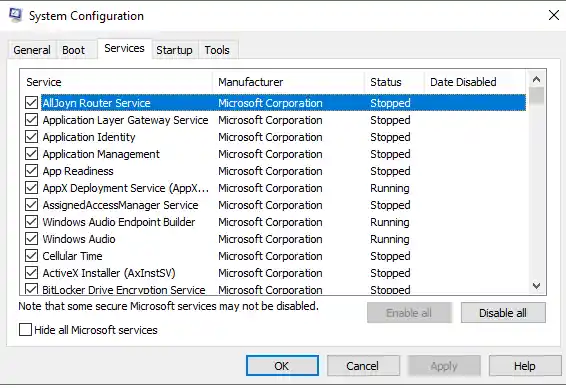
If the error disappears, re-enable services gradually to identify the conflicting application.
What Happens If the RPC Server Error Is Not Fixed?
Outlook users may encounter RPC errors when connecting to Microsoft Exchange or accessing mailbox data. Also, other reasons for facing this error can be a corrupted data file. There is a built-in tool that can fix a corrupted PST file, but it is for minor corruption issues. If the data file is severely damaged, then ScanPST.exe will not help. BLR PST Repair tool is one of the secure tools that help you repair damaged PST files. You can try out the demo version of the software.

Tips to Avoid RPC Server Errors
Prevention is better than a cure. As the saying goes, it is better to take preventive measures so that you are prepared for any unfavorable situation. To reduce the chances of encountering RPC-related issues:
- Keep your Windows up to date.
- Regularly scan your system for any malware.
- Maintain stable network connections.
- Configure firewall settings properly.
- Perform routine system maintenance regularly.
Conclusion
The “RPC Server Unavailable” error is usually caused by simple issues like stopped services, network problems, firewall settings, or corrupted system files. In most cases, you can fix it by checking the RPC services, verifying your internet connection, and running Windows repair tools. If the error appears in Outlook, a damaged PST file may be the cause. This blog describes all possible solutions to fix the issue. Try the given methods and find your solution.