Read time: 3 Min
When you create and configure a new account with Exchange Server, an OST file is created and saved on the user’s system. This OST file saves a copy of all mailbox data, like emails, contacts, notes, calendars, etc. This OSt file helps users to work offline when not connected to the Exchange Server. The changes made during offline work are later synchronised when the connection is available. When there are issues like an Exchange Server crash or Outlook profile deletion, you need to import OST to Outlook. Before going forward, let us find various reasons why we need to import OST file to MS Outlook.
Why Import OST to Outlook Client?
There are certain conditions when you have to import OST to Outlook client. Some of the common reasons when a user is compelled to import OST file are:
- Outlook Deleted Profile: You need some important data that is present in your Exchange account, but the Outlook profile is already deleted. All the important data is locked up in the OST file, and you need to move it into Outlook.
- Switching system: You are upgrading your PC and Outlook as well, and with that, you need your old data as well. You need to transfer OST file to the new Outlook application.
- System Crash: Suddenly, your system stops working, and you have a backup copy of your Outlook emails in a .ost file.
At this point, a question comes to mind: Is there a direct way to import OST to Outlook? Well, the answer is:
- If OST is connected to an Exchange profile, then yes, using the Import/Export tool, you can do that.
- With an orphan OST file, there is no manual solution. You need an expert solution.
How to Open OST File on Outlook 2021/2019/2016?
If the OST file is connected with your Exchange profile, then you can use the Outlook application for importing OST file to Outlook by following the steps mentioned here:
- Open Outlook.
- Go to File > Open & Export > Import/Export.
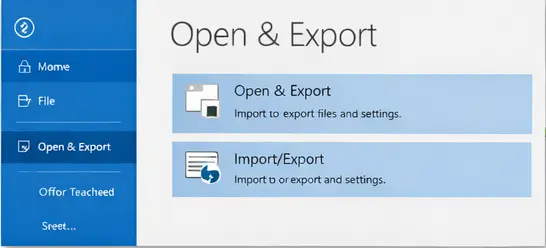
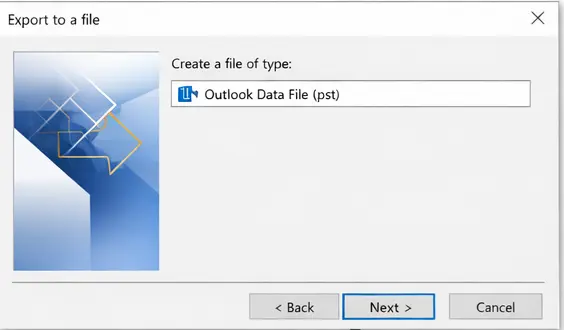
- Choose Export to a File > Outlook Data File (.pst).
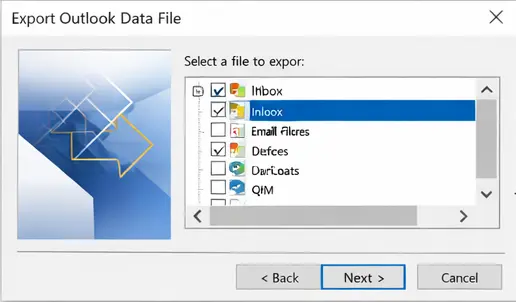
- Select the folders you want to export.
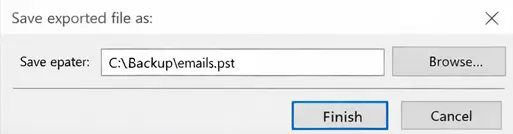
- Browse and save the PST file at a desired location.
- After that, restart the Outlook application.
- Now, go to File > Open & Export > Import/Export again.
- Select Import from another program or file > Outlook Data File (.pst).
- Browse and import the exported PST into Outlook 2021/2019/2016.
Done! Here, complete the OST to Outlook import process. However, there are a few limitations you can face with this manual solution:
- It will not work on an inaccessible OST file, i.e., Exchange connectivity.
- If the OST file is corrupted or damaged, then you can’t import it manually.
- It is a time-consuming process for large mailboxes.
How to Import Orphan OST to Outlook Client?
With BLR OST to OST Converter, you can easily complete the OST to Outlook import process. The software will effortlessly save your .ost file data into a .pst file. After that, it will be easy for you to import it into Outlook 2021/2019 and all other versions. Most importantly, OST converter tool will maintain folder hierarchy and preserve email key elements.

Most importantly, the tool will effortlessly fix corrupted OST file and create a new and healthy PST file. Even if your OST file is large or inaccessible, the tool will handle it smoothly. For a more detailed process, download the demo version of the software.
Conclusion
The manual method to import OST file to Outlook is an easy task if you follow the steps mentioned above with care. However, the manual method is a tedious one and requires good technical knowledge. For importing an OST file to Outlook without any hassle, you can take help from a professional OST Converter as suggested in the article.