Read time: 3 Min
BitLocker is an essential encryption feature in Windows that protects data from unauthorised access. However, many times users found themselves in a situation where they were asked to enter the BitLocker recovery key. The BitLocker recovery key is required to get access to the encrypted drive. In this guide, we will learn how to find BitLocker recovery key through all possible ways.
Where to Find BitLocker Recovery Key?
When the BitLocker feature is first activated, a recovery key is generated and usually saved at one of the following locations:
- Microsoft account
- USB flash drive
- Printed document
- File stored on your computer
- Active Directory (for work devices)
How to Find BitLocker Recovery Key: Different Methods
In this section, we will discuss how to find recovery key of BitLocker in all possible locations one by one.
1st. Find BitLocker Recovery Key from Microsoft Account
The BitLocker recovery key is saved online to the Microsoft account that was logged in when BitLocker was enabled. Here are the steps to find BitLocker recovery key in your Microsoft account.
- Open Microsoft recovery page aka.ms/myrecoverykey, in the web browser.
- Enter your Microsoft account credentials.

- A list of devices, with BitLocker recovery keys and Key IDs is visible.
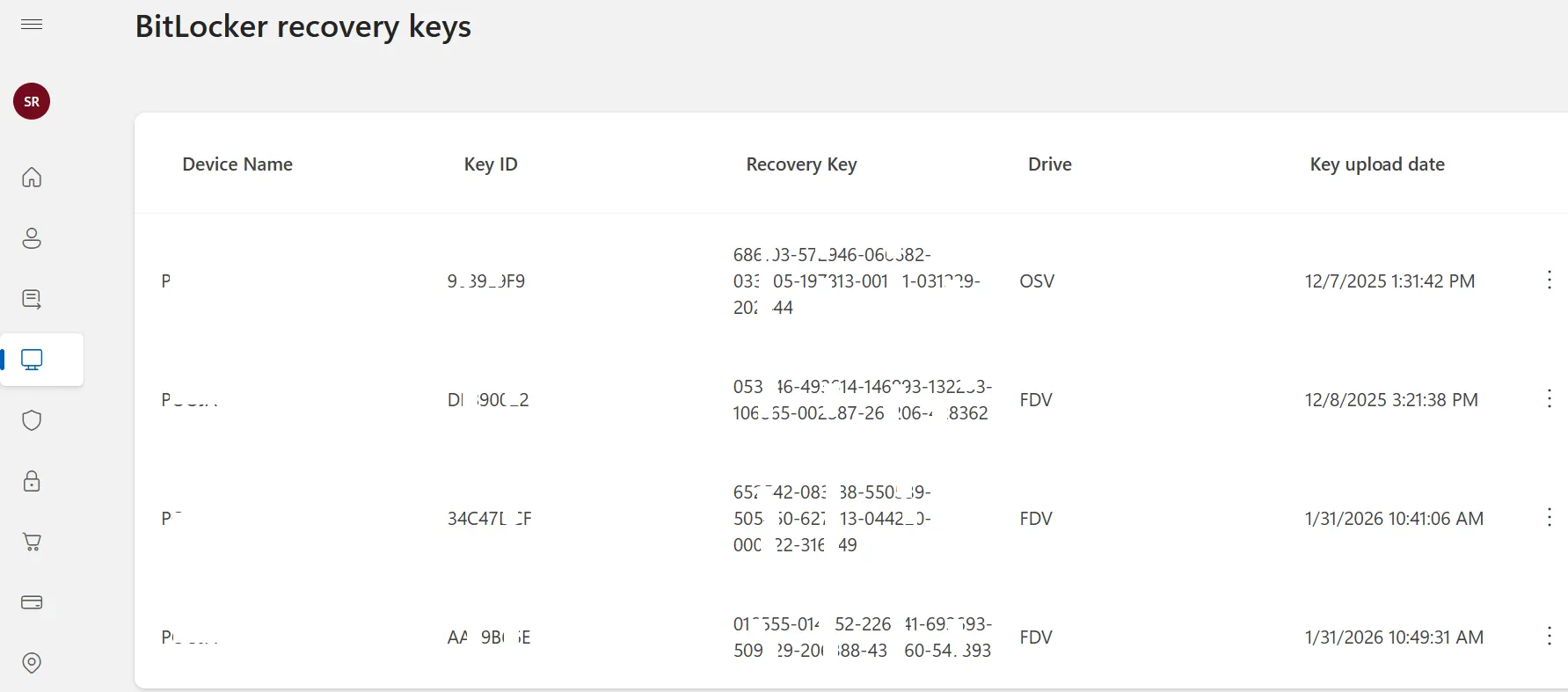
- Locate your device and copy the recovery key.
2nd. Get BitLocker Recovery Key from Azure Active Directory Account(Now Microsoft Entra ID)
If you are working in an organization and your device is connected to an Azure Active Directory account, your BitLocker recovery key is automatically stored in the cloud. By accessing your Azure AD account, you can retrieve the BitLocker recovery key.
- On the URL, myaccount.microsoft.com/device-list in your web browser.
- Enter your work credentials(Email ID and Password).
- Navigate to the devices section.
- Locate your device and click on View Recovery Keys.
If you are an IT admin, you can follow the steps below:
- Open entra.microsoft.com (Microsoft Entra admin center) on your browser.
- Enter your credentials.
- Navigate to Devices > All Devices.
- Click on the device for which the recovery key is required, and click BitLocker keys from the left panel.
- Copy the recovery key.
3rd. How to Find Recovery Key of BitLocker in Active Directory?
The BitLocker recovery key is stored in Active Directory if your device is connected to an on-premises Active Directory environment. You may request your IT admin for the BitLocker recovery key. However, if you are an IT admin, follow the steps:
- Open Active Directory Users and Computers on a domain controller.
- Now enable Advanced features from the View menu.
- Locate the computer object.
- Right-click > Properties > BitLocker Recovery tab.
- You can view all stored recovery keys here.
- Match the Key ID to view the full key.
4th. Use Command Prompt (CMD) to Find BitLocker Recovery Key
If you have access to the system, you can find the BitLocker recovery key using Command Prompt as follows.
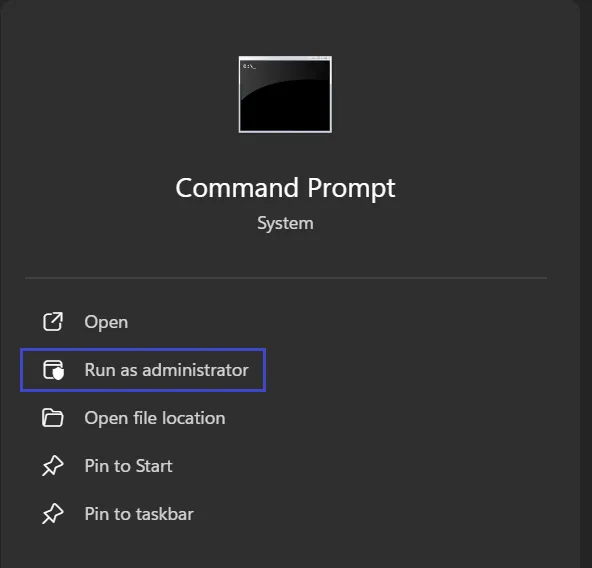
- Run Command Prompt (CMD) as an administrator.
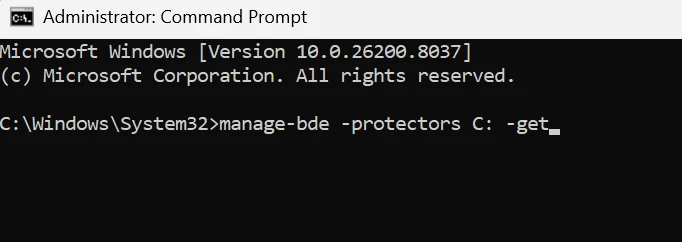
- Type the following command manage-bde -protectors C: -get and press Enter.
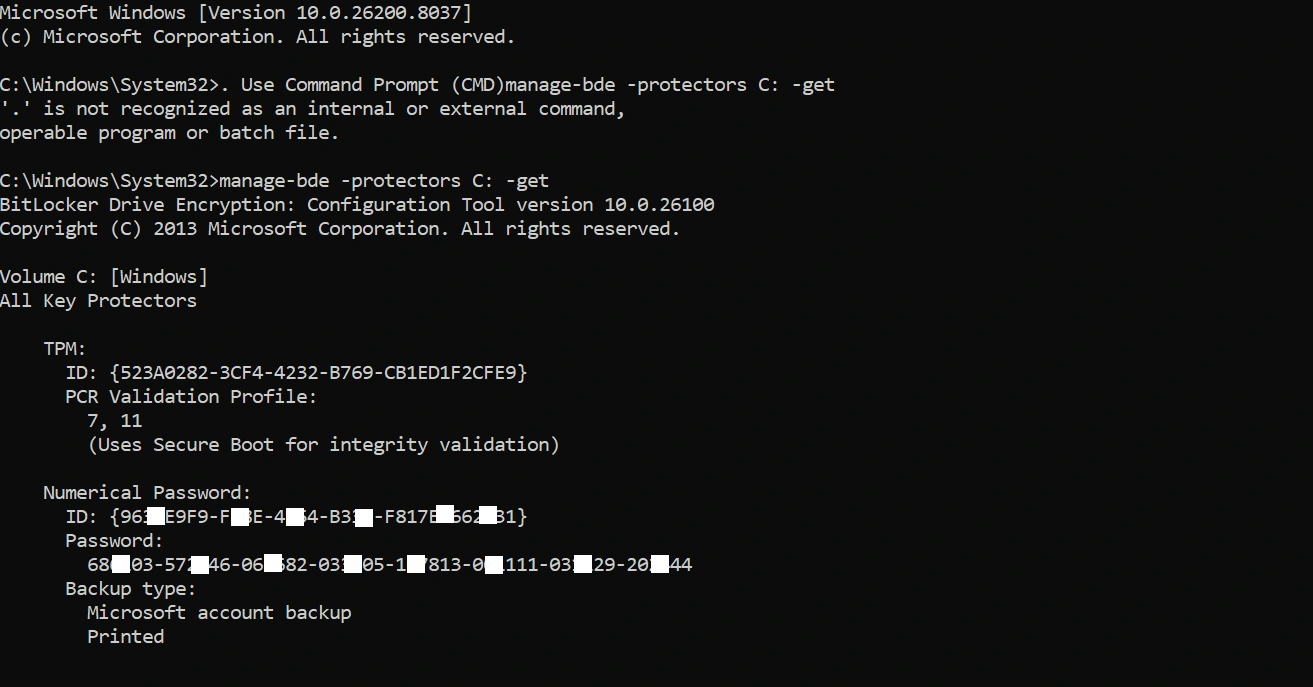
- Recovery keys will be listed here. Copy the key.
5th. Find Recovery Key from USB, File, or Printed Copy
When you enable BitLocker protection for the first time, it offers various options to save the BitLocker recovery. Users can print the recovery key, save it to a USB drive, or choose the option to save the .txt file to the system.
To search for the BitLocker recovery key on your system, the user can try different queries like BitLocker, recovery key, etc., to look for a .txt file.
If you are working in an organization, you may have been provided with the USB drive of the printed BitLocker key. You can also ask system admins for the recovery key if the recovery key is not provided to you with the machine.
Recover Data from BitLocker-Encrypted Drive
The various possible methods to find the BitLocker recovery key are discussed in the above section. However, if you are still unable to find the recovery key and have lost access to the encrypted drive, the only resort left is to use a professional BitLocker data recovery solution. BLR BitLocker Data Recovery Tool is one such advanced software with powerful algorithms that enables users to recover data from an encrypted drive.

Conclusion
Finding your BitLocker recovery key is not a complicated task, especially if you know where to look. Whether the recovery key is saved on the Microsoft account, Active Directory, Azure AD, or a USB drive, there are multiple methods to recover it. The right approach is to check all possible locations carefully to retrieve the BitLocker recovery key. Still, if users are unable to find the recovery key, they can use the BitLocker data recovery tool to recover data from an encrypted drive.