Read time: 4 Min
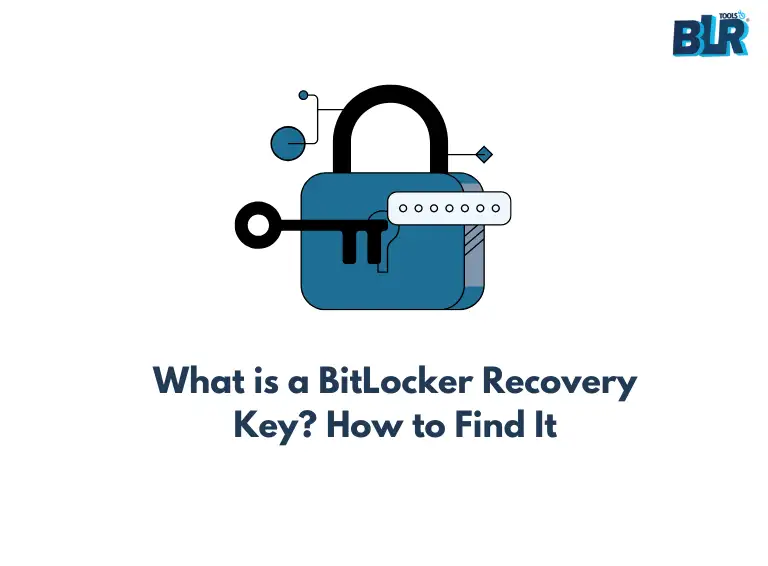
BitLocker is an encryption feature that ensures the security of data by locking the drive with a recovery key. It comes as a built-in application with the Windows operating system. The BitLocker recovery key is a 48-digit alphanumeric key used to unlock the drive. It becomes essential when your system detects unusual activity and asks for the recovery key to unlock. However, users with the BitLocker feature enabled run into issues like BitLocker recovery key not working. Let us start to fix the BitLocker recovery key that is not working by first learning the common reasons for the error.
Common Reasons for BitLocker Recovery Key Not Working Error
Although BitLocker is a great security feature, certain issues can cause the recovery key to stop working. Here is the list of common reasons that prevent BitLocker key from functioning properly.
- BIOS & Secure Boot: BitLocker only works with Secure Boot enabled and the BIOS settings that were applied when BitLocker was first enabled. Thus, whenever you make changes to BIOS settings or disable Secure Boot, BitLocker stops working.
- Authentication Errors: As BitLocker has different encryption for different operating systems and for different types of devices, users can face authentication errors. So when you connect the drive to another system, BitLocker prevents you from unlocking the drive even if you are using the right recovery key.
- Software, Hardware or Firmware Changes: Whenever any changes are made to CPU, motherboard, RAM, GPU or the operating system is updated, the BitLocker detects these changes and cause issues with BitLocker-encrypted drive.
- Removing or Adding Hardware: Adding or removing hardware, such as adding a new RAM stick, USB, printers, or a new storage device, can cause malfunctioning of BitLocker. Thus, it is suggested to avoid making such changes if the BitLocker encryption is enabled on your device
Methods to Fix the BitLocker Recovery Key is Not Working Error
The ‘BitLocker recovery key not working’ error can be fixed by following some common procedures. Here is the list of some common solutions to the problem. Follow them with care and access your encrypted drive easily.
Method 1: Recover BitLocker Recovery Key From Microsoft Account
When BitLocker is enabled for the first time, it asks users to print or save the BitLocker recovery key to a secure location. Users can print the recovery key, save it to a USB, or save it to a location on their system. The other option to save the BitLocker recovery key is the Microsoft account you are logged in with. To find the BitLocker recovery key key from the Microsoft account, follow these steps:
- Open the address https://aka.ms/myrecoverykey
- Log in with your Microsoft account credentials
- A list of Recovery keys with Key ID will be available to you
- Copy the key that matches your device to unlock the drive
Method 2: Use the Manage-Bde Command
If the BitLocker recovery key is not working, you can use the following commands in the command prompt:
- Open the command prompt as an administrator/
- Type command manage-bde -unlock X: -rp < recovery password >
Use your drive letter instead of X in the above command, and type the BitLocker recovery key in place of < recovery password >
Now disable BitLocker for the drive using this command manage-bde -protectors -disable X:
Once done, restart your PC to access your drive without a password.
Method 3: Enable/Disable Secure Boot
Any changes made to Secure Boot settings from the initial settings that were used when BitLocker was first enabled cause BitLocker to malfunction. To fix it, follow the instructions:
- Boot into the BIOS by pressing ESC, F2, F8, F10, F12, or DEL key while restarting the system.
- Go to Authentication > Secure Boot.
- Enable/Disable the Secure Boot settings.
Now reboot your PC and check if the “BitLocker recovery key is not working” error persists. If the problem is not solved, go for the solutions listed in the sections below.
Method 4: Update BIOS
To update your BIOS to the latest version, follow the steps:
- Visit the motherboard’s manufacturer website and download the latest updates to a USB drive.
- Reboot the PC and enter BIOS settings.
- Locate the BIOS update settings and update BIOS by adding a USB as a source.
- Follow the instructions on the screen to update the BIOS.
Method 5: Formatting the Drive
Sometimes, even if you have entered the right BitLocker recovery key, you are still not able to access the encrypted drive. In such a situation, the only option left is to format the drive. Formatting the drive doesn’t mean that you have lost access to your data. The data can be recovered from the drive with a professional solution like BLR BitLocker Data Recovery tool.

BitLocker Data Recovery tool enables users to access the encrypted drive without compromising security. Whether the encrypted drive is formatted or inaccessible. The software performs a deep scan of the drive and recovers deleted or lost files efficiently.
Conclusion
The BitLocker Recovery key not working is a common problem with BitLocker-encrypted drives. Incorrect BIOS settings, adding or removing hardware, or authentication errors are the root cause of this error. By using the right approach as discussed in the guide above, you can easily fix the issues. Most of the time, it is not as scary as it appears, but sometimes, you have no other option left other than formatting the drive. With the dedicated professional BitLocker data recovery software, you can recover data from a BitLocker-encrypted drive.