Read time: 3 Min
A hard drive is usually divided into multiple partitions to manage the data effortlessly. However, sometimes users come face-to-face with the situation where their HDD partition not showing in Windows, making it difficult to access important data.
There can be several reasons where your cannot access the HDD partition such as missing drive letters, corrupted partitions, outdated disk drivers, or system errors. In that situation, the user finds it difficult
In this guide, we will explain the common causes and effective methods to fix HDD partition not showing in Windows so you can regain access to your data quickly.
Common Reasons Why HDD Partition is Not Showing
Before fixing the issue, it is important to understand why you are facing the problem. Some common reasons include:
- If your drive partition does not have a drive letter assigned.
- The partition is marked as hidden or inactive.
- The file system on your partition is corrupted.
- Issues with the partition table or disk management settings.
- Hardware problems with the hard drive.
Most of these issues can be solved using the built-in tools available in Microsoft Windows. However, if the situation persists, then you need an expert guide.
Solutions to Fix “HDD Partition is Not Showing” Error
Here in this section, we will discuss the workable solutions to fix the HDD partition not accessible issue in Windows 11/10. Let’s continue and fix the issue and access your emails without any hassle.
1. Fix the HDD Partition Not showing with “Computer Manage” option
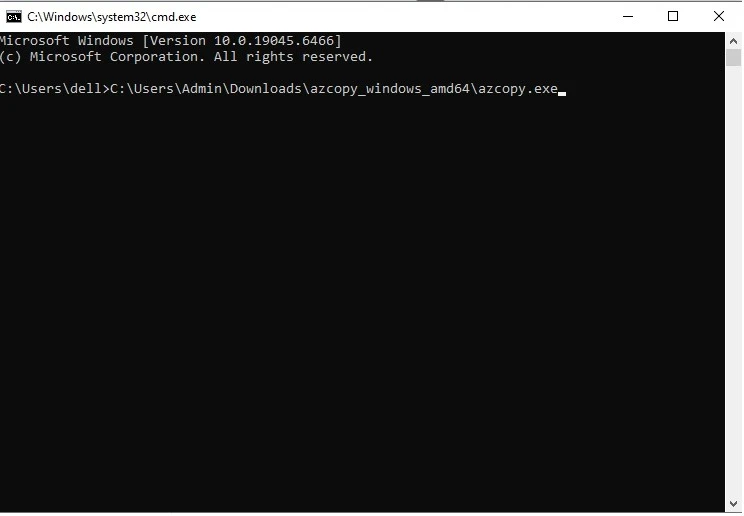
An inbuilt program into Windows OS is Hardware and Devices Troubleshooter to assist users to fix any issues related to hardware like external drive, usb and pen drive, etc. When the Hard Disk Drive HDD partition not accessible on Windows, one can run this program to solve issues. The Windows CMD command prompt works on Windows 10 and 11, as the feature might be missing and not available. So run the CMD command prompt for the Hardware and Devices Troubleshooter.
2. Connection of Hard Drive or Power Supply
If you are still facing the error, then try out these measures;
If your PC cannot detect the hard drive, try using a different USB cable or USB port. Check if the external drive light is blinking to confirm it is getting power.
- If it works with another USB port, the previous port may be faulty.
- If it works with another cable, replace the USB cable.
After fixing the connection, check if the hard drive appears in Windows 11/10.
3. Fix HDD Partition not Showing via Change Drive Letter
Whenever users connect an external hard drive disk to Windows OS, Windows will automatically assign a drive letter.
To help Windows OS to recognize the hard drive connected, assign a new letter to the drive that is already pre-assigned by Windows, and this resets the communication between the hard drive and Windows.
- Press Windows + X and select Disk Management.
- Right-click on the external hard drive.
- Click Change Drive Letter and Paths.
- Choose a new drive letter from the list and click OK.
- The hard drive will disconnect and reconnect with the new drive letter.
4. Uninstall Driver and Reconnect Drive in Device Manager
This method is also effective in resolving problems when the driver is outdated or corrupt for any reason, and this results in the hard drive showing a partition error or HDD partition not showing on Windows 10/11:
- Now, to open the Device Management feature, search directly for the “Windows plus X” key and choose “Device Management”.
- Now navigate to expand the hard drive disk structure
- So now, right click mouse on the HDD and choose “Uninstall.”
- After the uninstallation of the hard disk drive, unplug it from the Windows OS machine
- Wait for a moment, 1-2 minutes, and subsequently reconnect the drive via USB connector
- So now the driver must be automatically loaded
- Now, check the drive by navigating to “File Explorer.”
5. Additional Fix for HDD Not Showing on Windows Explorer
It simply means that physical HDD/s new partitions are NOT RECOGNIZED by File Explorer if their hard disk is not visible in Disk Management. If that is so, then one is able to troubleshoot this problem by updating the device driver for the hard disk as shown above. Here are detailed steps:
- Press Windows + R, type devmgmnt.msc, and press Enter to open Device Manager.
- Click Disk Drives and find your external hard drive.
- Right-click on it and select Update Driver.
- Choose Search automatically for drivers.
- After updating, check if the hard disk partition appears in Disk Management and File Explorer.
Note: If your HDD partition is not showing, and you can’t access your data, then you need an expert solution to recover it. BLR Data Recovery Toolkit is one such solution that will effortlessly recover data from your HDD partition, even if it is partitioned or not. Try out the demo version of the software to analyse how it works.

Conclusion
Whenever a user faces the issue that their HDD partition is not showing in Windows, it can be worrying, especially if it has important data. This problem usually happens because of simple issues like a missing drive letter, disk errors, or outdated drivers.
You can fix it by checking Disk Management, assigning a drive letter, updating drivers, running CHKDSK, or initializing the disk.
If the partition is lost or badly damaged, using a professional data recovery tool can help you safely recover your data.