Read time: 3 Min
SD cards are normally used in mobile phones, cameras, and other portable devices to store data. However, sometimes when you try to open the SD card, it suddenly becomes unreadable. Whenever it happens, then you come face to face with a few prompts: “SD card not recognized,” “Card needs to be formatted,” or “The disk is not accessible.
An unreadable SD card is a frustrating situation, but it doesn’t mean you lost your data. Depending on many scenarios, it is possible to recover data from unreadable SD card. Here in this post, we will discuss the easy and secure way to recover SD card data.
What does an unreadable SD Card mean?
You plug your SD card to view your photos, and your system may be recognized but can’t open, or it is unrecognized. When you face this situation, you may notice a few things.
- SD card showing 0 bytes
- You were asked to format the SD card
- SD card not appearing in File Explorer
Depending on these scenarios, you can recover data from unreadable SD card. Before that, we will talk about the reasons you are facing this issue so that you can avoid damaging your sd card.
Common Reasons for Unreadable SD Card
Before you recover your data, you must know why you can’t access it. Here are a few reasons for that.
- If you improperly remove your SD card or suddenly your system crashes, it can affect the file system. In that case, it is possible that your SD card becomes unreadable.
- Sometimes, an SD card can be damaged by malicious software. Thus, your system can’t recognise it.
- Physical damage, such as water damage, overheating, or bending, can make the SD card unreadable.
- If storage devices develop bad sectors, then it prevents you from accessing your data.
How to Recover Data from Unreadable SD Card?
Data recovery from an unreadable SD card depends on various scenarios. Here, we will discuss the different cases and the possible solutions to fix the issue.”
1. Check the Connected Port/Card Reader
In some of the cases, there can be an issue with the connection slot rather than the SD card.
- Remove the SD card from the device and clean the card gently.
- Try to insert the card into another card reader or device.
If the SD card works on another device, the issue may be with the card reader in your system.
2. Drive Shows but Displays No Data
In many cases, the SD card drive is visible on the system but shows 0 bytes of data. This indicates that the system can detect the drive, but the stored data is not accessible or visible. If you encounter this issue, manual methods may not be effective to recover data from the unreadable SD card. In such situations, using a dedicated data recovery tool is the most reliable solution.
BLR Pen Drive Data Recovery tool offers a secure environment that helps you recover data from an unreadable SD card in just a few simple clicks. The tool can recover all types of data without affecting their original formatting and structure. It scans your SD card and provides a preview of the recoverable data. After that, you can select the specific files, images, MP3s, or other data you want to recover. You can also try the demo version of the tool to understand its working process.

3. SD Card Not Detected
In extreme cases, if your system cannot recognize the SD card, you should check whether it is detected through the Command Prompt. Using Command Prompt, you can verify whether the drive is listed on your system. However, if it is detected, you can recover the data using the recovery tool mentioned above.
Note: If the SD card does not appear there, recovering data may not be possible.
Here is the command prompt, but you must run it in admin mode.
- Open the command mode.
- After that type: diskpart > list disk
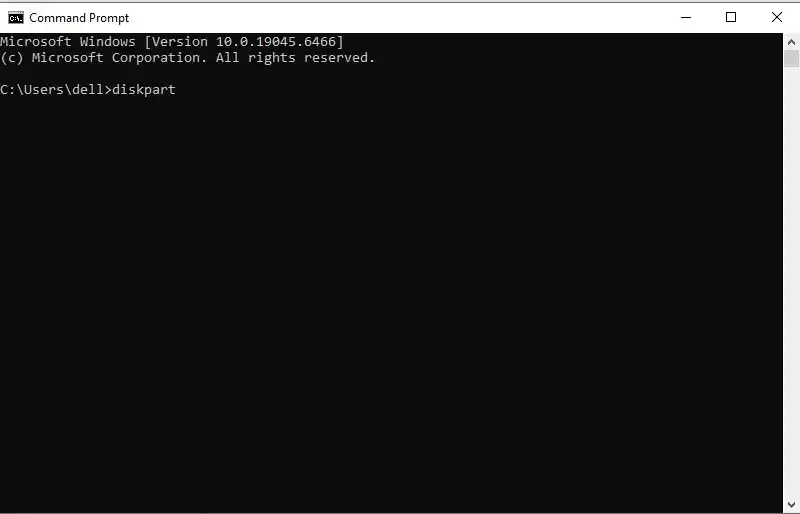
Here you will find all the disks that are connected to your system, including the SD card.
Tips to Prevent SD Card Data Loss
To avoid losing data and damaging the SD card in the future, here are the best practices:
- After use, safely eject the SD card
- If you are copying or transferring the files, avoid removing the card.
- Keep the SD card from any physical damage.
- Don’t use the same SD card across multiple devices frequently if it has your crucial data.
Conclusion
An unreadable SD card hampers working, especially if it contains important files. However, in most cases, data loss is not always the result. You can use a few techniques to recover data from unreadable SD card. This blog mentions all the possible scenarios and steps to recover your data. Try it out yourself and recover your lost data.