Read time: 3 Min
Outlook is one of the most popular email clients preferred by many organizations and individuals. It is the best and most secure platform for managing your emails. Outlook stores your emails and other data in two file formats OST and PST. A PST file is created by users when they need to export their emails. On the other hand, an OST file is automatically created when the Outlook profile is created. Sometimes, users find it difficult to find OST file location in Windows 11/10. Read the post and learn where you can find your OST file and why you need to find it.
What is an OST File? Reasons to Locate It
An OST file is automatically created when your Outlook is connected with an Exchange or other IMAP server. It will be saved in your system locally for offline use. However, some users find it difficult to locate the OST file in Windows 11/10. Now the question is – Why do users want to find OST file location that is stored somewhere in their system? Well, there can be various reasons for that, some include:
- Saving your Outlook data so that you can easily access it.
- Checking whether the OST file is corrupted or not, so that one can fix corrupt OST file first.
- Convert OST file to PST so that it is easy to share the file.
- Deleting and recreating the OST file if Outlook is not working properly.
Where to Find OST File in Windows 11/10?
The OST file is stored in the ‘AppData’ folder of the Windows user account by default. However, this location differs for different Outlook and Windows versions installed. Below is the path to locate OST file in Windows
The OST file would be there with the username.ost
How to Locate OST File in Outlook 2021/2019?
Here are a few methods to find OST file location in Outlook. Let’s try them out and locate your Outlook data file.
Method 1: Using Outlook Account Settings
- Open Outlook on your PC.
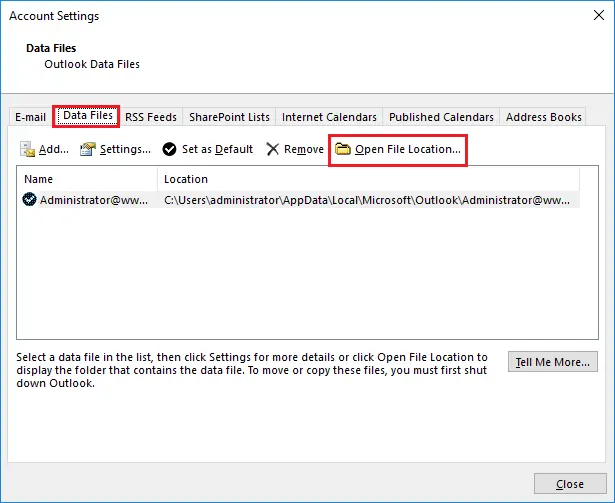
- Click on File > Account Settings > Account Settings.
- Under the Data Files tab, you’ll see the list of data files.
- Select your account and click Open File Location.
- This will directly open the folder where your OST file is saved.
Method 2: Manually Navigate in Windows Explorer
- Press Win + R to open the Run dialog.
- Type the following and press Enter:
%localappdata%\Microsoft\Outlook\
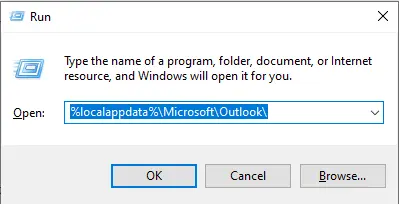
Windows Explorer will open the folder containing OST files.
Method 3: Locate OST File via Control Panel (Mail)
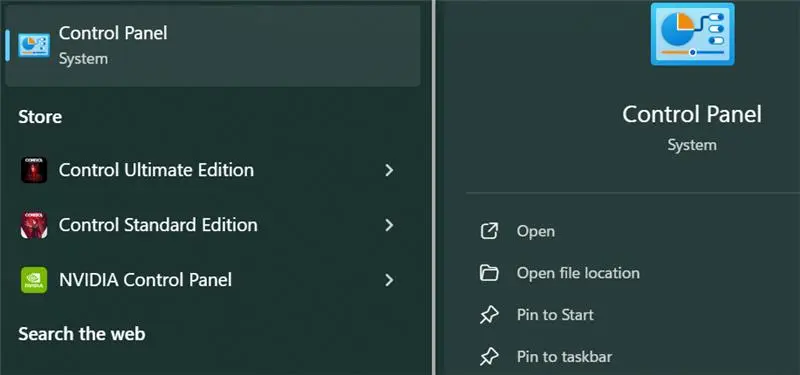
- Open the Control Panel on your system.
- Now go to Mail (Microsoft Outlook).
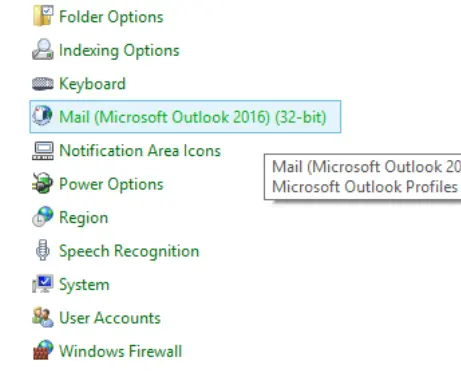
- Click on Data Files.
- Select your account → click Open File Location.
Here are a few tricks to find OST file in Outlook and in Windows 10/11. You can try out the given solutions and locate your offline data file easily.
Wrap Up
Locating your OST file in your system is an easy task if you follow the steps mentioned above. First of all, you need to search for the default location in your C drive where app data is stored. Additionally, you can also use the Outlook settings to find the file.
Here in this post, we have discussed both approaches. Try them and figure out where your OST file is. Hope you find this article informative.