Read time: 4 Min
You open Outlook, and suddenly you come face to face with a message, “Errors have been detected in the file Outlook.ost”. This delays your work, and it can be frustrating, especially when there is an urgent task to perform.
The first step to solving any type of error is to understand what you are facing. So let’s talk about what this error means and then find out how to handle it. This error message indicates that your Outlook OST file has become corrupted or damaged. Outlook relies on this file to synchronize data with the Exchange server. When corruption occurs, Outlook struggles to read or update the file, resulting in error in the OST file.
Common Reasons for Outlook.ost File Error
There are a few scenarios when you face the issue with Outlook.ost file. Some of the common situations are;
- Outlook may fail to start or load your mailbox if the OST file cannot be accessed properly.
- Errors appear when Outlook tries to sync data between the OST file and the server, but fails due to corruption.
- Email operations may get interrupted because Outlook cannot update the damaged file.
- Sudden interruptions can damage the OST file structure, leading to this issue the next time Outlook is launched.
Solve Errors have been detected in the file Outlook.ost Issue
Before jumping into fixing the error, first try out the basic troubleshooting steps:
- First, check the Internet Connection and ensure you have stable connectivity.
- Sometimes, a simple restart can fix the glitches and open the data file without any hassle.
- If you enable the offline work mode, then turn it off.
- Make sure the Outlook you are using is up to date.
Now, let’s talk about the different solutions to fix errors have been detected in the file Outlook.ost with a complete step-by-step process.
Method 1. Start Outlook in Safe Mode
Opening Outlook in safe mode sometimes solved the error. You can try the solution and might solve the issue. Here are the steps;
- Press Windows + R
- Type outlook.exe /safe
- Press Enter and check if the error persists
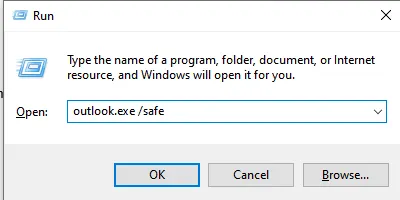
If Outlook works fine in Safe Mode, then the problem is in the add-ins you installed; remove them.
Method 2. Recreate the OST File
If you have an active Outlook profile, then you can delete the corrupted OST file and recreate a new one. Follow these steps to do this;
- Close the Outlook
- Search for the OSt file at this location: C:\Users\YourName\AppData\Local\Microsoft\Outlook
- Delete the file and restart Outlook.
Your Outlook will automatically create a new OST file and sync data from the server.
Method 3. Create a New Outlook Profile
A corrupted profile can cause OST-related errors.
- Open Control Panel
- Click Mail → Show Profiles
- Select Add and enter the name of the profile.
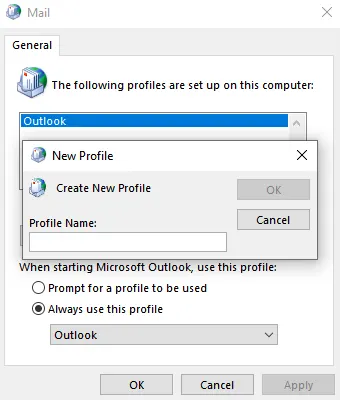
- Create a new profile and configure your account
- Set it as the default.
Method 4. Use Inbox Repair Tool (ScanPST)
Although this tool is primarily for PST file corruption. However, in new versions, you can use this to fix the OST file errors. Here are the steps;
- Locate ScanPST.exe on your system
- Run the tool and browse your OST file.
- Click Start, and the tool will start scanning your file.
Although this method works in some cases, there are a few limitations.
- High chances of data loss if there is a simple mistake.
- If your OST file is severely corrupted, then this manual solution will not work.
- Only an accessible OST file can be repaired using the manual solution.
Solution to Fix “Errors have been detected in the file Outlook.ost”
If your OST file is severely corrupted, then using the BLR OST Recovery Tool is the secure way. The software will effortlessly scan your corrupted OST file and repair its data into a healthy data file. To repair corrupted OST file all you need to do is add the OST > preview your data > choose folders > select the export option > click on Export, and you are done. The tool convert OST to PST and any other file format you choose.

To know the complete recovery process, try out the demo version of the software.
Conclusion
In this post, we address a common issue faced by Outlook users: ‘Errors have been detected in the file Outlook.ost.’ We will explain the reasons behind this error and provide effective solutions to fix it. Try the methods that we mentioned in this blog and fix the problem.