Read time: 3 Min
The EML file format is used by Gmail, Thunderbird, Apple Mail, Windows Live Mail, etc. It stores individual emails with headers, body text, and attachments. On the other hand HTML file is a web-based format used for better readability and accessibility. HTML format is easily shareable, and it is platform and device-independent. Let us learn different methods to save EML to HTML format, but first discuss why there is a need to convert EML files to HTML.
Why Users Need to Convert EML to HTML?
Here are the common reasons when users choose to convert EML files to HTML:
- Accessibility: HTML files are easily accessible with any web browser; you don’t need an email client to be installed.
- Device Independent: You can access an HTML file across any device, whether it is a Windows or Mac.
- Backup & Archive: HTML format is suitable for backup or archive, and maintains the record of emails for future reference.
- Formatting: HTML files allow better formatting as compared to EML files.
- Easily Shareable: HTML files can be shared easily with clients or colleagues without any limitations.
These are the common factors that make HTML more usable and accessible as compared to EML files.
Note: If you want to save your EML files as a PDF file, then you can go through this guide. How to convert EML files to PDF with attachments?
Manual Method to Convert EML to HTML Format
EML emails can be saved to HTML format by following the manual methods discussed below:
Method 1: Convert EML Files to HTML using Outlook
To convert EML files to HTML format using Outlook, follow the steps mentioned:
- Open MS Outlook.
- Drag and drop the EML file to any folder in Outlook.
- Open the imported EML email.
- Go to Info > File menu.
- Now Select Save As.
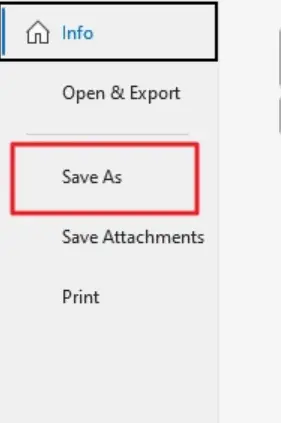
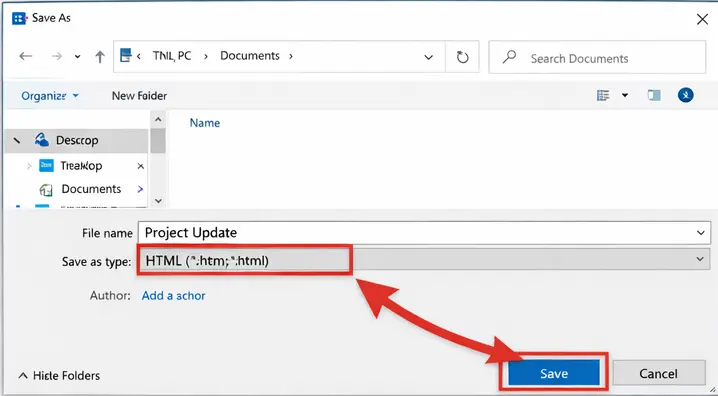
- Choose the HTML option.
- Provide a name to the file and save it to the destination of your choice.
- Choose the Save option to save the file in HTML format.
Method 2: Convert EML to HTML Using Mozilla Thunderbird
- Open Mozilla Thunderbird.
- Click Settings, select the Add-ons and Themes option.
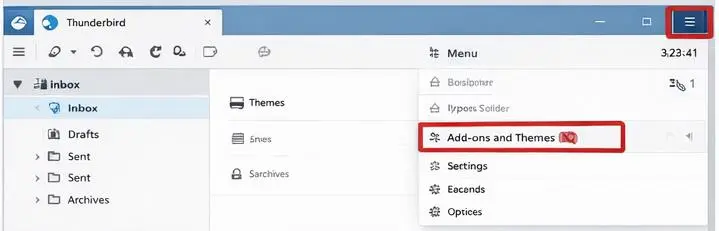
- Search for ImportExportTools NG tool and install it.
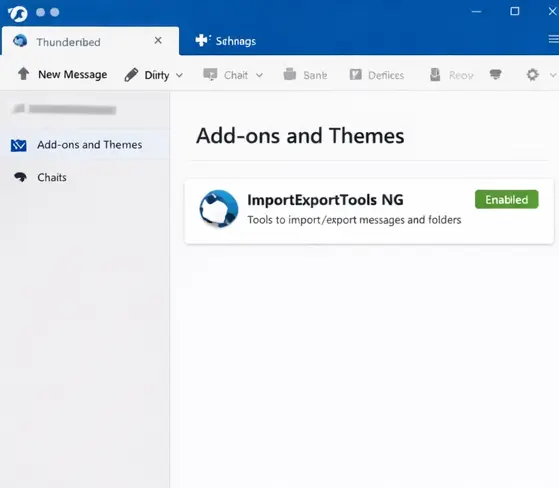
- Now restart the Thunderbird application.
- Open Thunderbird again and import the EML file through ImportExportTools NG.
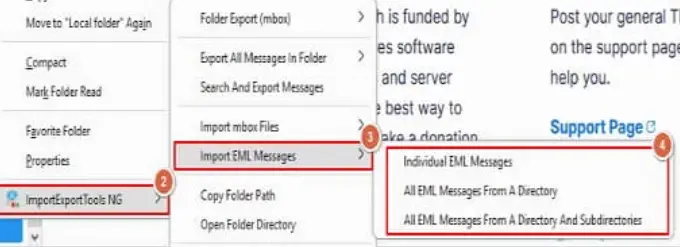
- Now select the imported EML mail.
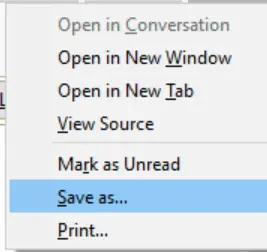
- Right-click on the email and click the Save As option.
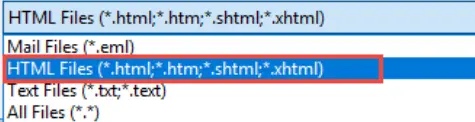
- Select the HTML option and select the destination to save the email.
Done! Here are the manual solutions for EML to HTML conversion. However, with these solutions, there are various limitations.
- Manual conversion requires saving a single EML file to HTML format, that required lots of time.
- If Thunderbird ImportExportTool NG not working, then you can complete the EML to HTML conversion.
- The email folder hierarchy and formatting are not maintained during manual conversion.
- Doing the conversion manually multiple times increases the data loss or incomplete conversion.
Convert EML to PST File Using BLR EML Converter
Do you have a large number of EML files to convert? If so, then taking the help of a professional EML Converter is the better solution, as manual methods are time-consuming. BLR EML Converter is one of its kind software that allows users to convert multiple EML files to HTML format simultaneously. Moreover, eml converter tool allows users to save EML files to PST, PDF, MBOX, and CSV formats. Professional EML to HTML converter guarantees safe and secure conversion, keeping the original formatting and properties of emails intact.
Additionally, using this tool, you can also import EML to Office 365, Gmail, Yahoo Mail, and all IMAP accounts. To know how the tool works, you can download the demo version of the software.

Conclusion
Users prefer to convert EML to HTML format, as HTML is one of the most widely used formats that is accessible easily accessible with any web browser. There are some manual methods that are to be followed with care to save EML to HTML. However, manual methods are to be followed with precision to safely convert EML to HTML. We have discussed two manual methods for EML to HTML conversion in detail; follow the steps carefully to avoid any data loss. In case you have a large number of EML files and need to save time, you can choose a professional EML converter.