Read time: 3 Min
Microsoft Outlook for Mac stores user emails and other information, like attachments, contacts, calendars, notes, journals, etc., in an OLM file. This OLM file is accessible only with Outlook for Mac. When a user needs to share emails with non Outlook user, he needs to convert OLM file to a format that is accessible without Outlook. MBOX is one such format that can be accessed with various email clients like Apple Mail, Mozilla Thunderbird, Netscape, etc. If you have Outlook for Mac installed, you can easily convert OLM to MBOX with the manual tricks. But if you have only the OLM file, you can opt for a professional OLM to PST Converter.
But before learning the methods to convert OLM files to MBOX let us examine the various reasons why a user is forced to export OLM to MBOX format.
Common Reasons to convert OLM to MBOX
MBOX files can be accessed with a wide range of email applications that are free to use, while one has to pay a price to use Outlook for Mac. Along with this, there are a few other reasons as well that are listed below:
- MBOX files can be accessed on Windows, Mac, or Linux operating systems, while OLM files can be accessed only on Mac systems.
- MBOX files are a simple text-based format that makes them suitable for backup and archiving.
- You have to pay for a subscription to use Outlook for Mac, while Thunderbird is a free-to-use application.
- Several cloud-based email services support importing MBOX files, thus making it a better choice to export OLM to MBOX.
- Users can import the converted file to Office 365, open MBOX in Hotmail, which makes them a suitable choice.
These are the major reasons why converting OLM file to MBOX is a better choice. Let us now focus on how to convert OLM to MBOX in the next section.
Manual Method to Convert OLM to MBOX
There is no direct method to convert OLM to MBOX, but with some tricks user can perform the conversion. Let us discuss the manual method in detail:
Drag and Drop OLM to MBOX
In this method, we can export the OLM folder to MBOX, the whole mailbox can’t be converted with this method. We can use this method in Outlook for Mac 2021, 2019, and 2016. Follow the steps below export OLM to MBOX.
Step 1: Import OLM File to Outlook for Mac
- Open Outlook for Mac.
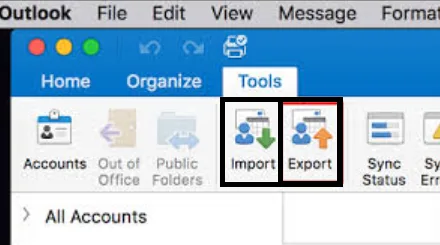
- Now, click on Tools and choose Import.
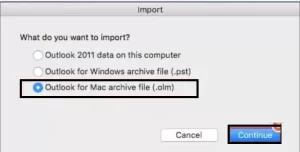
- Select the Outlook for Mac archive file (.olm) from the options available and click Continue.
- Now select the OLM file you want to import.
- The imported OLM file is now viewable under the My Computer tab in Outlook for Mac.
Step 2: Drag & Drop OLM files to MBOX
- Open Outlook for Mac again.
- Open the newly imported OLM file.
- Drag and drop the folder into another folder.
The newly created file is saved in MBOX format.
Convert OLM Files to MBOX Automated Solution
There are limitations to the manual method of OLM to MBOX conversion, and the data is also at risk. For quick and safe conversion, you can choose a professional solution like the BLR OLM Converter tool. While in manual methods user can convert only folders one by one, the professional tool can convert multiple MBOX files simultaneously. It guarantees complete conversion with 100% data accuracy, also maintaining original formatting and folder structure. Moreover, using this tool, you can also move your OLM file to Office 365, Gmail, iCloud, and other webmail accounts.

Conclusion
In this guide, we have covered simple methods for OLM to MBOX conversion. The manual method described is suitable for users with a smaller number of emails. The manual method is not accurate all the time user may lose some information during the conversion. However, the professional solution suggested is a reliable choice if you want to perform bulk conversion.