

Read time: 3 Min
External hard disks are a convenient way to increase storage space and to keep a backup of data. It becomes a serious concern when your external hard disk drive is not recognized when you try to connect the Hard drive to the computer. Let us learn how to remove External Hard Disk Drive Not Recognized errors. Let us first examine various reasons that are responsible for this error.
Reasons for the External Hard Disk Drive Not Recognized Error
Knowing why a PC’s external hard disk drive is not recognized is actually a good start toward solving the problem. The most common causes that occur which are mentioned below.
- Power Supply: In some cases, the USB port is incapable of supplying adequate power to the device. This is usually experienced with bad hardware or if you are attempting to connect through USB ports.
- Outdated or Corrupted Drivers: An outdated driver will not be able to create a link between Windows and your device. Just like drivers, firmware that is also considered an executable program can cause hard disk detection problems.
- File System Corruption: Due to improper shutdown, viral attacks, or frequent power blackouts, the file system of the external hard disk becomes corrupted and is no longer accessible.
- USB Partition Errors: Partitions missing or damaged, and devices listed as “Not Initialized” will not be displayed in the File Explorer.
Let’s move toward the solution to the problem of the external hard disk drive not being recognized and download missing folders in Windows to access your external hard disk or USB device.
Solution to Remove External Hard Disk Drive Not Recognized Error
In this section, let us learn various steps to resolve the “external hard disk drive not recognized” error.
Method 1: Use Disk Management Tool
There is nothing more effective than using in-built Windows Disk Management Tool to diagnose and troubleshoot external hard disk drive issues.
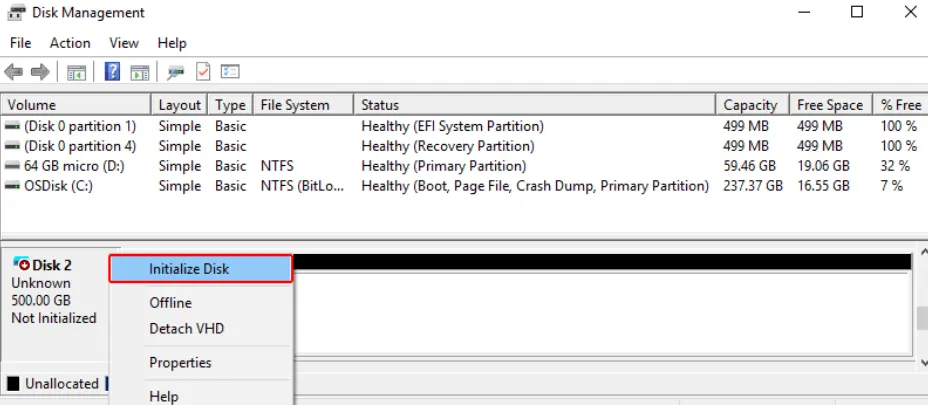
- Let’s start by pressing Win + X and selecting Disk Management.
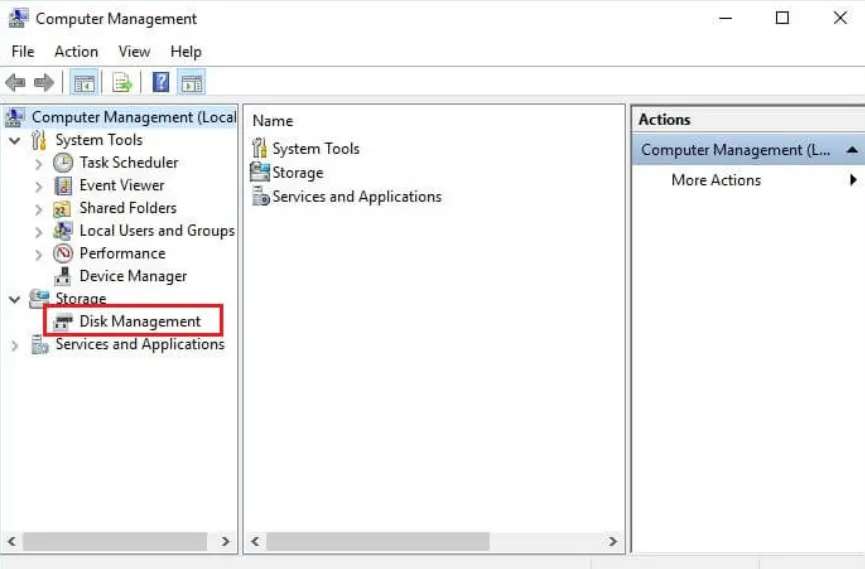
- Check for all the external data storage disk drives in the list.
- If the hard disk drive is not marked as “Not Initialized,” right-click it and choose Initialize Disk.
Method 2: Device Driver – Update or Reinstall
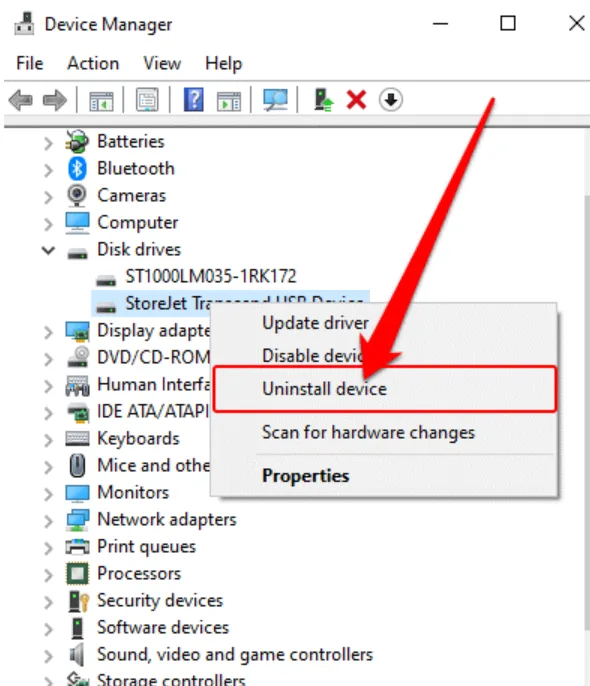
Drivers act as a link between the OS and the respective hardware for communication. Press the Windows key and R together, then type devmgmt.msc and click OK. Search the External Hard Disk and go to Expand Disk Drives. Go to My Computer, right-click the drive you want to update, click on Properties, and Update Driver Software. In case the update option won’t help, click on the Uninstall Device option, and after doing this, reboot your computer. Faulty drivers are a common cause of detection errors.
- Continue with the PC or laptop Windows + R button, then type devmgmt.msc and press Enter.
- Expand disk drives and navigate external data storage devices like a hard disk drive.
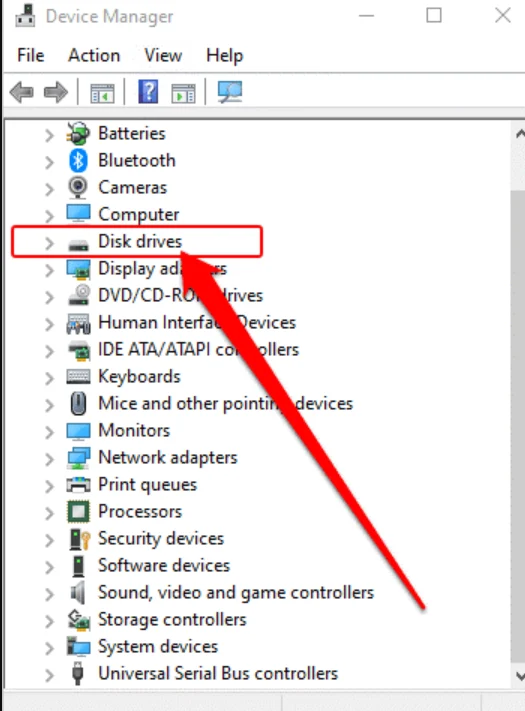
- Right-click on the disk drive option, select Update Driver Software, and follow the prompts as shown in the picture.
- In case the update option fails, select Uninstall Device, and afterward, reboot your computer. If you have Windows, the operating system will reinstall the driver.
Getting Professional Help
I know it is difficult to find any professionals, but I assure at BLR Tools has a team of professionals. If your external hard disk drive is not recognized, it is probably due to internal damages of platters and heads. Such damage should only be assessed by certify recover deleted hard drive data by professionals.
Conclusion
Hard disk drive not recognized is a common problem that may occur due to hardware faults, disk corruption or driver issues. But with some simple troubleshooting methods like updating drivers, checking USB ports, and repairing disk errors, users can get access to the hard disk. But if the drive is still unrecognizable, you can take the help of professional data recovery services.