

Read time: 2 Min
Outlook is one of the popular email clients used by millions of users worldwide. Are you one of those who use Microsoft Outlook for email messaging or communication? You might have come across OST as well as PST files. These data storage files contain mailbox data; thus, understanding the detailed structure of Outlook email data files is important for users to effectively manage the OST and PST files.
What is an Outlook OST and PST file?
The Outlook email client creates an OST (Offline Storage Table) file, which is an email data file. OST file allows users to access their emails, contacts, calendar events, and attachments even when Outlook is not connected to the server. OST files synchronize any changes with the server once the connection is restored and are saved on the system with the .ost extension.
PST, or Personal Storage Table, is another Outlook file format that stores email data locally on a computer. A PST file serves as a personal storage area where users can store, organize, and back up their email data independently of the mail server.
Now that both file formats are defined, let’s understand the differences between PST and OST in Outlook and how they vary from each other.
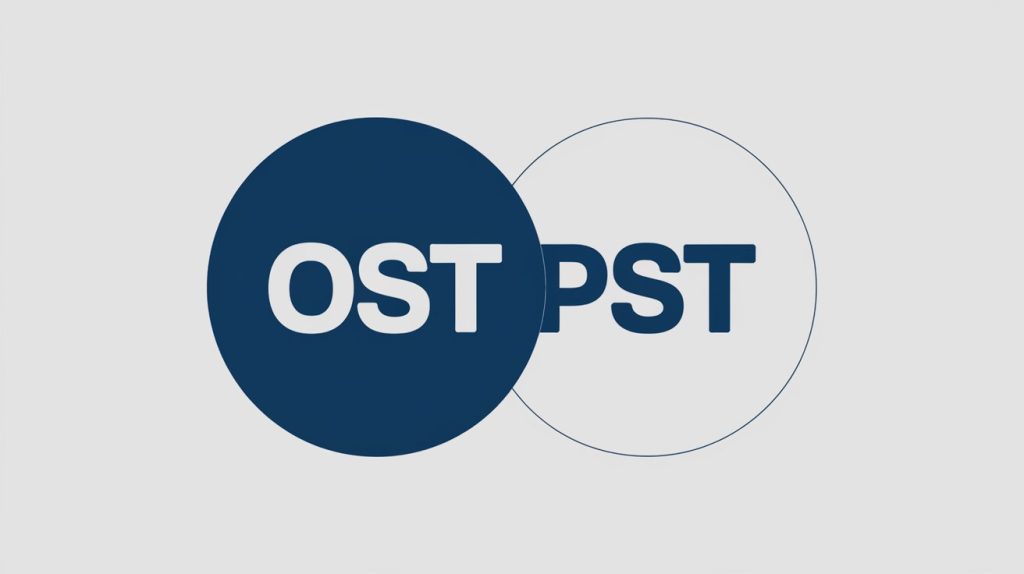
Outlook OST vs PST File: Major Differences
The following table helps you understand OST vs PST files in detail:
| OST File | PST Files |
| Works offline and syncs with the Exchange server later. | Saves emails only on the local computer. |
| Used only with Exchange accounts. | Used with Exchange, POP3, IMAP, and webmail. |
| Opens only in the original Outlook profile. | Opens in any Outlook profile. |
| Syncs data automatically. | Requires manual email download. |
| More secure and less likely to be corrupted. | Less secure and more likely to be corrupted. |
Process to Access Inaccessible or Corrupt OST File
Outlook data files can get corrupted or damaged due to various reasons, like viruses, abrupt system shutdown, or the huge size of the PST file. In order to convert not accessible OST file to PST, a secure tool will be needed. The BLR OST to PST Converter can be considered, as it supports fast OST to PST conversion. With its smart working mechanism, you can also fix corrupted OST file and create a healthy PST file for you. It also allows you to save OST email data to Gmail, Outlook.com, and other IMAP servers.
Steps to Convert Inaccessible OST to PST File
- Install and run the BLR OST to PST Converter tool.
- Click on Add file button and browse the OST file from your system.
- Here you can view your mailbox hierarchy and select the folder you want to convert.
- From multiple export options, choose the PST file.
- Browse the saving location and hit the Export button to start the process.
Final Verdict
Microsoft Outlook stores information using both OST and PST file formats, each serving a distinct purpose. OST file offer higher security than PST files, as they require specific methods or third-party tools for access. When OST file encounters issues, using the recommended software ensures a reliable and effective solution.
Hope this helps!
FAQ
Q. Should I Access PST or OST?
Before choosing between PST and OST file, first clearly define your requirements. This is an important factor in making the right decision. PST files are the preferred option for creating backups of your Outlook data. On the other hand, if you need access to Exchange data while working offline, you prefer using the OST file, as it supports offline access for Exchange accounts.
Q. Can I access the OST on another PC?
Each OST file functions exclusively with the profile settings of a particular computer system. When you want to access an OST file on different hardware, you need to establish a new Outlook profile, which requires connecting back to the initial Exchange server.
Q. What methods do I have to safely manage both OST and PST file?
Regular PST file backup, along with care toward preventing file size expansion, should be considered as essential practices. Exchange Server needs proper configuration to manage your data synchronization for OST file. To prevent data loss caused by corruption, use trustworthy data recovery tools.