Read time: 3 Min
A Personal Storage Table(PST) file is used by Microsoft Outlook to store user emails, contacts, calendars, notes, etc. The PST file is stored locally on the user’s system, which makes it difficult to migrate when a user decides to switch platforms. On the other hand, Zoho Mail is a secure, business-oriented, and cloud-based email service that provides a range of advantages to cater to multiple email needs of the user. Users can write emails through the easy-to-use Zoho Mail interface, which gives access to advanced formatting options. Users can customize their email content data, may add custom signatures, and enable Outbox delay for a much better control over sending emails easily.
Major Reasons to Migrate PST file to Zoho Mail
There are several reasons why users need to convert PST files to Zoho Mail. Here are the list of some common reasons:
- Zoho Mail is a cloud-based application, and users can access emails from anywhere, anytime.
- PST files can be accessed using Outlook only while Zoho Mail can be accessed without the dependency on Outlook installation.
- Zoho Mail has better encryption and spam filtering features than Outlook.
- PST files are prone to corruption, and it is not easy to repair PST file, while in Zoho Mail mails are stored safely in the Cloud with proper backups.
- Zoho Mail can be accessed on Windows, MAC, Linux, or any mobile device, while Outlook PST emails can be accessed with Windows only.
- Emails can be backed up and restored automatically with Zoho Mail, while in Outlook, you have to perform a backup manually.
- Zoho Mail is cost-effective as compared to MS Outlook.
The conversion of PST files into Zoho format would improve data email handling capabilities, including compatibility and accessibility, as well as manageability.
Before Learning about how to migrate the Outlook PST file to Zoho Mail. Have a look at this table, which helps users to know the difference between PST Mail and Zoho Mail.
How to Upload PST Data to Zoho Mail?
Zoho Mail does not provide a direct PST file import feature; PST file migration demands multiple manual process steps. Outlook users can conduct the migration through IMAP configuration to transfer PST file data into Zoho Mail. A detailed guide follows for completing your migration below.
Step 1: Allow IMAP in Zoho Mail
- Start by opening a web browser, then use your valid username and password to access your Zoho Mail account.
- You can open Zoho Mail Settings through its gear icon, followed by accessing Mail account options.
- Move to the IMAP section after that and activate the “IMAP Access” checkbox.
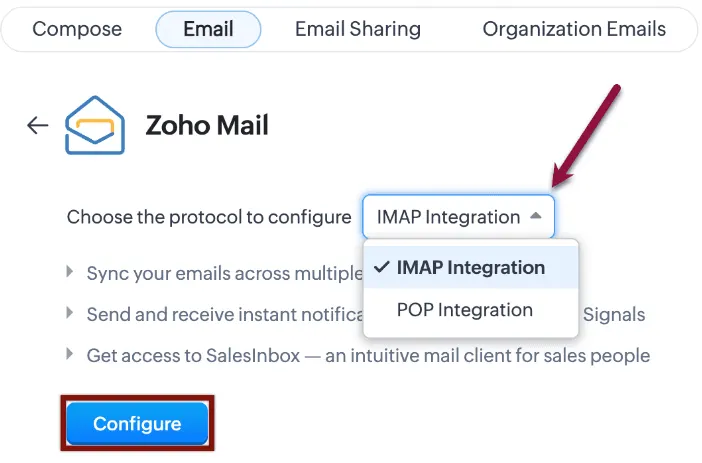
- Save the modifications by clicking the save button, which appears at the bottom of the page.
Step 2: Integrate Zoho Mail with Microsoft Outlook
- Access the Outlook application to start your configuration by downloading and then installing, followed by opening the program.
- First, access the File from the menu and select Add Account before choosing Manual Setup from the options.
- The following information should be used to set up Zoho Mail IMAP server configuration:
- Incoming Mail Server (IMAP): imap.zoho.com
- Outgoing Mail Server (SMTP): smtp.zoho.com
- Set the ports for IMAP at the following rates:
- IMAP Port: 993 (SSL/TLS required)
- SMTP Port: 465 or 587 (SSL/TLS required)
Step 3: Open the PST File in Outlook
Open the PST File in Outlook
- Open Outlook once again before navigating to File > Open & Export > Import/Export.
- Proceed with the file import by selecting Import from another program or file, followed by Next.
- Use the file browser to locate and select the PST file from the Outlook Data File (.pst) choice.
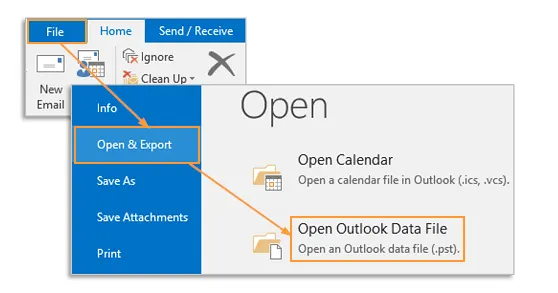
- Complete the import process by clicking Finish and import PST to Outlook client.
Step 4: Transfer PST Files to Zoho Securely
- You need to select the email or data that requires migration.
- Drag selected data files into matching folders located in Zoho Mail.
- Check migrated data to minimize possible failures and damage.
Flaws in the Manual Method
Manual methods to migrate Outlook PST files to Zoho mail brings several strong restrictions to the process.
- Multiple steps guide this migration process that normally requires extended periods of time.
- Setting up IMAP with PST handling files remains a complicated procedure.
- The data migration process can lead to some information being left behind whenever the process gets interrupted.
An automated PST file migration tool is essential to overcome the challenges faced during the manual process of moving PST files to Zoho Mail. In the next sections, let us discuss a professional solution to convert PST emails to Zoho Mail.
Recommended Method to Import PST to Zoho Mail
The PST mail converter serves as an efficient and safe means that delivers quick PST file migrations. Outlook PST Converter tool successfully handles PST file transfers while maintaining the original data structure during migration processes. The BLR PST converter software operates with all Outlook versions to support PST to HTML, PST to MBOX, and PST to EML conversions. The software offers an easy-to-use interface that attracts user groups with basic computer experience. The PST converter software works effortlessly because it employs straightforward procedures that surpass manual systems. The tool embraces different built-in features that guide users toward obtaining exact conversion results.

Conclusion
The above article explained the detailed methods to migrate the Outlook PST file to Zoho Mail. We have discussed both the manual approach and an automated solution for PST file import to Zoho Mail. The available manual approaches tend to take a lot of time and entail possible data loss. A professional PST converter, as suggested in the article, should be used to extract data from PST files in an easy manner. The software provides a free trial version, which allows users to test its functions before making a purchase decision.