Read time: 4 Min
As we all know, Excel is one of the most preferred applications for managing data, reports, and financial records. It stores data in tabular form, making it easy to analyze, organize, and perform calculations efficiently. However, imagine a situation where you are working on an important Excel file and the power suddenly goes out, or you accidentally close the file without saving. You may be thinking of how to recover unsaved Excel file.
Don’t worry, Excel provides several built-in features that can help to restore an unsaved Excel file. Moreover, we have the option to use a good professional Excel recovery tool that can recover a corrupted Excel file if your Excel file is damaged or corrupted. This article will guide you through various methods to recover unsaved Excel files efficiently. Follow the steps with care and recover the unsaved Excel file efficiently.
Common Reasons for Unsaved Excel File Loss
Before learning the process of how to recover unsaved Excel file, let us focus on the most common reasons that lead to the loss of an unsaved Excel file.
- Abrupt system shutdown or power failure
- Closing of Excel without saving
- Application crash or freeze
- System restart during work
- Software or hardware issues
How to Recover Unsaved Excel File Manually in Windows 10?
Here are the various methods for solving the “how to recover unsaved Excel file ” query as follows:
Method 1: Check Temporary Files
Microsoft Office saves temporary files as backups; the unsaved changes can be recovered from these temporary files. Follow the steps below to recover an unsaved Excel file.
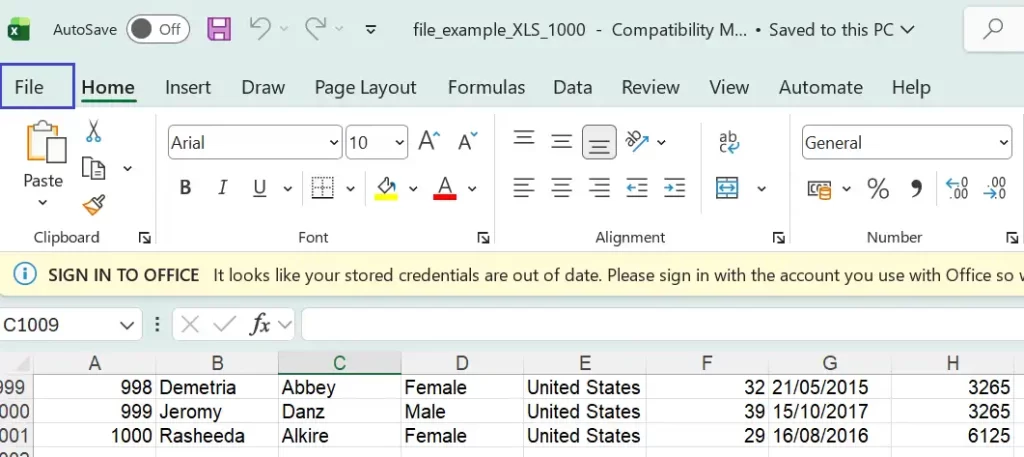
- First of all, Open Excel.
- Open the file from which you want to recover unsaved content.
- Click on the File tab.
- Select Info.

- Click Manage Workbook.
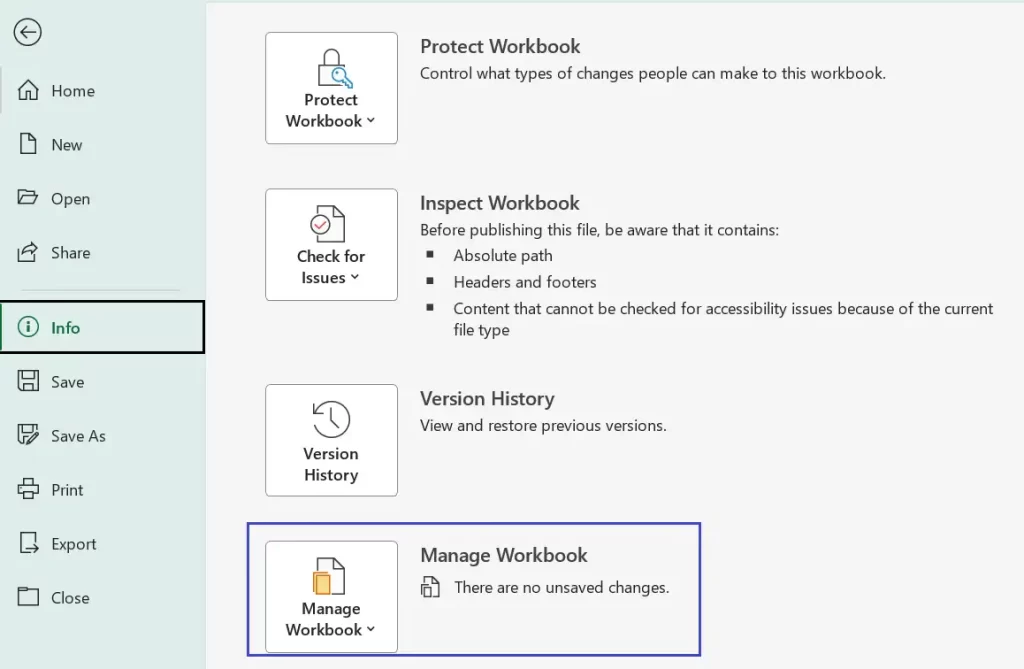
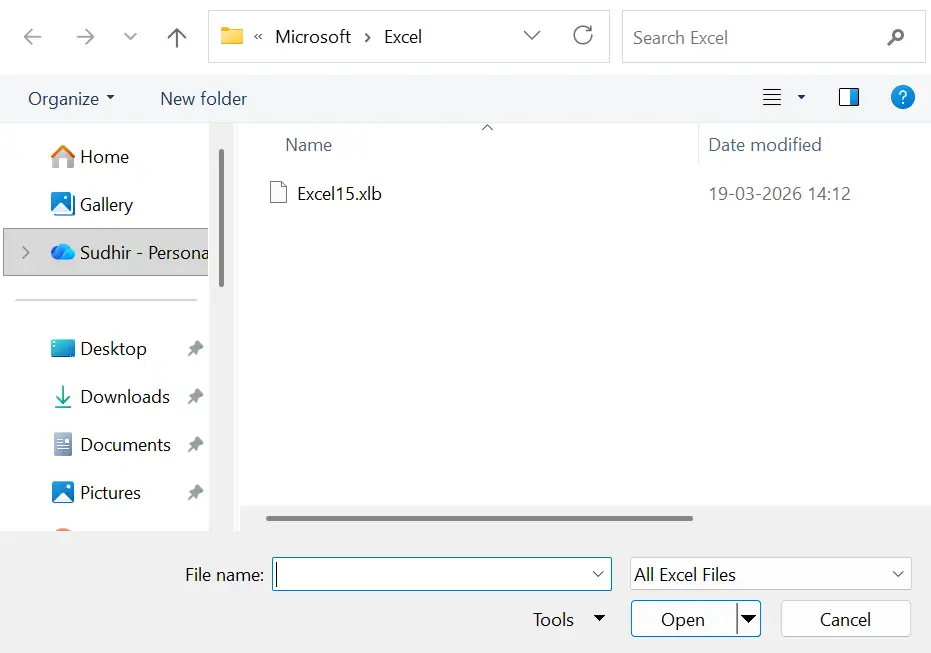
- Now click Recover Unsaved Workbooks.

- A new window in the File Explorer will appear, which can involve some unsaved files.
- Click on files one by one to check if any file has the content you want.
Method 2: Show Recovered Files of MS Excel
- First, open the Excel application again, then look at the Recovered heading on the left side. After observing it, press the Show Recovered Files.
- Then, it will open a new spreadsheet with the Document Recovery panel.
- Now, pick any file shown in the panel to view Excel’s most recent save. It’s not always going to be absolutely up-to-date, but there’s a possibility it will save you some time in getting everything back.
Method 3: Using AutoRecover Option From Data Loss Prevention
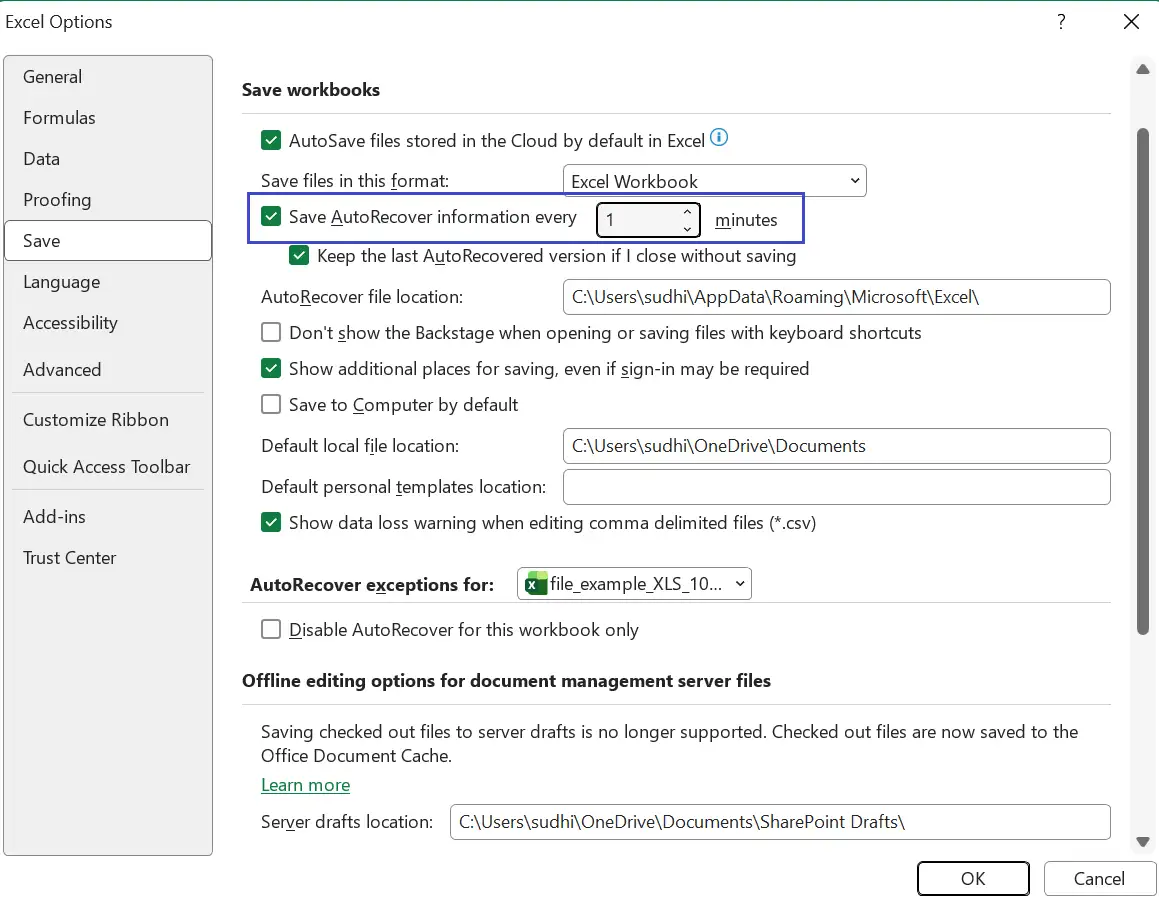
Excel provide built-in AutoRecover feature that saves a copy every 10 minutes; you can change the settings to a lower time frame manually.
- Open Excel.
- Click File, choose Options.

- Now select Save.
- Now change the time to 1 minute from 10 min in the “Save Autorecover information every” option.
- Click Save.
Conclusion
To recover an unsaved Excel file using the built-in features provided by Excel, like Temporary files, AutoRecover, and document recovery options, is the simplest way to recover an unsaved Excel file. These methods work perfectly in most accident loss cases, but when you have a damaged or corrupted Excel file, you have the option to try a professional Excel repair tool like BLR Excel Repair Tool to recover Excel file data. To avoid such a situation in the future, always save your data regularly and keep a backup of files.