

Read time: 3 Min
Windows users can find themselves in trouble when a folder containing important files is missing. The folder can go missing due to accidental deletion, system crash, malware removal, or hidden file attributes. Fortunately, there are some ways to locate missing folders in Windows and recover deleted files. The built-in features allow users to search for missing folders and restore them to the default location. This article explains the various reasons responsible for missing folders and provides easy methods to download missing folders in Windows.
Common Reasons for Folders Go Missing in Windows
Before attempting to download missing folders, it is important to know the various reasons why folders disappear. Here are the common reasons that lead to folder missing situations in Windows systems.
- Accidental Deletion: Many times, users delete folders unknowingly during the system cleanup process. The deleted folder goes straight to the Recycle bin if you haven’t hard deleted it using Shift+Del key.
- Hidden Folder Attributes: Windows has a special feature to hide folders. If the hidden feature is enabled, the folder is not visible in File Explorer.
- System Crash: Improper shutdown leads to storage corruption, making folders inaccessible or disappear.
- Antivirus Conflicts: Antivirus tools may delete suspicious files and folders if they detect a threat, which leads to folders going missing in Windows.
Quick Solutions to Download Missing Folders in Windows
Method 1: Find Disappeared Downloads File Folder in Windows from [SE] Google Chrome
Did you ever download something from the Internet using Google Chrome or Firefox browsers? The downloaded files from the browser are not visible in the downloads folder of Windows.
Anyway, follow the instructions below to find the downloaded files in Google Chrome:
Step 1. From the Windows Taskbar, users can start Chrome easily by clicking on the Chrome icon.
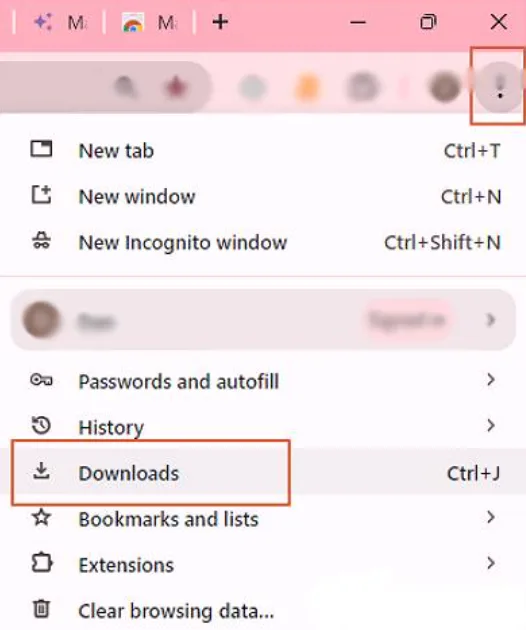
Step 2. Click on the three dots button and select “Downloads.”
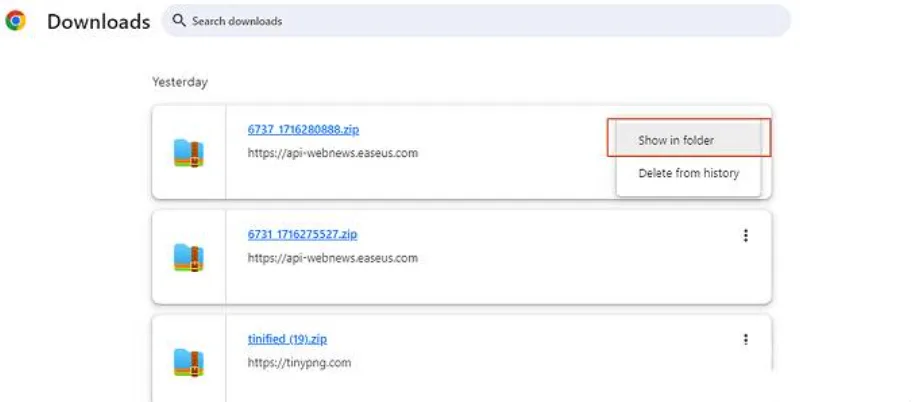
Step 3. After that, check the folder in the Chrome download history. After getting the right file folder. Directly click on the particular folder; it will move directly to the path.
Method 2: Get Missing File Folder with Shell Command
In case you are in a situation where you cannot locate the Downloads folder or the Pictures, Documents, or Videos folder – do not worry – it is possible to find them using a simple command.
Step 1. Type File Explorer on the search bar and click “This PC”.
Step 2. Move the mouse to “This PC” in the location bar and double-click it.
Step 3. Type in the shell:downloads, and the File Explorer will bring users automatically to the Downloads folder.
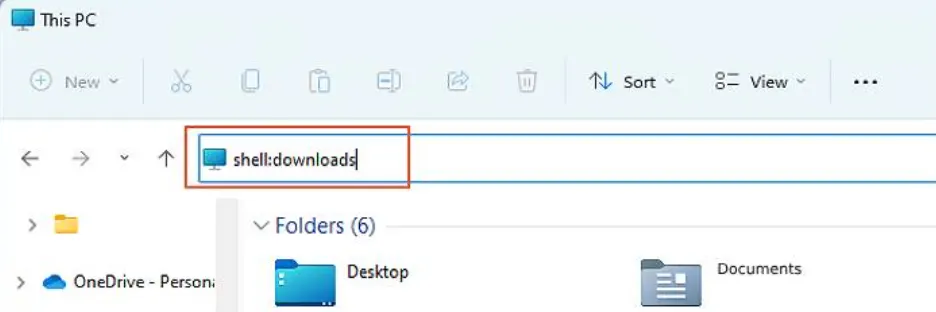
Step 4. Here, right-click on the folder icon in the Downloads folder and click on “Properties.”
Step 5. Select the Location tab, and this will tell you where your Downloads folder is located
Right now. To revert to its original position, click on the button labeled “Restore Default.”
Method 3: Find Missing Folders in Windows with Software
The most helpful solution to download missing folders in Windows is the BLR Data Recovery Toolkit. When users’ file folders are deleted, you can recover and download missing file folders in Windows with this advanced software. Let’s discuss the process of how users can use this tool to get back downloaded missing file folders in Windows:

- Download and run BLR data recovery software. Choose “Select Folder” under Specify a location. To scan, navigate to the location where you lost the file folder and click “OK”.
- Users can also search for the target file folder or use the Filter feature to find an exact file in the folder.
- After getting the right file folder, users can preview. Then, click on the “Recover” button and choose a new & secure path on their PC or cloud data storage to keep the recovered data safe.
Conclusion
A disappearing folder can be alarming if important data is stored in it. However, in most cases, the folders are not lost; they are just hidden. You can check for the folder in the Recycle Bin, enable hidden file settings, or use professional data recovery software to download missing folders in Windows. Regular backup of important files and folders is the best way to ensure the data remains safe.