

Read time: 6 Min
The error code 0xc0000005 is a common error in Windows systems that is related to memory access violations. This error may occur when a program tries to access a memory location that is not available for use. The 0xc0000005 error might occur due to corrupted system files, damaged hardware, conflicting software, or Windows update failures.
Users experience multiple problems, including system hangs and freezes due to this error, while their PC shuts down or reboots excessively, or applications break down. Occasionally, users encounter a blue screen displaying code 0xc0000005. The combination of these errors creates threats to system data and operating system stability. While data recovery software helps to recover hidden lost data, we must fix error code 0xc0000005 Windows 11/10 immediately.
In this article, we have provided proven troubleshooting methods to fix Windows error Code 0xc0000005. Learning about stop codes with their corresponding reasons enables users to choose suitable methods to solve the issue quickly.
Stop Code 0xc0000005: Commonly Reported Errors
The following section presents the usual error messages along with their corresponding causes that occur when this stop code appears.
- Access Violation Error 0xc0000005: This error indicates a problem during accessing a memory location. Memory corruption (faulty RAM), malware infection, and outdated or corrupt disk drivers, as well as security updates, are the primary causes of this error.
- 0xc0000005 Application Error: The 0xc0000005 appears when the system fails to interpret the required files and settings for program execution. The error symbol 0xc0000005 appears when launching games, software, or applications on a computer. Three possible causes that produce the error are memory corruption (faulty RAM) and system file errors, together with system settings.
- 0xc0000005 Windows Update Error: This error appears when system settings fail to configure the Windows update installation. System memory or issues with the update installation process typically lead to this error. The issue sometimes appears when users attempt to install an update containing bugs.
The Windows error code 0xc0000005 can be resolved through the troubleshooting instructions provided in detail below. Let us discuss methods to fix error code 0xc0000005 Windows 11/10 quickly.

Methods to Fix Error Code 0xc0000005 Windows 11/10
The 0xc0000005 Windows Update Error sometimes appears when system settings fail to configure the Windows update installation. This issue can be caused by either system memory problems or update installation errors. Users may encounter this error while performing an update installation that contains bugs.
The Windows error code 0xc0000005 presents itself for different reasons, but the following troubleshooting methods will help to solve it.
Fix 1. Check RAM
The Windows Update Error 0xc0000005 emerges when the system fails to properly set up a Windows update while it executes the installation process. The installation issues stem from system memory problems or failures during update deployment. The error can manifest during both Windows Update installations and when users install buggy updates into their system.
The Windows error code 0xc0000005 presents itself for different reasons, but the following troubleshooting methods will help solve it.
- Launch the Windows Memory Diagnostic tool by accessing Windows Search.
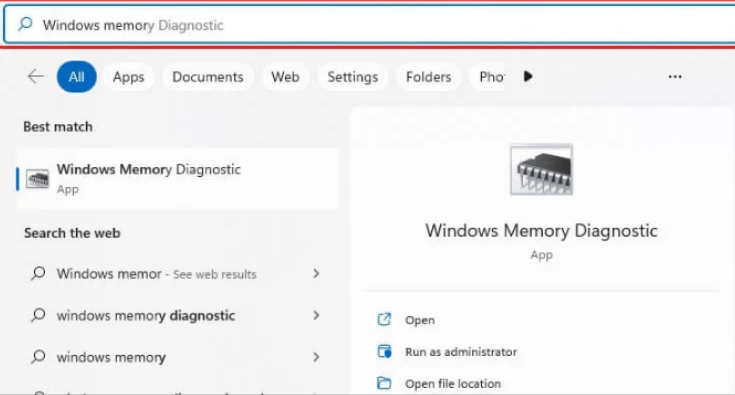
- Click on ‘Restart now and check for problems (recommended) ‘on the next display.
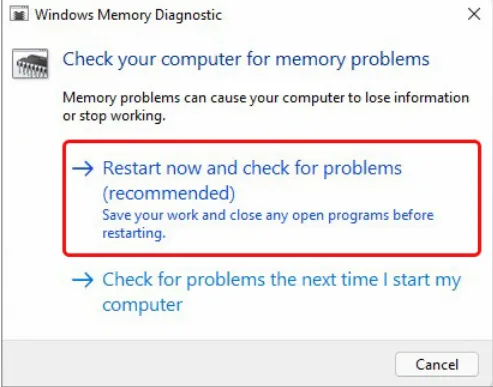
- After reboot, the system will begin testing operations.
- The scan results will display on the screen following the conclusion of the scan process. Observe numerous RAM issues with accompanying repair directions and proceed according to the given steps. Otherwise, replace faulty RAM. Memtest86 serves as an additional tool for running tests on the system’s RAM.
Fix 2. Perform a malware scan on the PC
A malware infection on a PC can trigger the appearance of error code 0xc0000005. A Windows Defender Antivirus system scan should detect malware or viruses on the computer. This tool enables system checks to detect viruses that can be removed following the tool’s recommendations. Microsoft Defender Antivirus requires users to complete the following steps to run a scan:
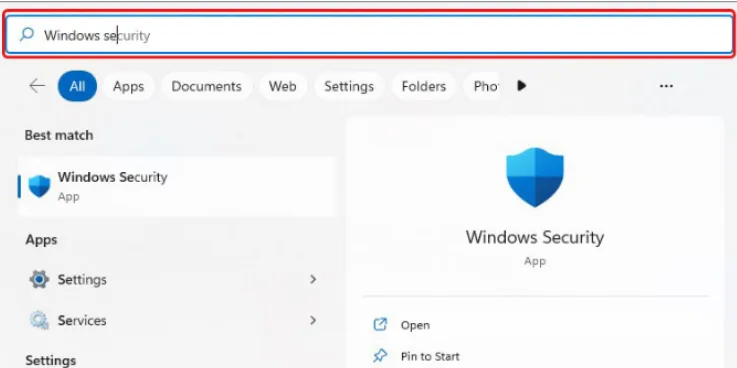
- Start by pressing Windows + S to access Windows Search and typing Windows Security.
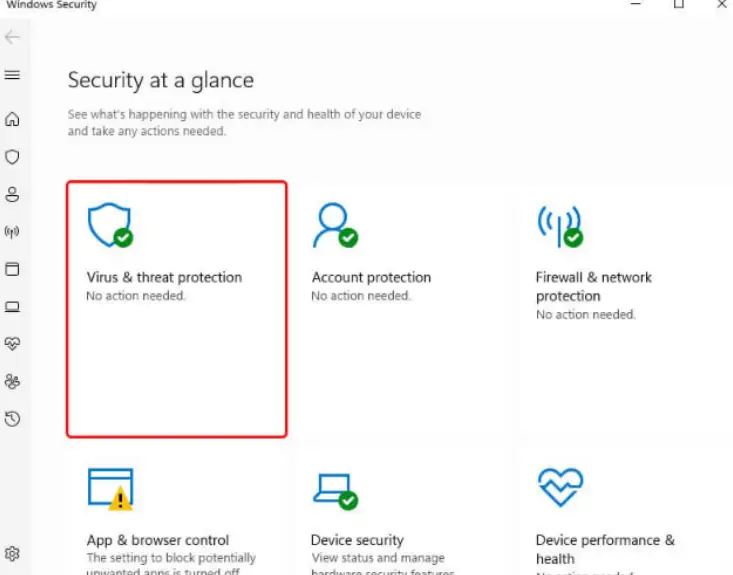
- The window contains multiple options, but Virus & threat protection can be selected via direct access.
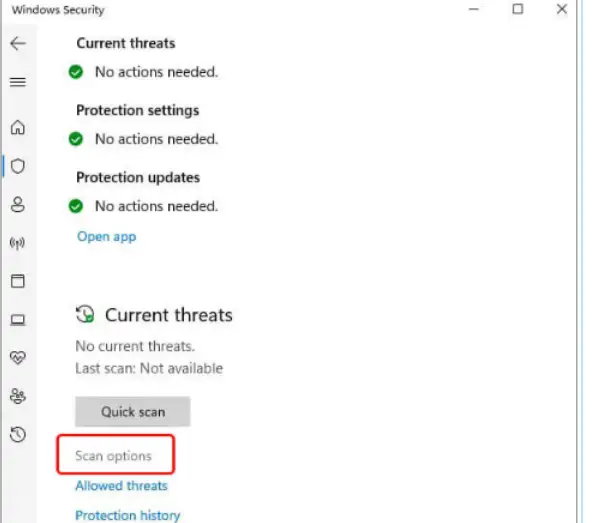
- Click the Scan options found under Quick Scan to proceed.
- The current dialog box offers two virus detection options known as Full scan and Microsoft Defender Offline scan. Then, click Scan now.
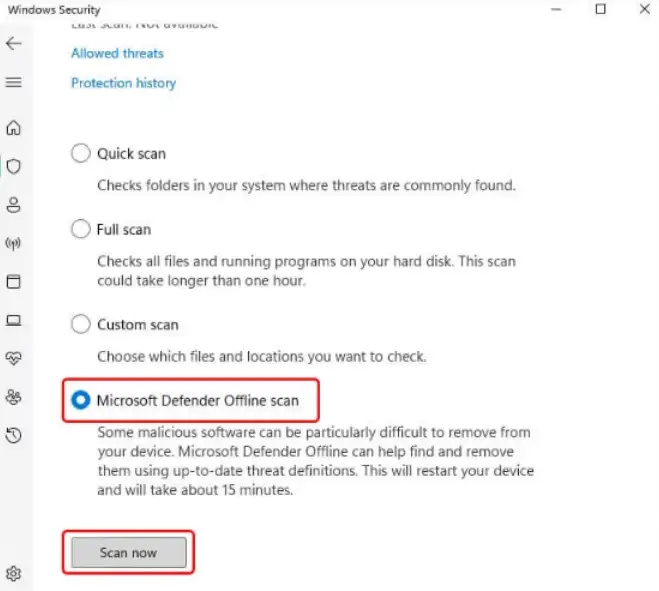
- The scanning will start. After rebooting the system user will find instructions to delete the virus detection.
- Make sure that all third-party antivirus solutions support the system without displaying any bugs or errors before installing them. Also, keep the antivirus updated.
Fix 3. Conduct SFC Scan
The 0xc0000005 exception code might stem from broken system files, so users can resolve the problem by using the SFC (System File Checker) utility. The tool examines corrupted files before restoring them with the original, correct versions. Perform an SFC scan through these sequential instructions:
- Open the Windows Search by pressing Windows +S, then type cmd, followed by running the Command Prompt with administrative privileges.
- Enter SFC /scannow in the elevated command prompt window, then press Enter.
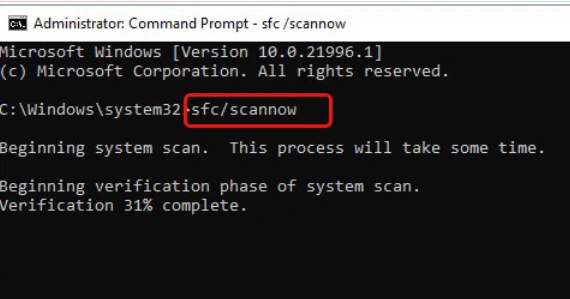
- The execution of this procedure requires a period of time. Wait and let the process end. Afterwards, users must refer to the instructions to correctly execute the process. To verify the fix, users should first close the window and restart the computer system to examine whether the problem still exists.
Fix 4. Upgrade System Drivers
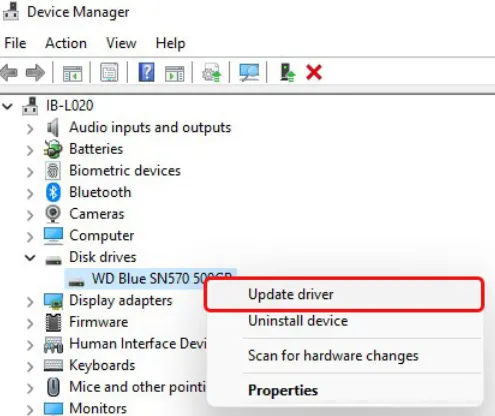
The updated status of all device drivers needs verification because old drivers could trigger error code 0xc0000005 (memory access violations). The following procedure will help to update drivers:
- Press the Windows and X keys simultaneously to access Device Manager among the available options.
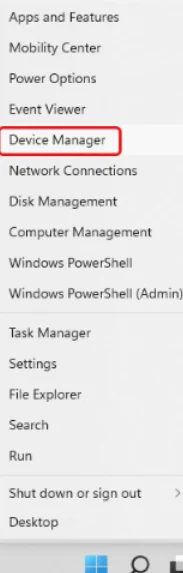
- Right-click on any driver that exists in the Disk Drives category. Click the Update driver from the available choices.
- Click Search automatically for drivers at this prompt.
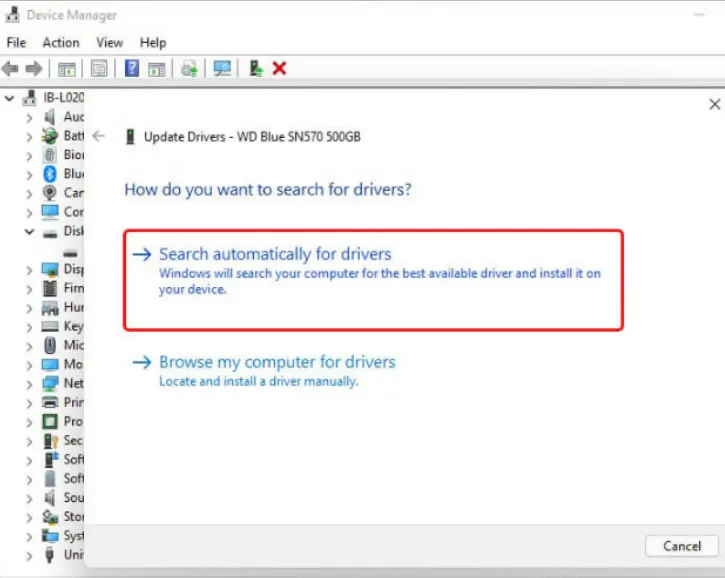
- The device’s latest compatible driver will be searched for by Windows. Select and install any available driver version, then reboot the system.
Fix 5. Run a Clean Boot
Windows becomes functional with minimal startup programs and drivers after performing a clean boot. A clean boot provides a solution to software conflicts that develop after program and application installations or update deployments. This procedure allows users to detect problematic applications or software that could be the source of errors. To fix windows error code 0xc0000005, users can follow these steps described below:
- Start by using Windows Search with the combination Windows + S and enter “msconfig” until System Configuration appears.
- Click the Startup tab to access the Task Manager and open it.
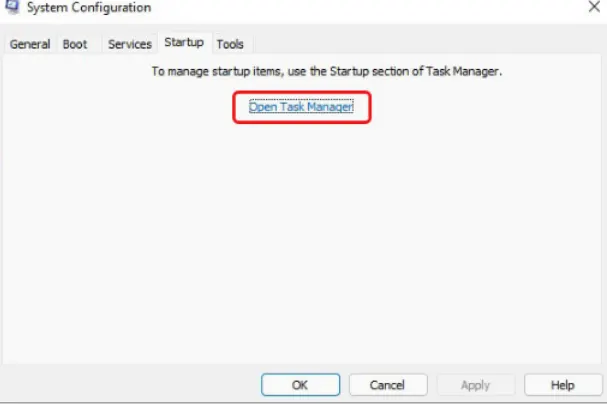
- Click on Disable after selecting the desired program from the Startup menu.
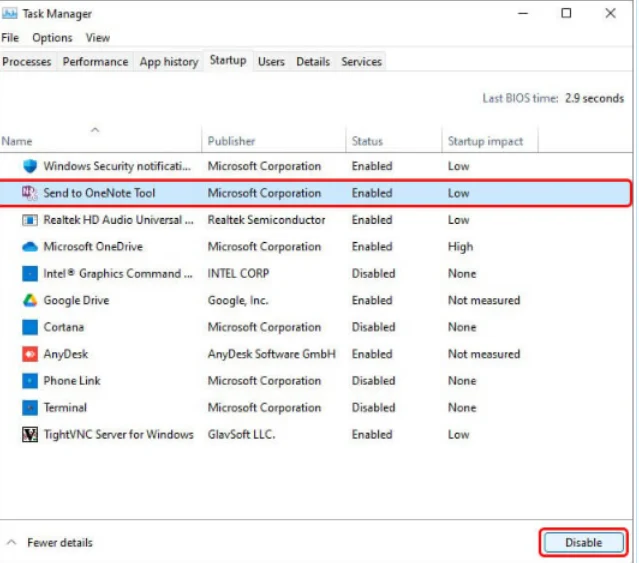
- Finish by closing down the Task Manager application. Tab into the System Configuration window and click Startup.
- The system will boot into a clean boot state after rebooting it.
Fix 6. Use CHKDSK Scan
The Windows error code 0xc0000005 develops because hard drives experience either corruption or malfunction. The Check Disk (CHKDSK) scan enables it to detect and mark bad sectors on hard drives as well as fix potential corruption issues. Use the following procedure to verify this issue:
- Users must open the Command Prompt while using administrator privileges.
- Place the text chkdsk /f /r D: in the elevated window before pressing Enter. The command should be chkdsk /f /r D:, with the hard drive letter specified instead of D:
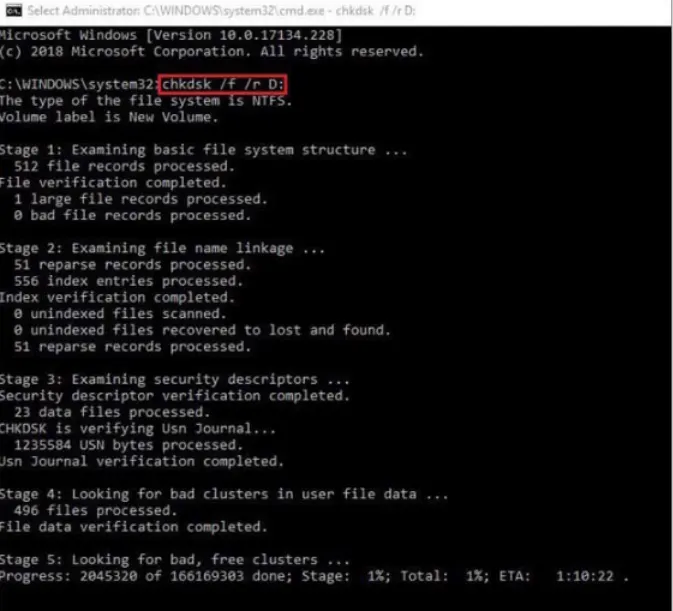
- The scanning operation takes time to finish. Shut down the command window before rebooting the system. Check if the problem stays active after this point.
The CHKDSK command creates FOUND.000 folder after scanning and repairing file system errors. The system when can’t determine the original file type of recovered files saves them as CHK files inside this folder. User can recover files from FOUND.ooo folder using data recovery tools.
Bonus Tip: The CHKDSK utility marks bad sectors on hard drives, which results in Windows preventing data storage in those sectors, thus leading to eventual data loss. Running this utility requires you to back up the hard drive first. File recovery software from a reliable source enables direct recovery of data from a hard drive if users have already lost data.
Fix 7. Disable DEP
The core memory protection mechanism of Windows operating systems is Data Execution Prevention (DEP). System memory safety is monitored through this feature to protect against security threats or viruses. A non-DEP-compatible program may generate memory access violations when it fails to execute correctly under DEP mode. To eliminate the error should disable DEP for one program using this process:
- An administrator window to type bcdedit.exe /set {current} nx OptIn, then click Enter.
- Use the bcdedit.exe /set {current} nx Always Off command followed by pressing Enter.
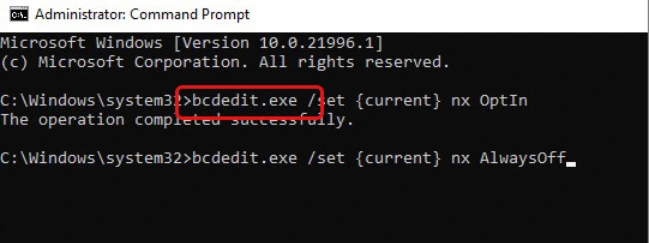
- Once the steps are completed, users can close the window and restart the system to verify if the problem is resolved.
Fix 8. Factory reset your PC
The error 0xc0000005 persists if none of the previously mentioned solutions work, users should consider resetting the PC. System configuration will revert to defaults, which will result in data loss during this process. Execute this method after performing a data backup. Follow these instructions after performing a backup.
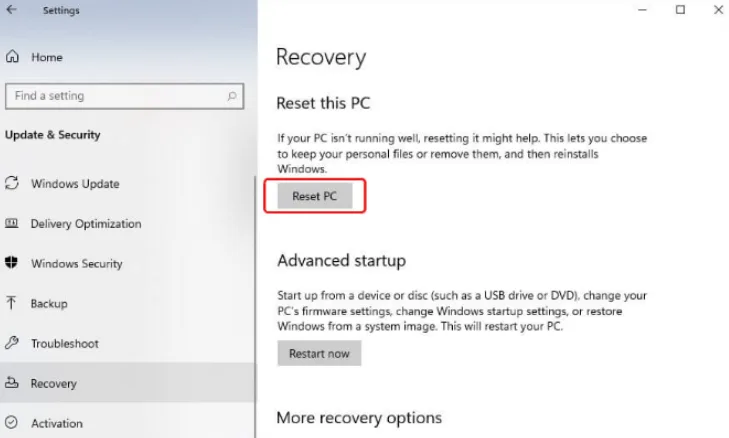
- Initiate Settings through the Windows + I key combination and navigate to Update & Security > Recovery > Reset PC.
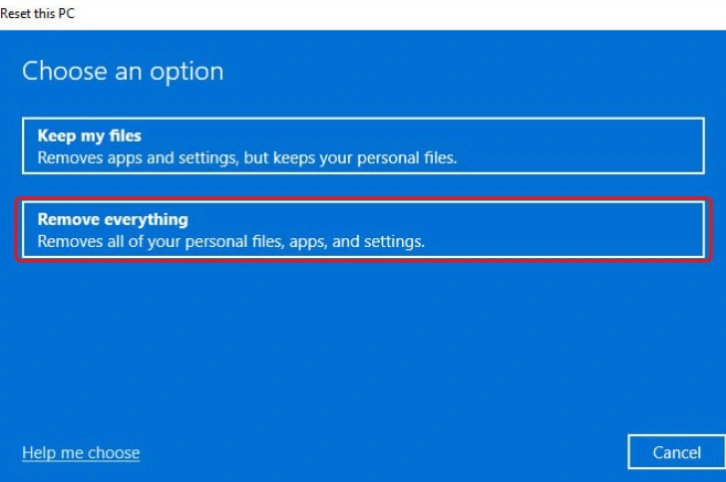
- From here, users will see two available choices: either “Keep my files” or “Remove everything”. The process functions most efficiently when you select Remove everything as an option.
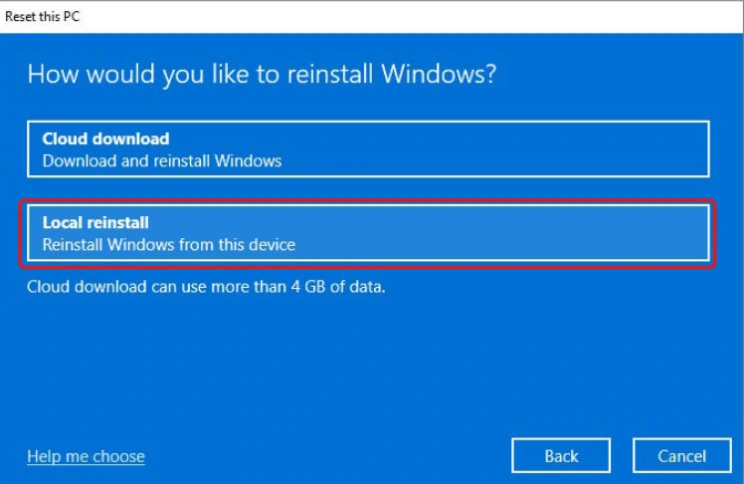
- The next step is to choose Local Reinstall from the available options.
Complete the process by following any additional information that appears. Once completed, restart the PC. That should fix the problem.
Tips for Preventing System Errors and Protecting Your Data
- System errors can be prevented by performing regular system scans.
- Operating systems and software should always remain updated, and the system requires all recent security patches.
- Stay away from downloading files that seem dubious when users find them in spam mail.
- A quick response to system performance issues will prevent a system from encountering possible errors.
- System Restore should be enabled so that restore points appear automatically. Such settings allow to restore system’s functions to their prior state with data retention up until the most recent point in time.
- Users should eliminate every piece of unwanted system data to maintain both system cleanliness and prevent errors.
Conclusion
The Windows 0xc0000005 error leads to serious performance issues that result in application crashes, together with repetitive restarts and the risk of data loss. The solutions described in this guide help to fix error Code 0xc0000005 in Windows effectively by first checking RAM, then implementing malware scans, followed by driver updates and system repair tool applications. Let the top data recovery software protect users’ data since troubleshooting might result in potential loss. System updates synchronised with regular backups ensure such errors are prevented.