

Read time: 5 Min
If Outlook won’t open on your system, don’t worry, this problem is faced by most of the users. However, in certain cases, it is fixable. This guide will explain why won’t Outlook open and solutions to fix it, from basic fixes to advanced recovery methods.
If you are looking for a trustworthy method or repair tool, then this tutorial will show you the easy methods. Read or follow some simple troubleshooting guides in the upcoming sections to solve the Outlook not starting on Windows.
Why Is My Outlook Not Opening on Windows 11/10?
Before discussing the fixes, it’s important to understand why Outlook won’t open. Let’s look at the possible causes
- A Corrupted Outlook data file (PST/OST)
- Incompatible or older/outdated add-ins.
- When users use an older version of Outlook or Windows.
- A corrupt Outlook profile can also affect Outlook’s performance.
- Software conflicts with antivirus or firewall
- Faulty Office installation
- The application was not set up correctly.
While having this type of issue can cause such typical symptoms, and cause Outlook to freeze, crash, or fail to start up. If you are still wondering Why is my Outlook not opening? Then review these reasons and follow the free, simple steps to fix the Outlook stuck on loading profile issue.
After the January 2026 Windows update, many Outlook POP3 users faced freezing and access issues due to PST file handling errors. When Outlook becomes unusable, BLR PST Repair helps open, extract, and secure email data without Outlook—ensuring uninterrupted access until Microsoft releases a permanent fix.
How to Fix “Outlook won’t open” Error? in Windows 11/10
Here are the simple yet effective solutions to fix the Outlook stuck and not opening. Follow the steps in the given order to identify the cause and restore normal working of your Outlook.
1: Restart the Computer and open Outlook
There are times when you are not able to open Outlook due to minor glitches or memory issues. Restarting Outlook or refreshing system memory by restarting the computer can often fix the problem. This simple step helps resolve the issue. If you face the situation, you should always first try it.
2: Open Outlook in Safe Mode
If restarting Outlook doesn’t solve the issue, then open Outlook in safe mode. Sometimes the add-ins installed on your Outlook cause the issue. Let’s check it out, and for that, follow these steps
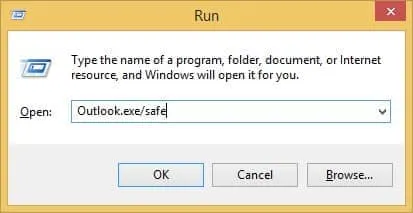
- Press Windows + R
- Type outlook.exe /safe and hit Enter
If Outlook starts up without creating any issues, then the add-ins are the main problem. To turn them off:
- Going to File > Options > Add-ins
- Selecting COM Add-ins > Go
- Users need to turn off all the fishy add-ins in Outlook when they notice them.
- Now that you’ve done this step, click Ok.
This will fix or solve the Outlook not loading problem quickly.
3: Update Outlook or Windows OS
Old software can cause problems with compatibility. Verify that Outlook or Windows systems.
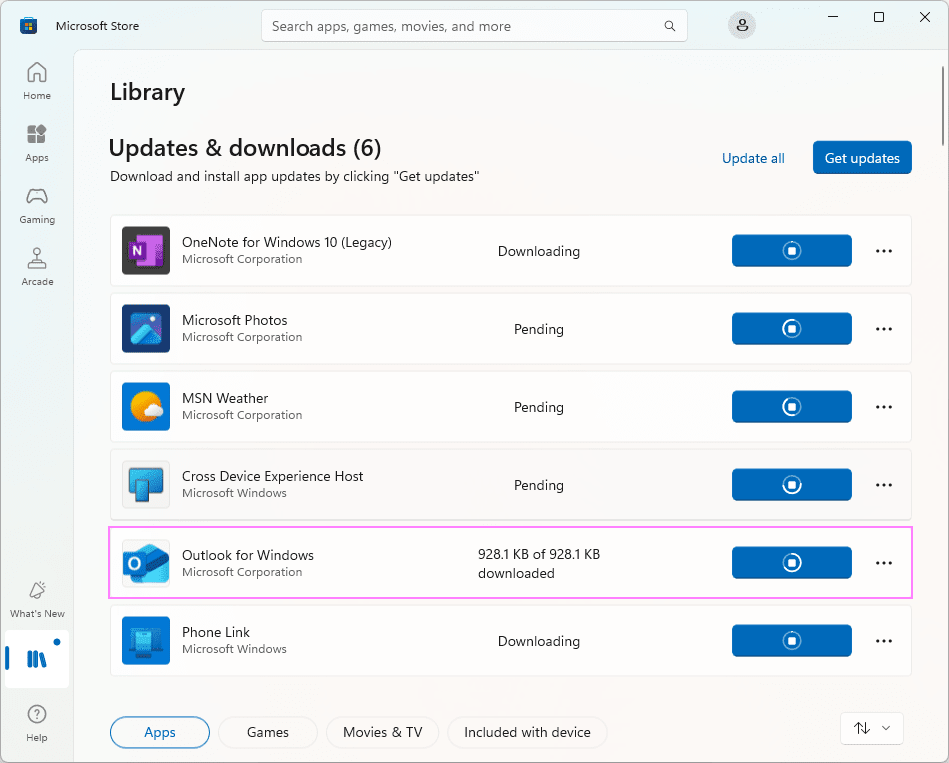
- Open Outlook and use this click: File > Office Account > Update Preferences > Update Right Away
- After that, use this key on Windows: Settings > Security & Updates> Windows Update.
Keeping everything updated, whether it’s Outlook or Windows. It can solve most Outlook not opening errors.
4: Create a New Outlook Profile
The issue of a corrupted profile can also block or stop Outlook from starting. Your current profile may be damaged. Often, the problem can be sorted out by setting up a new one without erasing any data. To create a profile in Outlook, do the following:
To create a new profile:
- Select Control Panel.
- Go to the ‘Mail’ option, then choose ‘Displayed Profiles’.
- Click Add, name your new profile.
- Set up an account or choose “use this profile.”
- After this step, Restart Outlook
Outlook not opening issues can be resolved with just this step.
5: Disable Compatibility Mode
The performance of newer versions of Outlook can be greatly affected by Compatibility Mode. If this makes Outlook won’t open, it results in poor experiences for users. Follow these steps to disable compatibility mode:
- Right-click the Outlook shortcut.
- Click Properties > Compatibility tab.
- Uncheck: Use Compatibility Mode to run this application.
- Apply or restart.
6: Repair MS Office Installation
In case of problems with Outlook, it might be a good idea to fix the whole Office. This may prove successful in managing the problem or making the Outlook program work in extreme conditions.
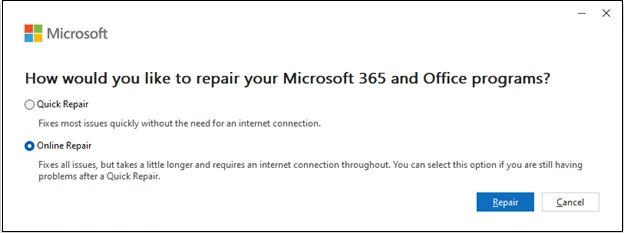
Steps:
- Go to the Settings.
- After picking ‘Apps’ and then tapping on ‘Installed Apps’.
- Find Microsoft Office, click Modify
- Choose Quick Repair or Online Repair
More serious software-related difficulties may be fixed in this way.
7: Remove the Outlook App Data folder
If your Outlook is still not opening, then the main prevalent factor is a corrupt Outlook profile. Don’t worry; in this situation, users need to go saved under the AppData folder. Deleting or renaming this folder makes Outlook build a new, clean profile. This solution can fix the problem of Outlook that is unable to open on a Windows PC.
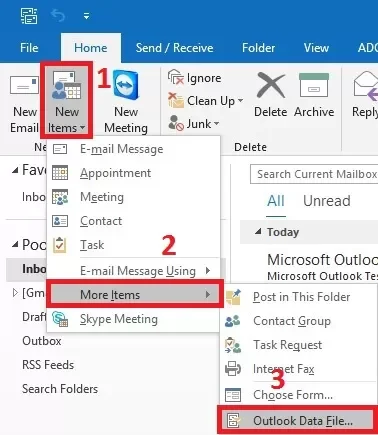
- Close Outlook: Be sure that Outlook was closed completely.
- Run dialog box: On your keyboard, press the “Windows Key + R.”
- Open AppData folder: Enter (%localappdata%\Microsoft\Outlook) in the Run dialog box and click Enter.
- Find the Outlook folder: Pick Rename with a right-click.
- Restart Outlook: Recover Outlook by closing and starting it all over again.
Outlook Still Not Opening? Try This Alternative Solution
If your Outlook is still not opening, but has a backup copy of your Outlook email, then you can use the BLR PST Repair tool. Using this pst repair tool, you can convert PST emails into various file formats, including PDF, CSV, MBOX, EML, and more. Using this tool, you can open PST file without Outlook installation or without it working.

Conclusion
Trying to get past the issues of Outlook not opening becomes so frustrating. When users fully depend on Outlook. Luckily, the vast majority of these issues can be solved through the proper troubleshooting procedures. Disabling bad add-ins, fixing a corrupted profile, or repairing damaged data files can solve Outlook not working issues on Windows 10/11. A broken, corrupted, and inaccessible PST file-related issue. We strongly suggest using these 7 quick troubleshooting fixes to resolve these issues. After using these fixes, users effortlessly recover Outlook data.