


Read time: 5 Min
Microsoft Outlook creates an OST(Offline Storage Table) file when an email account is configured with IMAP, Outlook.com, Exchange Server, or Microsoft 365. OST file allows users to access emails and other mailbox items offline when the internet connection is not available. The changes made during that period are later synchronized when the connection is established.
Sometimes users encounter the ” Outlook not able to find the OST file’ error while trying to open Outlook. This error usually occurs when Outlook is not able to locate the OST file thugs not allowing users to access emails and other mailbox data. There could be any reason, such as a Windows update, corruption in the Outlook profile, accidental deletion of the OST file, changing the location of the OST file, or a virus attack. Thankfully, there are ways to fix the issue; we will discuss all the fixes in detail in the following sections.
Common Error Messages when OST can’t Find OST File
When Outlook is not able to locate the OST file, the user may encounter one of the error messages listed below:
- Outlook cannot find the OST file.
- Outlook cannot start because the OST file is missing.
- Outlook data file cannot be accessed.
- The file is not an Outlook data file.
- Cannot open your default email folders.
Reasons Why Outlook not able to find the OST file?
Many reasons lead to Outlook not locating the OST file; some of the common reasons are:
- Deleted OST File: If the OST file is deleted by mistake or renamed by the user, Outlook finds it difficult to locate the OST file. Also, if the location of the PST file is changed, the user may encounter errors.
- Corrupt OST file: OST files might get corrupt due to virus attacks, improper system shutdown, power failure, or interruptions during synchronization. When an OST file gets corrupt, users often face OST file not found errors.
- Large OST file: Always keep a check on the size of the OST file, as if the OST file is oversized, it takes more effort to load the OST file. Sometimes Outlook can’t load a large PST file and returns an error.
- Corrupt Outlook Profile: A damaged or corrupt Outlook profile sometimes loses its connection with the OST file.
- 5: Hard Drive Problems: If the hard disk has bad sectors or the file system is corrupt, it can prevent Outlook from accessing the OST file.
Methods to fix “Outlook not able to find the OST file”
Repair OST file with ScanOST
Older versions of MS Outlook come with an inbuilt utility called ScanOST to repair a corrupt or damaged OST file. Users can use the ScanOST tool to check the integrity of the OST file and remove any errors from it. Follow the steps mentioned below to use ScanOST:
- Close Outlook.
- Find ScanOST from its location – C:\program files\common files\System\Mapi\LocaleID\scanost.exe
- Double-click on the application and scan the corrupt OST file.
ScanOST will fix minor errors in the OST file; for a severely corrupted OST file, you need to take the help of a professional OST Repair tool.
Recreate the OST file using Outlook
OST file can be recreated easily by following the steps given below; it will replace the damaged OST file.
- Close the Outlook application.
- Open Control Panel, Click Mail(Microsoft Outlook 2016).
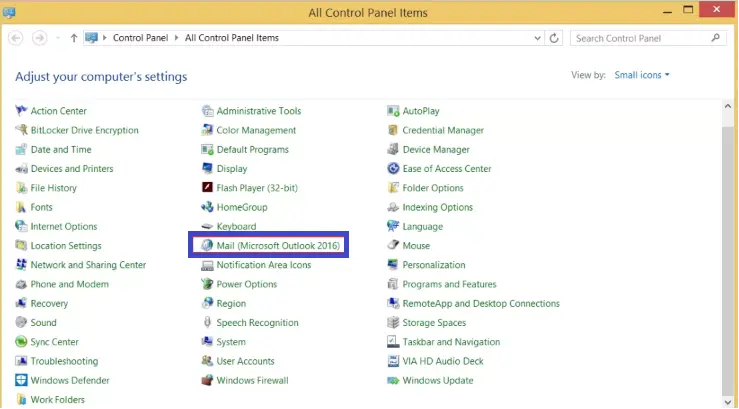
- Now click the Email Accounts.
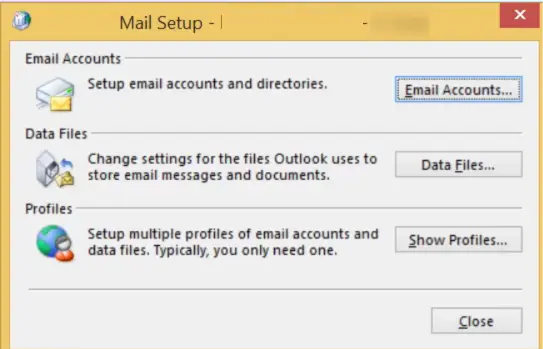
- Select the Exchange Account and click the Change button.
- Click the More Settings button.
- Go to the Advanced tab and check the option to Use Cached Exchange Mode.
- Click the Apply button.
Create a New Outlook Profile
If the Outlook profile is corrupt, users can create a new Outlook profile as follows:
- Open MS Outlook and click on File.
- Navigate to Account Settings > Manage Profiles
- Now click on the Show Profiles button under the Mail Setup window.
- Click on the Add Profile button and enter the profile name.
- Enter email credentials and click Finish.
How to Recover Data from an Inaccessible OST File
If a user needs to recover emails from an orphaned OST file and doesn’t have the option to recreate the OST file, the OST Converter tool is the only option left. BLR OST to PST Converter is one such application that helps users to recover emails and other information from a corrupt or orphaned OST file. It successfully converts an OST file to PST format that can be imported into Outlook easily. It also provides an option to convert an OST file to multiple formats such as EML, HTML, PDF, TXT, RTF, etc. Users can also directly import an OST file to Office 365, Exchange Server, or any IMAP-based email client using this tool.
Conclusion
The “Outlook cannot find the OST file” error is the result of accidental deletion of the OST file, relocating the OST file to a different location, a corrupt Outlook profile, or a damaged OST file. If the Exchange Server connection is available, you can recreate the OST file and restore Outlook to working. However, if the OST file is orphaned, you can take the help of a professional tool such as BLR OST to PST Converter Tool to recover emails and other valuable mailbox data efficiently.