

Read time: 6 Min
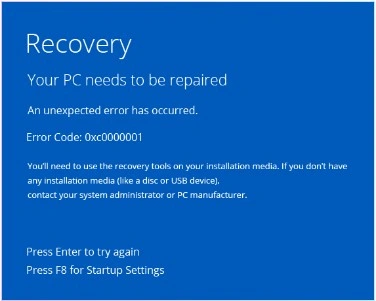
Several Windows users have complained of an error code 0xc0000001 on their PC and laptop running Windows OS. This is a serious problem and required to fix rrror code 0xc0000001, where the system cannot be booted as it displays a blue screen with this error code. This may be caused by malfunctions in system files and directories, inadequacies, faults, or breakages in the applications and/or programs, or impaired sectors in the computer hardware.
This 0xc0000001 error may lead your system into either a boot loop situation or result in complete unbootability issues. Your system, together with all your data, is placed in direct jeopardy from this very concerning error condition. Best-in-class file restoration tools enable you to retrieve essential files and documents after this critical situation. The following troubleshooting methods will help you fix error code 0xc0000001 in Windows.
Methods to Fix Error Code 0xc0000001 in Windows
Various methods can be used to fix error code 0xc0000001 in Windows operating systems. We have made a selection of a few workable methods here:
Fix 1. Run the Startup Repair process
Running Startup Repair will solve this problem if your system is not booting because of error code 0xc0000001. As soon as the Windows logo appears on the PC, turn on the Windows computer and press the Power button (repeat this three times). Windows 10 will launch the Automatic Repair environment after the third cutoff. The steps to run Startup Repair are as follows:
- Turn on your PC and wait for the Windows logo to appear.
- Now press and hold the power button to force shut down the PC.
- Repeat the process till Automatic Repair mode is enabled.
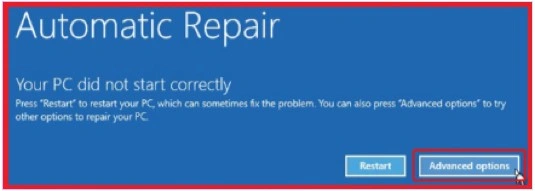
- Click the Advanced option in the Automatic Repair environment and then follow the provided instructions to do Startup Repair.
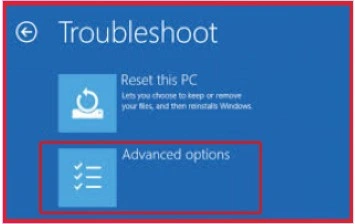
- Choose Troubleshooting.
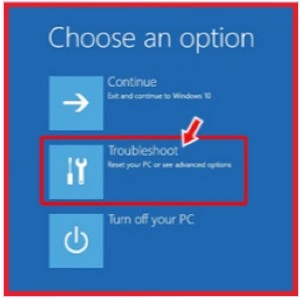
- Select Advanced Options from the screen.
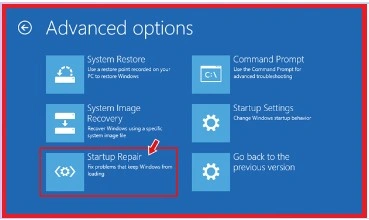
- Click “Startup Repair” and follow the instructions.
- Select the account, sort, and type the password.
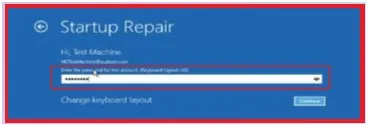
- Complete the Startup Repair process according to the screen instructions given.
- Restart the system now to see whether the problem is resolved.
Fix 2: Uninstall Faulty Programs via Safe Mode
Sometimes, malicious or corrupt third-party app/software programs might be the cause of this issue. Using the following troubleshooting methods, uninstall the troublesome program or application in Safe Mode to fix the problem:
- Using the Windows media creation tool, turn a fresh or already formatted USB device into USB installation media.
- Start system with this USB Installation medium will help.
- Hit on Repair computer and then move further.
- Follow Troubleshoot > Advanced options > Startup setting.
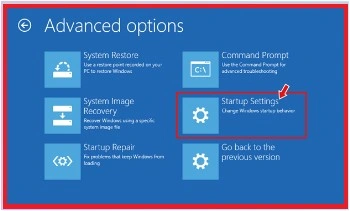
- Select Restart. Now press F4 to activate Safe Mode.
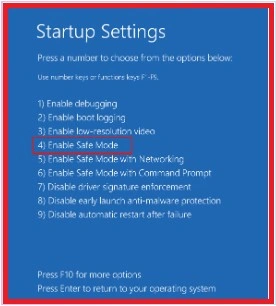
- Open Applications and Open Settings by pressing Windows + I key.
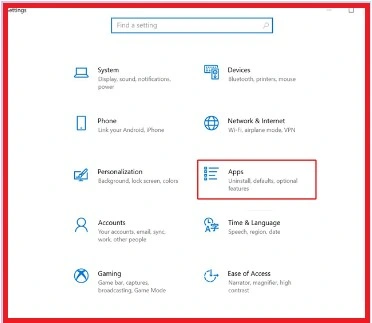
- Discover the programs/applications causing difficulty and uninstall them.
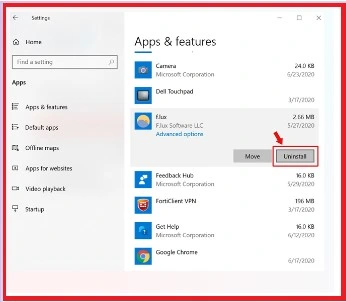
- See if the mistake is rectified by rebooting the system once more.
Fix 3: Control System via Command Prompt
A USB installation media created with the Windows Media Creation Tool can be used to adjust the BIOS settings if the user’s system is non-bootable and to ensure it boots from USB.
- Engage in automatic repair setup and continue by clicking Troubleshoot.
- Choose Advanced Options.
- Choose Command Prompt.
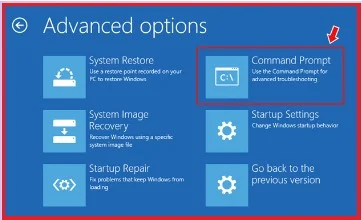
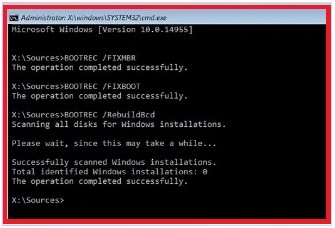
- Fix the launch mistake by entering the following commands in Command Prompt:
- bootrec /fixmbr
- bootrec /fixboot
- bootrec /rebuildbcd
Fix 4: Activate System Restore
Perform a System Restore that will help users to fix Windows error code 0xc0000001. But users can also lose all of their system data in this process. Hence, First backup data or use the best recovery wizard for lost data to restore it. Follow the offered directions to run System Restore.
- Boot system Installation media, USB, and press Repair computer.
- Visit the Automatic Repair setting and then select Advanced Options.
- Start Troubleshoot > Advanced Settings > System Restore.
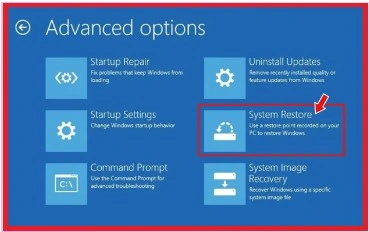
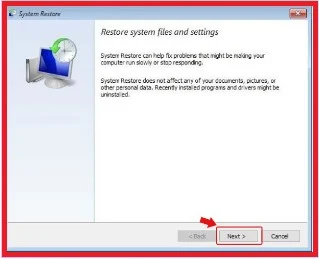
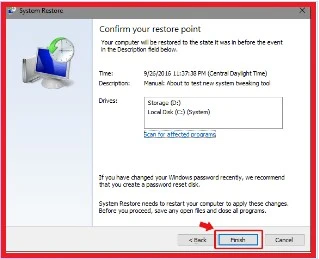
- Click Next and choose a restore point for the computer.
- Follow scans for impacted programs. If restore points are created, apps will not be available.
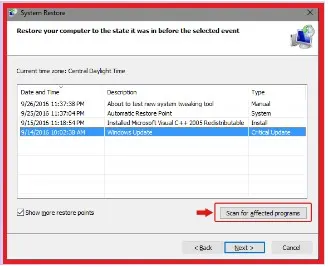
- Proceed Next > Finish. Check whether the system is free of this error once done.
Fix 5: Factory reset your PC
Windows 10 reset PC feature lets users delete applications, files, settings, programs, and drivers that are causing trouble for the system. Users may also decide to preserve files while resetting the PC using this method or delete everything kept on it. Follow these directions to reset the system:
- Use USB Installer media to boot your system.
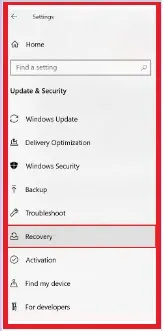
- By hitting Windows + I, access Settings and go to Update & Security.
- Click on Recover from the opened window.
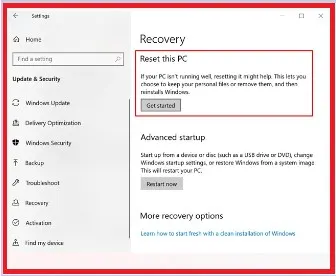
- Hit Get Started under Reset this PC.
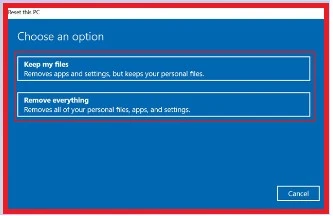
- In case the data is not so important, then hit on Remove everything, or else, choose Keep my files. This will help users to save their data.
- To erase corrupt or incorrect settings, drivers, applications, etc., it is advised to select “Remove everything” and clean up the system.
- Now hit the option ‘Just delete your files’.
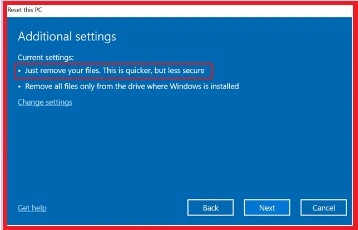
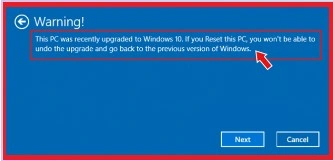
- A Warning statement on the screen should be clicked next.
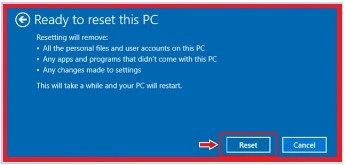
- Click Reset as directed by the prompt.
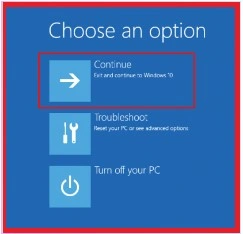
- Click “Continue.”
- Wait until the process is complete and verify if the issue has been addressed.
Fix 6: Reinstall Windows 10
Decisively, users have left one last option, which is to reinstall Windows 10, if all the aforementioned methods fail to fix error code 0xc0000001. The USB media installer user used to run Startup Repair, System Repair, Command Prompt, and Resetting the PC can also be used. Installing new Windows calls for drive formatting and generates new partitions in the system, so reinstalling Windows 10 will clean system data. If you have already retrieved vital information from the system with a great data retrieval software from BLR Tools, you can go on to reinstall Windows without any second thought about the security of your data.
Final Words
A blue screen error on Windows 10, error code 0xc0000001 could be caused by damaged system files, software/programs not working properly, hardware changes, and several other factors. Using all the proven methods listed above, Users can try to fix this error code. Still, some techniques, such as System Restore, Reset the PC, and Windows Reinstallation, completely erase the data on the system. As such, experts suggest that you first use a top data recovery software program like BLR Data Recovery Toolkit to get back Windows PC data before you decide to fix this issue. Once you have finished getting the data and safeguarding it, you can next go on to fix error code 0xc0000001.