Read time: 4 Min
Have you ever opened an Excel file expecting to see your data, only to be greeted by a blank screen? It’s a confusing and stressful situation, especially when the file contains important information. The good news is that this issue is quite common and usually not as serious as it seems.
In most cases, the problem is caused by simple settings, minor file corruption, or software conflicts. In this guide, you’ll learn the main reasons why an Excel file opens blank and the quick, step-by-step methods to fix it and recover your data.
Common Reasons Why Excel File Opens Blank
There can be various reasons for an Excel workbook opens blank after double-clicking. Here are the common scenarios;
- The Excel File Is Corrupted: File corruption is one of the most common reasons for facing the issue. If your Excel file is corrupted, then the file structure can be damaged, and you see a blank screen.
- Outdated Microsoft Excel: An outdated version of Excel may have compatibility issues, especially when opening files created in newer versions. Updating Excel to the latest version can resolve the issue.
- Incomplete Excel Installation: If Microsoft Office is not installed properly or some program files are damaged, Excel may not function correctly. Therefore, there are most likely chances that you may face the “Excel file open blank” error.
- Conflicted Add-ins: Add-ins in Excel are useful tools, but sometimes they create conflict with the application’s work. A faulty or outdated add-in can prevent the workbook from loading, resulting in a blank screen.
Here are the reasons for the Excel file not opening. Now let’s talk about the steps to fix the issue.
Quick Fixes to Resolve Excel File Opens Blank Issue
When you open an Excel file, and it shows a blank sheet even though the data exists, here are some fixes you can try to solve the issue. These solutions may work depending on the cause of the error. Try each method and see which one resolves your problem.
1. Unhide the Worksheet
Sometimes the file is not empty; it’s that the Excel sheet is just hidden. Follow the steps to check and unhide sheets:
- Open Excel.
- Right-click on any visible sheet tab at the bottom.
- Click Unhide and select the hidden file, and click OK.
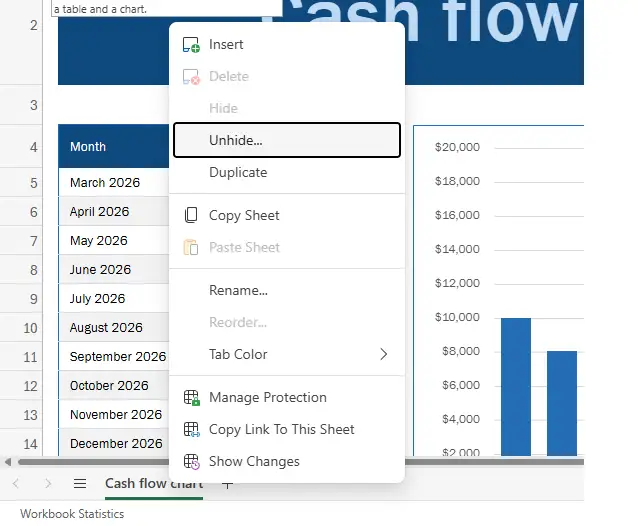
- If your data appears after unhiding, the issue is solved.
You can also go to the Home tab > Format > Hide & Unhide > Unhide Sheet.
2. Disable Add-ins in Excel
Add-ins are used to enhance the working process. However, it sometimes creates conflicts and prevents the file from opening completely. However, before that, first open the Excel in safe mode. For that, here are the steps:
- Press Windows + R.
- Type excel /safe and press Enter.
- Open your file and check if it loads correctly.
If it works in Safe Mode, then the add-in is causing the problem. Disable COM Add-ins, follow the steps;
- Click File → Options.
- Select Add-ins on the left menu.
- At the bottom, click the Manage dropdown and select Excel Add-ins or COM Add-ins.
- Click Go.
- Uncheck the box to disable it, or select the add-in and click Remove to delete it.
3. Turn Off DDE Option
Incorrect DDE settings may cause Excel to open files with a blank screen. Check out the setting by following these steps:
- Go to File → Options → Click Advanced.
- Scroll down to the General section.
- Uncheck “Ignore other applications that use Dynamic Data Exchange (DDE)”.
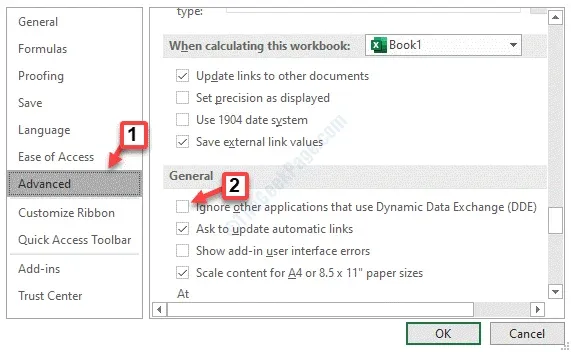
- Click OK and restart Excel.
- Now try opening your file again.
4. Use the Open and Repair Feature
Excel has a built-in repair tool that can fix minor file corruption. If you face any issue, Excel will ask you for permission to resolve the issue. Here are the steps for that.
- Open Excel → Click File → Open → Browse.
- Select the affected file.
- Click the small arrow next to the Open button.
- Choose Open and Repair.
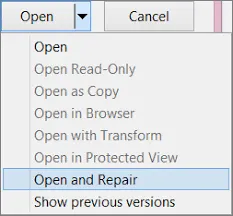
- Click Repair.
- If repair doesn’t work, try the Extract Data option.
5. Update MS Excel
An outdated Excel version sometimes causes compatibility issues, thus you face the “Excel file opens blank” issue. Here are the steps to update Excel;
- Open Excel, go to File → Account.
- Click Update Options.
- Select Update Now.
- Install any available updates.
- After updating, restart Excel and open your file again.
6. Repair Office Installation
If your Excel file is still showing no data, then you can use the repair Office tool to fix the issue. Follow the instructions:
- Open Control Panel.
- Go to Programs and Features.
- Select Microsoft Office from the list.
- Click Change.
- Choose Quick Repair (or Online Repair if needed).
- Follow the on-screen instructions.
- Once the repair process is complete, restart your system and check the file again.
If you are still facing the “Excel file opens blank” error, try out the BLR Excel Repair Tool. The tool is especially designed to handle corrupted Excel files and recover their data. Just add the corrupted Excel file and repair its data with ease. For a detailed process, try out the demo version of the software.

Points to Keep In Mind to Prevent Excel File Corruption
It is best to take steps for prevention rather than being stuck with an Excel file opens blank. Follow these tips:
- Close Excel properly after completing the work.
- Make sure there will be no sudden shutdown.
- Always make an exact copy of your data as backup.
- Update Microsoft Office on a regular basis.
- Use antivirus software to prevent file corruption
Conclusion
If your Excel file opens blank, don’t panic. In most cases, the issue is caused by minor settings, add-ins, or slight file corruption. In this post, we have discussed the best fixes to repair the worksheet so you can easily access your data again. Try the given troubleshooting methods to resolve the issue.