Read time: 4 Min
Microsoft Excel is a widely used application for storing data in tabular form to manage business data, financial records, and reporting. From time to time, MS Office provides updates for security and features. Sometimes these updates tend to cause problems and return an error, “Excel file corrupted and cannot be opened,” when you try to open an Excel file.
The good thing is that Excel has several built-in options, and there are some professional Excel repair tools available that can fix this error. Let us understand some common reasons behind the error and how to fix it step by step.
Why Excel Shows “Excel File Corrupted and Cannot be Opened” Error?
- The most common reason for Excel file corrupted and cannot be opened error is opening an older Excel file in a newer version of Excel. For example, opening an Excel 2010, 2013, 2016, 2019 file in Excel 2024.
- When you try to open an Excel file from an email attachment directly in Outlook.
Manual Methods to Fix Excel File Corrupted and Cannot Be Opened Error
Here are simple methods to fix the error and open your Excel file:
Method 1: Update Component Services
Follow the steps mentioned below to change the ‘Component Services’ settings and resolve the error.
- First of all, click ‘Win+R’ and type ‘dcomcnfg’ and press ‘Enter’.
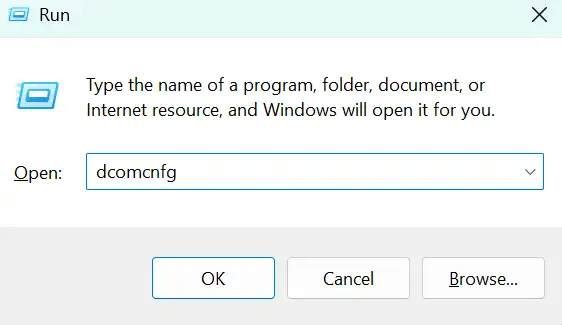
- Double-click on Component Services.
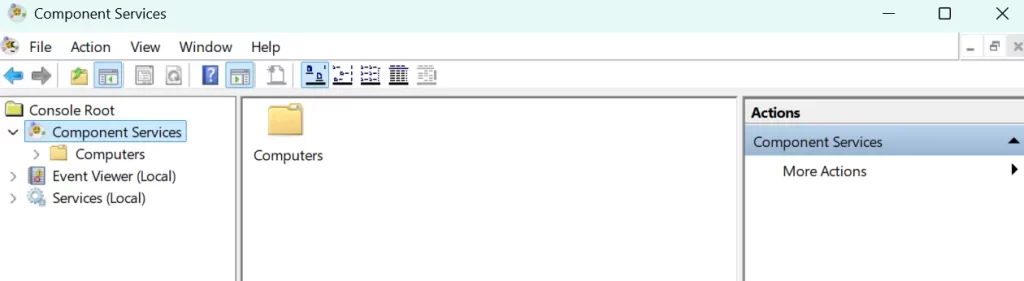
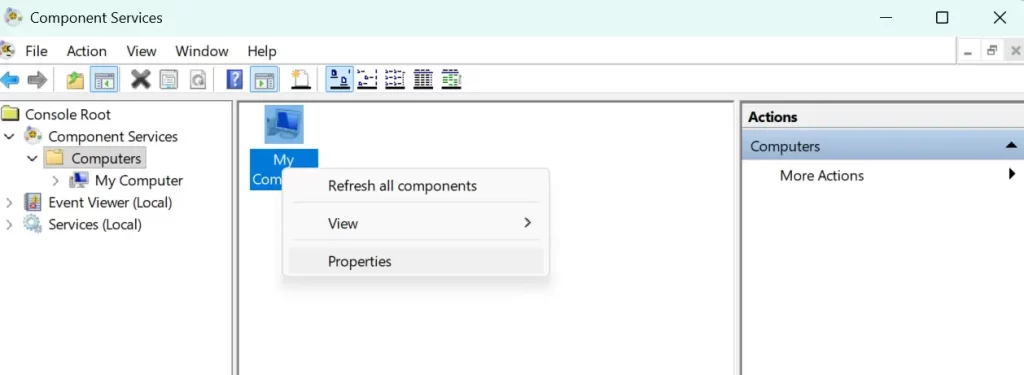
- Navigate to Computer > My Computer.
- Right-click on My Computer and click Properties.
- Click on Default Properties.
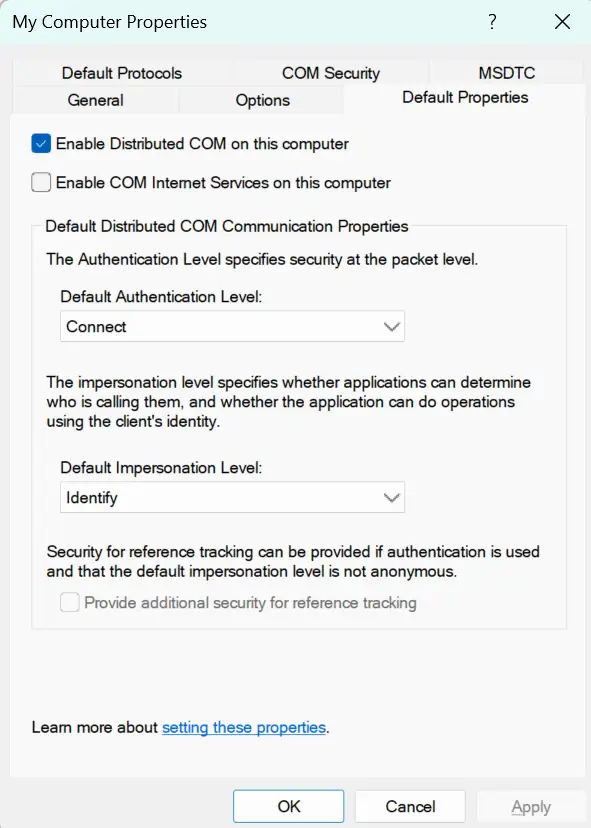
- Set the following value: Default Authentication Level: Connect and Default Impersonation Level: Identify.
- Click Ok to save.
Method 2: Enable Protected View
Sometimes the Excel file does not open due to the ‘Protected View’ setting in Microsoft Outlook. So it is advisable to change the setting by following the steps below:
- Open Excel, click on the ‘File’ menu, and click ‘Options’.
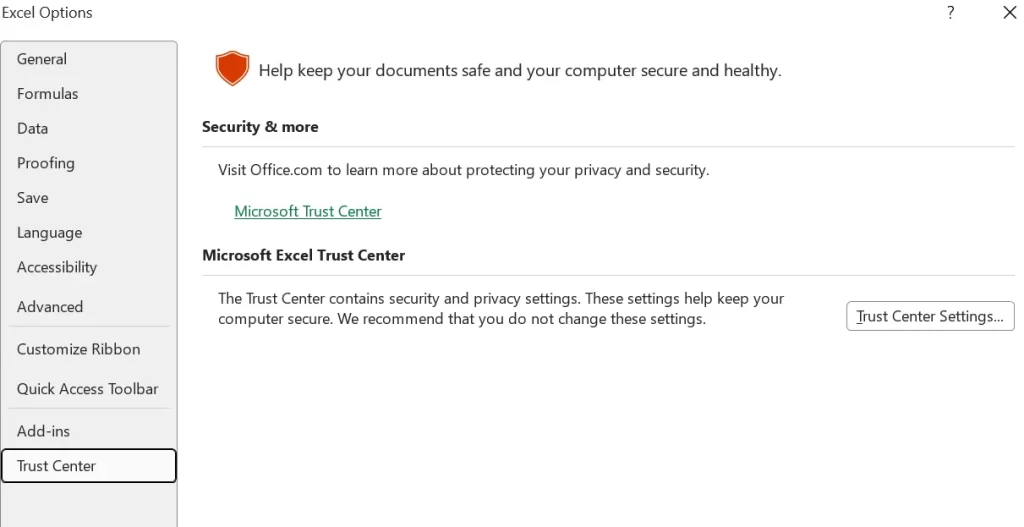
- Click on “Trust Center” and then click “Trust Center Settings“.
- Now select ‘Protected View’ and uncheck all ‘Enable Protected View’ options available.
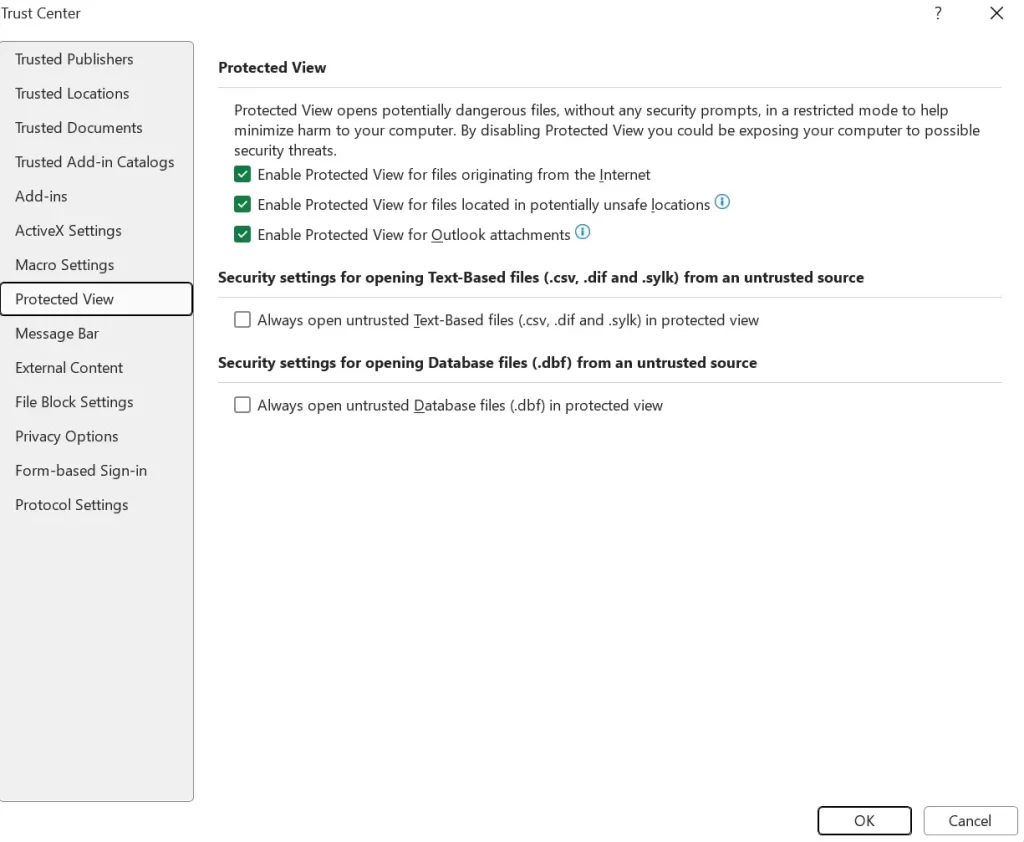
- Click on ‘OK’ to save the setting, and restart the Excel application to check if the file is accessible now.
Method 3: Professional Excel Repair Tool
Most of the times the Excel file corrupted and cannot be opened error is fixed by following the manual methods described above in the article. But if you are still unable to open the Excel file, it means your Excel file is severely damaged, and you need a professional solution to recover the data. BLR Excel Repair tool is one such powerful tool to repair corrupted, damaged, or inaccessible Excel files and recover data from them.

Conclusion
With the methods discussed in this blog, users can fix Excel file corrupted and cannot be opened error. If the problem persists even after following the manual methods, then it means your Excel file is severely damaged. You can take help from the BLR Excel Repair Tool and repair the Excel file to recover your file.