Read time: 4 Min
If you are an Outlook user and encounter the “Cannot start Microsoft Outlook” error while starting up Outlook, then you are not alone. This is one of the most common Outlook errors that prevents users from opening the application and accessing emails. This error can disrupt regular email communication and hamper productivity. There are several reasons that cause this error, such as a corrupt Outlook profile, a damaged PST file, or add-ins that are incompatible with the application. Fortunately, there are some troubleshooting methods to fix the error. In this guide, we will explore the common causes and learn the best solutions to remove the error.
Causes for the “Cannot Start Microsoft Outlook” Error
There are multiple reasons for the “Cannot start Microsoft Office Outlook” error, a few of which are listed below:
- Corrupt Outlook Profile: A corrupt Outlook profile is a result of a virus or malware attack, or an abrupt system shutdown, etc., which leads to Outlook not opening.
- Faulty Add-Ins: Third-party add-ins are used to enhance Outlook functionality, but if the add-in is incompatible with the Outlook application, it interferes with application startup.
- Corrupt PST File: Outlook stores user mailbox data, such as emails, contacts, calendars, notes, etc, in PST data files. These data files get corrupted due to various reasons such as large file size, unexpected shutdown, malware attacks, etc. A corrupt data can be the reason behind the “Cannot start Microsoft Outlook” error.
- Corrupt Microsoft Office Installation: A corrupt Microsoft Office installation might affect the Outlook files, resulting in errors during Outlook usage and displaying errors during startup.
Simple Methods to fix the “Cannot start Microsoft Outlook ” error
If you encounter a “cannot start Microsoft Office Outlook” error, you can try the methods discussed below to fix the error.
Method 1. Create New Outlook Profile
If the Outlook profile is corrupted, it can prevent the Outlook application from starting up. It is advisable to create a new Outlook profile by following the steps below:
- Open the Control Panel.
- Now, select Mail.
- Click on Show Profiles.
- Select Add and Configure the email account.
- Set the new profile as the default.
Method 2. Run Outlook in Safe Mode
When Outlook runs in safe mode, it disables all the add-ins and all other custom settings. Follow the steps to run Outlook in safe mode and check if any add-ins are interfering with Outlook.
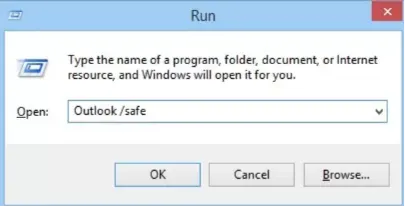
- Click the Windows+R key to open the run window.
- Type Outlook /safe and click the OK button.
- Choose the Outlook profile in the next window and click OK.
- If the Outlook application is working fine in safe mode, it means the error was caused by the add-ins.
The next step is to disable the faulty add-ins:
Steps to disable add-ins
To disable the faulty add-ins from the Outlook application, you can follow the steps mentioned here:
- Open the Outlook application and click File > Options > Add-ins.
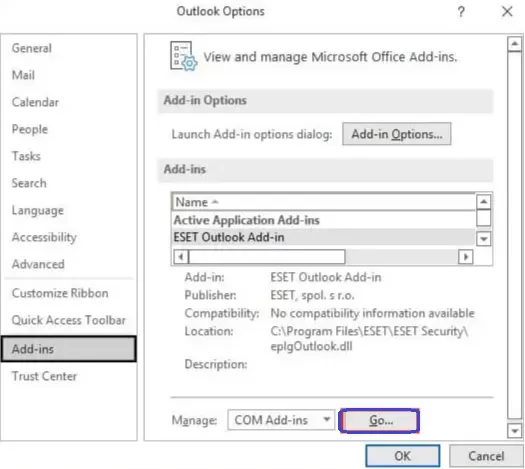
- Now select COM Add-ins from the Manage menu, and click on the Go button.
- Now, uncheck all the add-ins listed on the COM Add-ins window and click OK.
- In the final step, restart the Outlook application.
Method 3. Reduce the Size of the Outlook Data File
The Outlook not opening error might arise due to the large size of Outlook data files (OST or PST). Users can resolve the oversized Outlook PST file issue by splitting the large PST file with manual methods or by using any PST file splitter application. The manual methods to reduce the PST file include deleting unnecessary emails, removing large attachments archive old emails, etc.
Method 4. Reset Navigation Pane
If you have made any changes in the navigation pane that might be affecting the Outlook configuration settings, resetting the navigation pane can resolve the issue. To reset the navigation pane, close the Outlook application and follow the steps:
- Open the Run dialog box by clicking Windows+R keys.
- Now, type the command outlook.exe /resetnavpane and press Enter.
Method 5. Repair Outlook Data file
The Outlook data file, i.e., the PST file, stores user mailbox information such as emails, contacts, attachments, notes, etc. The PST file can become corrupted due to virus attacks, abrupt system shutdowns, or when the PST file is too large. A corrupt Outlook PST file can stop Outlook from launching properly, freeze the application, or cause frequent shutdowns. If the PST file is corrupt, you can encounter the “Cannot Start Microsoft Outlook” error. In such cases, using a professional tool like BLR PST Repair Tool can help by repairing the PST file and recovering the mailbox data.

Conclusion
The “Cannot start Microsoft Outlook” error can occur due to profile corruption, faulty add-ins, damaged Outlook data files, or issues with the Office installation. Fortunately, most users can resolve the problem by resetting the navigation pane, creating a new Outlook profile, repairing PST files, or repairing Microsoft Office. Following the troubleshooting methods discussed above can help restore Outlook to normal and prevent similar startup issues in the future.