Read time: 6 Min
BitLocker is an inbuilt feature of Windows that encrypts the drive and keeps user data safe. When BitLocker is enabled, unauthorized access to the drive is restricted, and the data cannot be accessed. However, users sometimes encounter issues with BitLocker, such as being prompted for the BitLocker recovery key on every boot. The BitLocker asking for recovery key every boot issue can occur due to hardware modifications or firmware updates. Let us learn some troubleshooting tips that help to stop BitLocker from asking for a recovery key on every boot.
Why is BitLocker Asking for Recovery Key Every Boot?
BitLocker monitors the security changes regularly, and if any unexpected modification is detected, verification is required through the system key. Some common reasons for BitLocker asking for a recovery key every boot are:
- BIOS or UEFI Settings Changes: If any of the boot settings, like Boot Order, Secure Boot, or TPM configuration changes, BitLocker interprets this as a risk and asks for the recovery key.
- TPM (Trusted Platform Module) Issues: The BitLocker encryption key is stored in TPM hardware. If the TPM is disabled or reset, manual authentication is required by BitLocker.
- Hardware Changes: Whenever new hardware, like a USB or external hard drive, is connected, BitLocker asks for authentication via a recovery key.
- Windows Updates or Firmware Updates: For updating Windows or updating the firmware, the recovery key needs to be entered.
- Entering Incorrect PIN: When you enter the wrong recovery key too many times, the system moves into recovery mode.

How to Fix BitLocker Recovery Key Asking Every Boot
Here are the common troubleshooting tips that can help resolve the problem:
Method 1. Stop and Restart BitLocker Protection
Sometimes disabling BitLocker and enabling it against itself solves the problem. Follow the steps below to stop and restart BitLocker protection:
Steps
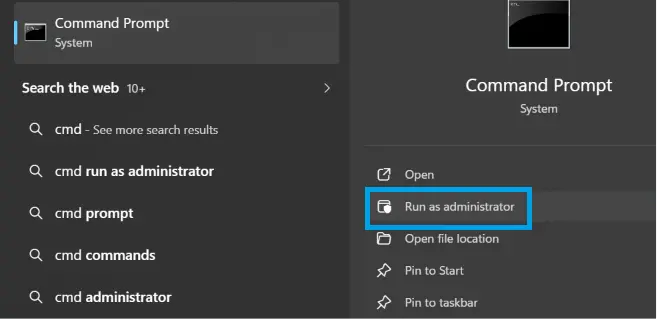
- Open the Start Menu and search for Command Prompt.
- Run as Administrator.
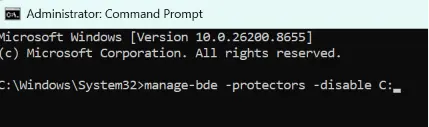
- Enter the following command: manage-bde -protectors -disable C:
- Restart the computer.
- Now enable BitLocker again using the command: manage-bde -protectors -enable C:
This refreshes BitLocker protection and may stop the recovery key prompt.
Method 2. Temporarily Disable BitLocker Encryption
- Search and open the “Control Panel”.
- Click on the option “Suspend Protection” to turn off the BitLocker encryption.
- Now the dialogue box opens up, asking to accept the changes. Hit on “Yes.”
- Wait for the moment to turn it off after clicking on the yes option. Once it is complete, then turn it back on to update the BitLocker TPM.
Method 3. Disabling the Auto Unlock feature
Windows includes the auto-lock option by default. Turn this off to avoid inputting the recovery key every time Windows locks you out.
- Open Control Panel.
- Select Device Encryption.
- Now, choose the option “turn off auto-unlock“,
- Restart the PC to make sure the modification is applied perfectly.
Method 4. Enable secure boot in BIOS
Enabling secure boot will allow users to start the system without entering the recovery key.
- Open BitLocker and press the “Esc” key on your keyboard.
- On the right-hand corner menu, select “Skip this drive”.
- So, now select “Troubleshoot.”
- Under the “Troubleshoot” panel, select “Advanced Options“.
- Now, choose “UEFI Firmware Settings,” then “Restart.”
- The UEFI box will now open; select “Security.”
- So further, under “Secure Boot,” hit “Change Configuration.”
- Select the option “Microsoft Only” and click “OK.”
- Now, hit “Exit” and restart your PC.
By following the steps and methods above, the problem of how to fix the BitLocker recovery key asks every boot, and how to fix it every time Windows OS asks for the BitLocker key and pins on every new start and restart of the pc.
Method 5. Update BIOS or Firmware
The BIOS is probably the main reason behind this repeated request for a BitLocker recovery key. Follow the steps for BIOS update:
- Check the model of your motherboard.
- Visit the official website of the manufacturer.
- Download the latest BIOS update.
- Install the update and restart the computer
Method 6. Use legacy boot
Employing a classic boot enables the user to render BitLocker to ask for the recovery key. undefined
- Click on the ‘cmd’ magnifying glass icon and type it.
- Next, select “Run as administrator”.
- Start the Command Prompt as an administrator.
- You need to type “bcdedit /set {default} bootmenupolicy legacy” and press the “Enter” key.
Note: In case the recovery key is not available, you can try the BLR BitLocker Data Recovery tool to retrieve the lost data from a BitLocker-encrypted drive that is formatted. Format is the very last option left when the BitLocker recovery key asks for a password on every boot or PIN on the encrypted BitLocker drive.
Conclusion
BitLocker is an important feature that secures data using a drive encryption method. However, due to reasons like configuration changes or system updates, users may face the issue of BitLocker asking for a recovery key every boot. Most of the time, this error is solved by disabling and enabling BitLocker protection, but sometimes you have to make extra efforts by updating the BIOS, enabling Secure Boot, or fixing TPM settings.